


Learning how to upload documents to a CMS starts with a few simple steps.
The exact steps depend on the CMS. But the workflow stays much the same in WordPress, HubSpot, or another platform.
For content teams, the process often begins in Google Docs. That’s convenient, but it can also create extra work. After you upload the document, headings may change, lists may lose their formatting, and links may stop working. Even a polished draft can need manual fixes before it’s ready to publish.
Wordable removes most of that manual work. It imports Google Docs into your CMS while preserving headings, lists, images, links, and other formatting. Your team no longer has to fix the same issues after every upload. Instead, you can move from draft to published post with a cleaner workflow.
In this guide, you’ll learn how to prepare documents, avoid common formatting issues, choose the right upload method, and publish with less cleanup.
A document can look perfect in one editor and look different after you upload it to a CMS. That’s because each editor stores and reads formatting in its own way.
During the import, the CMS tries to translate that formatting into its own editor. Some parts come through clean. Others shift, shrink, or disappear.
Google Docs, Microsoft Word, and rich text editors all use different formatting structures behind the scenes. Even when two documents look identical, the code that creates headings, lists, tables, or spacing may be different.
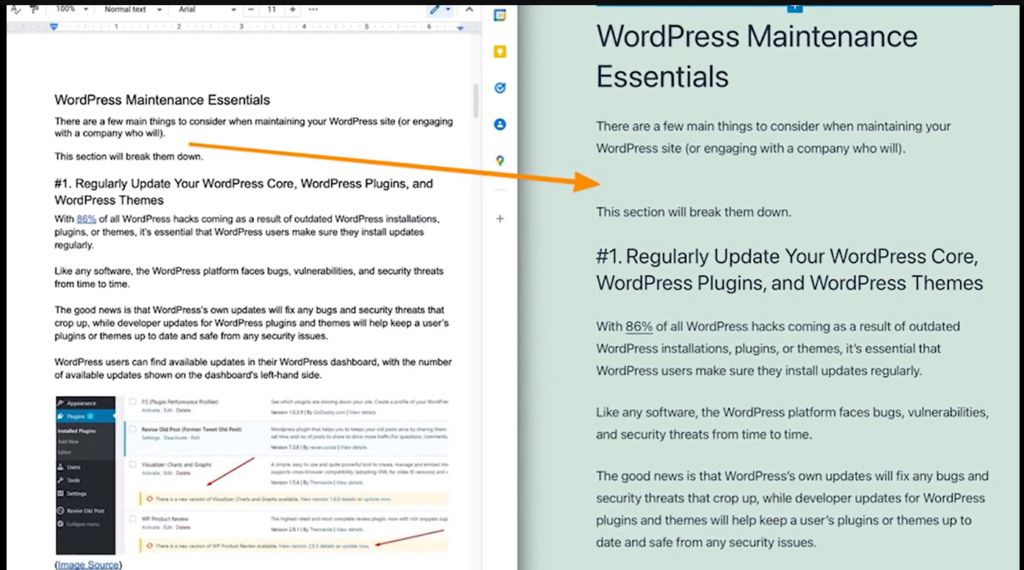
When a CMS imports the document, it has to interpret those formatting rules. If it doesn’t recognize part of the structure, it replaces it or removes it. For example, a table created in Microsoft Word may lose its borders after it’s imported into a CMS. Spacing works the same way. A single line break in Google Docs may turn into an empty block in WordPress. Fonts are another common issue. If your CMS theme doesn’t include a font, it shows a default one instead.
The exact formatting changes depend on both the document and the CMS. Some editors support more formatting options than others. So certain elements may not transfer as intended. Before publishing, check these areas:
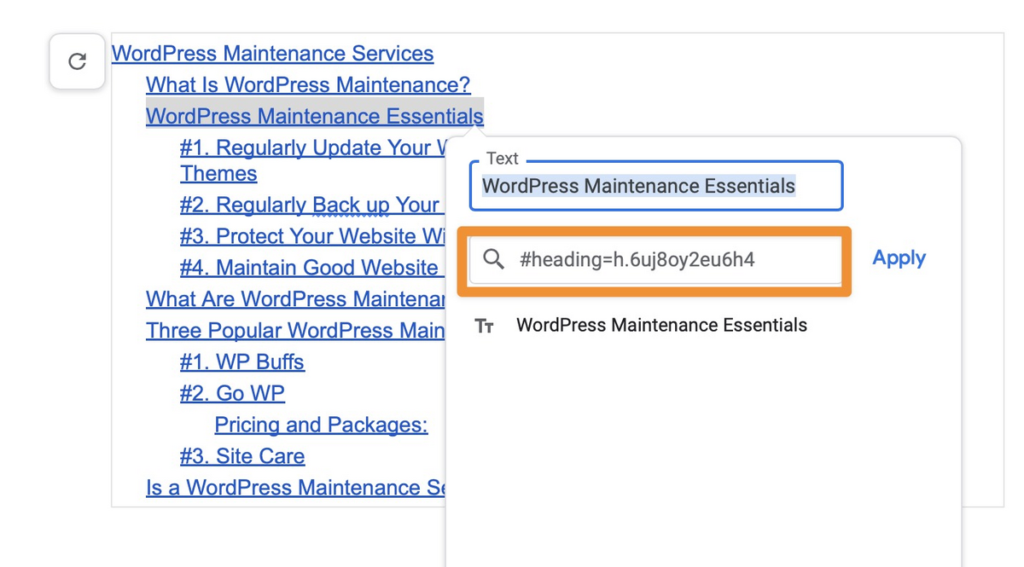
For example, an article that looked clean in Google Docs may need several edits after it’s imported into a CMS. Editors often have to restore heading levels, fix list formatting, and remove unwanted spacing before the page is ready to publish. The more complex the document, the more cleanup it tends to need. A short post with plain text may only need a quick check. A long guide with tables, images, and code can take much longer to fix.
Most CMS platforms let you upload or import documents in just a few steps. The real challenge is making sure your content looks the way you intended after the import.
Here’s how to upload documents to a CMS without losing your formatting.
Taking a few minutes to prepare your document before importing it into a CMS can save time later. A clean document is easier for the CMS to interpret. And it helps reduce formatting issues after the upload. Think of it like packing before a move. The less clutter you bring, the less you have to sort out on the other side.
Before you upload your document, check that the formatting is consistent throughout. Focus on these areas:
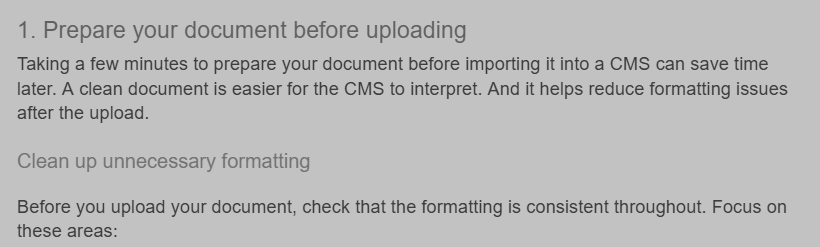
Screenshot provided by author
These small changes help your CMS interpret the document with fewer formatting problems. For example, replacing manual spacing with proper paragraph breaks often prevents unwanted gaps after import. Built-in heading styles also help with SEO and accessibility. Search engines and screen readers both rely on a clear heading order. That same clean structure helps if you later publish the document as an online flipbook, since clear headings and page breaks make it easier to read page by page.
You should also review media and links before uploading the document. Check that:
For instance, fixing a broken internal link before importing the document is much easier than finding it after the article has been published. It also helps to check image sizes. Large image files can slow down the page, so compress them before you upload when you can.
There isn’t one upload method that works for every document or CMS. The right choice depends on how you created your content and how much formatting you need to keep. It also depends on how much editing you want to do by hand after the import. Most teams choose between two main options. They paste the content into the editor, or they use a tool that imports the document for them.
Copying and pasting content into WordPress or other CMS tools is the simplest option. It works well when your document uses basic formatting. It’s a good fit for short articles, announcements, or pages with standard headings and lists.
The tradeoff is that formatting doesn’t always transfer as expected. Tables, images, spacing, and other elements may need manual fixes after pasting the content. For example, a simple company update may need little or no cleanup. But a long guide with tables and several images can take much longer to clean up. Pasting from Google Docs can also bring hidden code into the post, such as inline styles and extra span tags. You may need to open the HTML or code view to remove it.
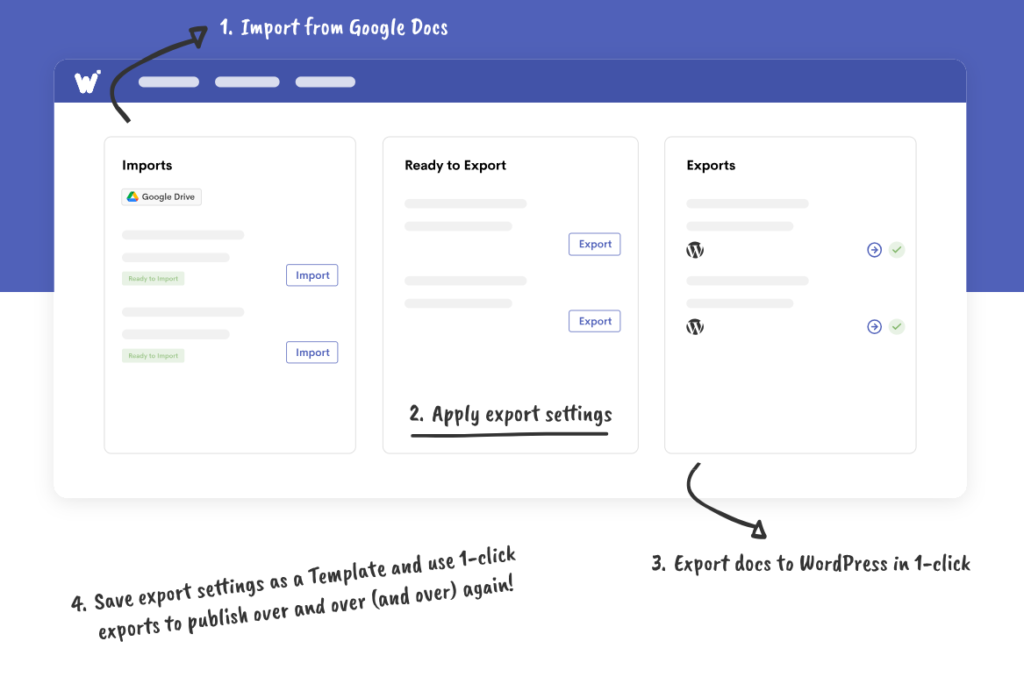
If your team publishes from Google Docs on a regular basis, an automation tool can reduce repetitive work. Wordable imports content into Medium, WordPress, and HubSpot while preserving more of the original document. This is useful for teams that publish many posts each month. Writers and editors can keep working in Google Docs. The post then arrives in the CMS ready for a final review.
With Wordable, you can:
Before you publish, preview the page in your CMS and check for any changes from the import. Use this checklist to catch problems before readers see them:
Uploading a document to a CMS is only part of the process. The real goal is to make sure your content looks the way you intended once it reaches the editor.
Since every CMS handles formatting in its own way, small changes can happen during the import. Preparing your document, choosing the right upload method, and reviewing the page before you publish can help prevent those issues. A short checklist for each step makes the process easy to repeat across your team.
Every content team has its own publishing process. If yours includes Google Docs and a CMS like WordPress or HubSpot, explore Wordable to see if it fits your workflow.
Yes, some CMS platforms support direct imports from Google Docs. Others require you to copy and paste the content or use an integration.
The available options depend on your CMS, so check which import methods it supports before you publish. If your team uses more than one CMS, check each one, since the options can differ.
Each editor stores and interprets formatting in its own way. When your CMS imports a document, it converts that formatting into its own structure. During that process, headings, lists, tables, images, spacing, and other elements may change. Checking the page in preview mode before you publish helps you catch those changes.
That depends on your content workflow. Copying and pasting works well for simple documents, while Google Docs imports can preserve more formatting. If you publish from Google Docs on a regular basis, an automation tool such as Wordable can help reduce manual formatting work.