


There’s an art to managing a remote team well.
To create that “flow,” you need efficient processes, a clear communication plan, and a way to continue to establish trust and rapport. And, of course, this all needs to happen online.
I’ve worked on several successful remote teams, and I currently manage my own. In this guide, I’m sharing what I’ve found works the best when managing virtually any kind of remote team. Pun intended.
Keep reading for a no-BS guide on how to manage a remote team in 2026. 👇
A 2025 Statista survey reports that 56% of employees in the United States feel a sense of well-being from the company they work for.
This shows how important it is to take the time to know who your remote employees are, what they specialize in, and how they prefer to work.
Document each remote team member’s:
For example, one of my remote team members is based in Wales and prefers an early-morning schedule. Another works in Montana and prefers the afternoon. Knowing these details helps me schedule better times for team meetings and task assignments each week.
Sign up for a subscription to project management software. This’ll be your team’s main hub when working remotely.
Features like Kanban Boards, story systems, and task management tools help your team see what’s in progress, what’s done, and who owns what.
(My team mostly works in Google Workspace. But I’ve also worked on teams that’ve used ClickUp, Asana, monday.com, and Basecamp. Each of these has pros and cons, so sign up for free trials to see which setup you like best!)
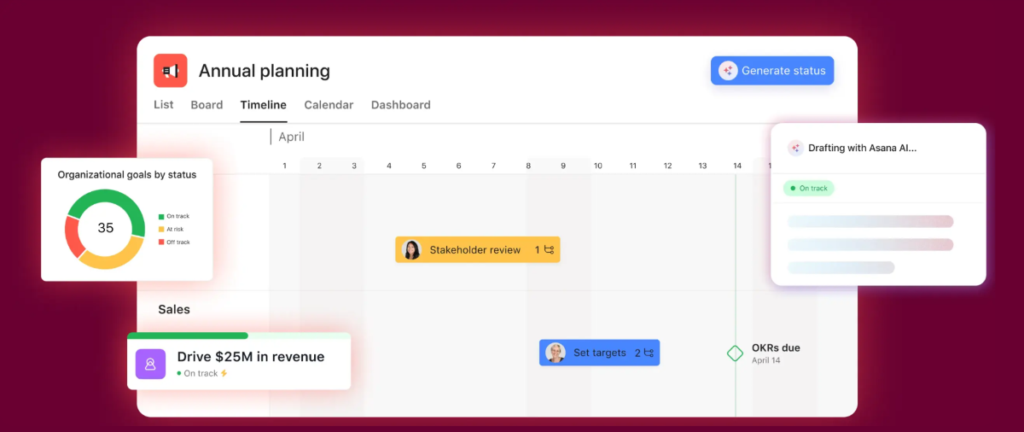
Use your project management tool to:
You can also use your project management tool to automate workflows. Now your remote workers can work and collaborate like a well-oiled machine.
Add Standard Operating Procedures (SOPs) to your team’s shared Google Drive or to your Work OS.
These are documents that explain to your remote employees exactly how to perform tasks. For example, your HR employees may need access to your What Is a People Strategy? SOP. This would outline your HR function’s plan for attracting and retaining employees.
Make sure to include SOPs for:
When SOPs are clear, you minimize miscommunication and give your team the confidence to work independently.
*Pro-Tip: Use a tool like Trainual or Loom to film short training videos. Paste these videos into your SOP docs, so your team also has a visual reference for each process.
Add a point of contact list and a communication SOP to your shared Google Drive or to your Work OS. (So everyone knows who to reach for what.)
In the contact list, include team members’ names and roles, contact methods, when to contact them, and how to contact them.
In your communication SOP, set clear standards and guidelines for:
For example:
Share how to access and use remote tools during onboarding. (Do this when you get or switch to a new tool, too.)
Some remote teams use a password vault. Others have team members create their own logins and passwords for each tool. I prefer the second option because once an employee is locked out of a password vault, it can sometimes be impossible to regain access.
You’ll also need to decide if some tools are off limits to some team members. And which features to turn on and off depending on the team member’s role. (E.g., Your operations manager will need access to create streamlined workflows. But your account manager may only need access to your client portal and task cards.)
As for tools, choose the software that best supports your team. Again, you’ll need a dedicated Work OS, like Asana. And most likely Slack, email, and a video conferencing tool, like Google Meet.
Here are some other tools to consider:
If you run a sales team or need to find ways to motivate your team, consider using employee engagement tools, like Blink.
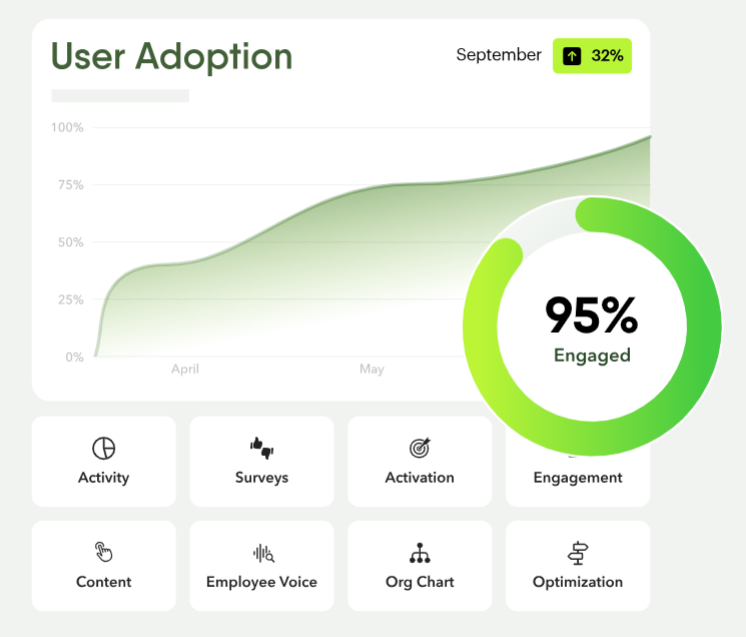
These offer performance tracking, feedback surveys, and employee recognition features.
If you run a design, ads, or marketing team, give your team members access to content creation tools. For example, for ad and marketing teams, grant access to design tools such as Adobe InDesign or Canva.
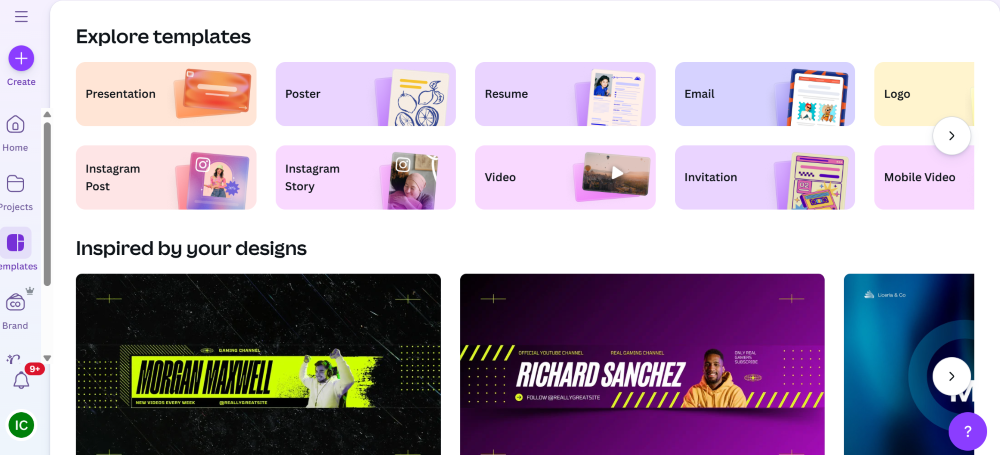
(Image provided by Ioana)
For SEO content teams, give access to semantic SEO tools like Frase, editing software like Writer, and publishing software like Wordable.
If you run a hybrid team or want to offerco-working options to local team members, consider using desk booking software. Your team members can use it to book a desk at any co-working or flex office you’ve partnered with.
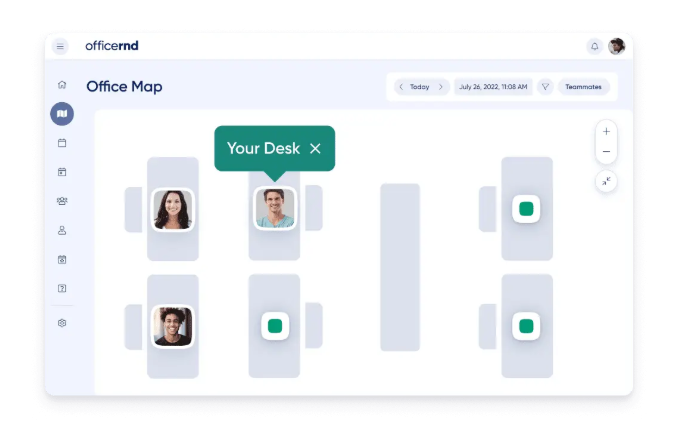
(If you want to reduce social isolation and support in-person connection when possible, this one’s a great tool to try.)
If you work with highly sensitive information, consider offering VPN access.
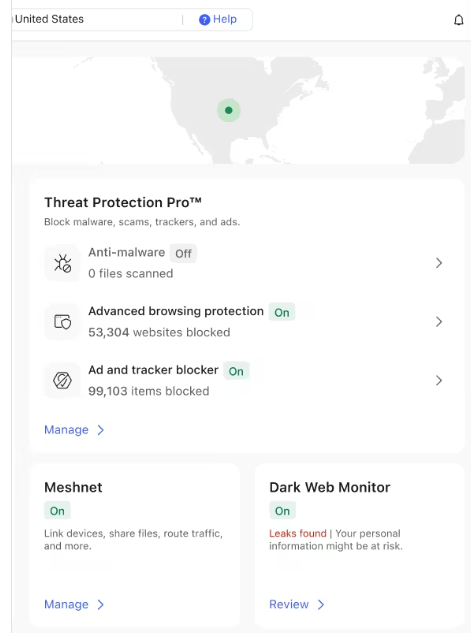
A VPN, or Virtual Private Network, helps protect your team’s data when working from home, co-working spaces, or public Wi-Fi. It encrypts connections, supports privacy protection, and reduces the risk of unauthorized access to company systems.
Make sure to also decide which specialty tools your team members need.
For example, if you work with accountants, they’ll need access to your bookkeeping tools, like QuickBooks. If you work with DevOps engineers, they’ll need access to Cloud services, like Atlantic.Net.
Your goal is to make sure each team member has the tools they need to thrive. Note: Remember to train your remote team on how to use your tools. Send them SOPs and quick Loom videos during onboarding so they’ll know exactly what to do on day one.
Use asynchronous communication when possible.
If you’re leading remote employees in different time zones, their schedules will vary. Unless remote managers host multiple meeting times, you’ll likely have employees who are forced to attend at times that conflict with their schedules. Or their sleep!
(In fact, a QEII Centre 2024 report found that 55% of people don’t focus fully during online video calls.)
In other words, constant synchronous meetings can drain energy, which lowers productivity.
Instead of regular meetings, rely on:
I say: Reserve synchronous meetings for decisions, brainstorming, or urgent issues.
Build meaningful connections and a positive culture on purpose. Remote teams don’t get hallway chats or spontaneous lunch breaks, so you need to create intentional moments for people to connect without disrupting their work.
Virtual coffee breaks and a group watercooler chat are a great place to start. (I’ve participated in these on both small and large remote teams.)
If you want to kick it up a notch, try virtual team-building activities, too. They have anything you could think of now, like virtual escape rooms and murder mystery games.
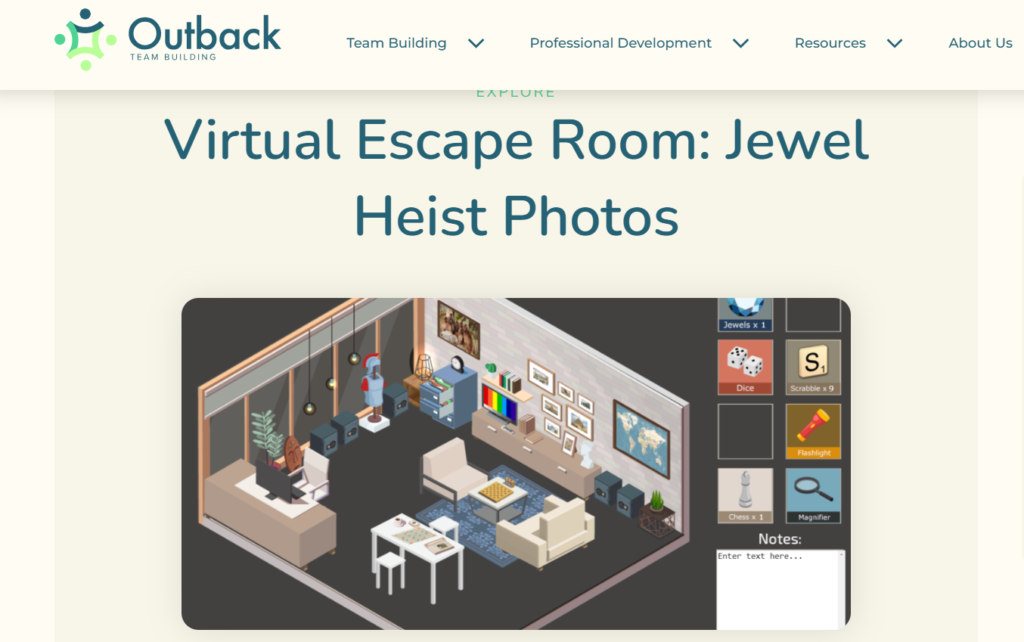
Here are some more ways to build connections on a remote team.
Open your sync meetings with a short, informal check-in before jumping into the agenda. Try a simple question, a quick update, or a light prompt. Like, “Try any good coffee this weekend?” Seriously, our chat about Vietnamese coffee went on for a while …
Check-ins help people transition into the meeting, especially when they’re joining from different time zones or jumping between tasks.
Share recognition in team channels where everyone can see it. Public recognition reinforces what good work looks like and helps remote employees feel visible.
Create dedicated spaces for non-work conversation so people can connect without interrupting workflows. Keep these spaces optional and easy to participate in. E.g., Try a Donut Watercooler chat. 🍩
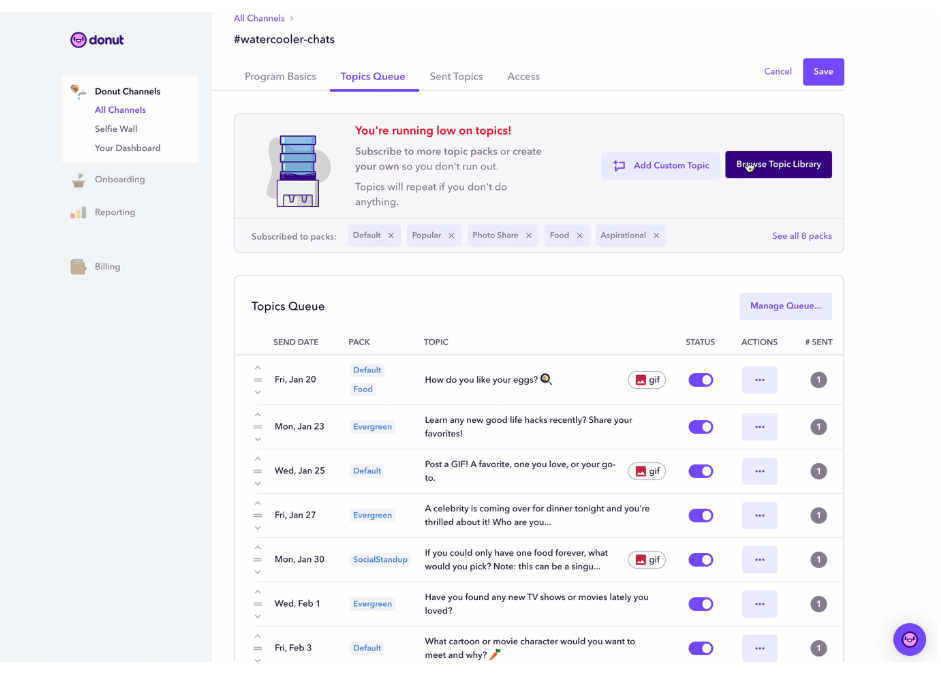
Call out launches, project completions, anniversaries, and meaningful progress — even if the win feels small. Remote work can blur your time together. Celebrating milestones gives your team a sense of momentum and closure, which can help maintain motivation and focus over the long term.
Managing a remote team works well when everyone knows what to do, how to do it, and who to reach out to.
Remember to: Pick tools that help your team get work done, map out clear processes, communicate in ways that make sense to your people, and intentionally keep building trust. When your team feels supported and in the loop, remote work just flows.
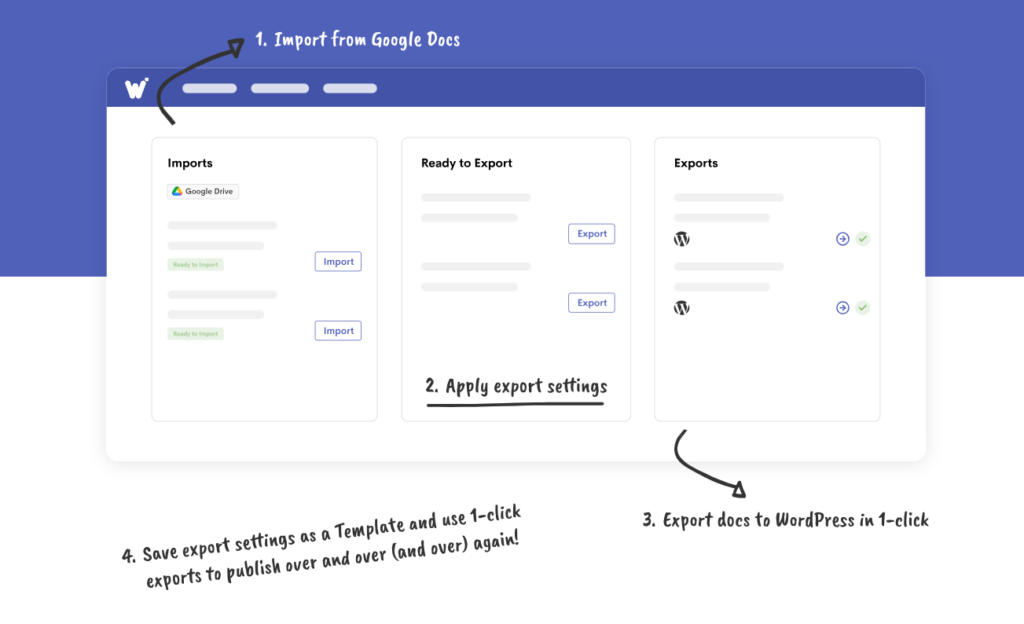
Psst … If you’re growing a remote content team and want to tighten your workflows, try Wordable. It can help you publish blog posts from Google Docs to WordPress in seconds!
The hardest part is creating smooth workflows and collaborations. You need clear processes, documented workflows, and a place where everyone can check progress. If everything’s visible, you don’t have to hover to know things are moving.
Don’t try to force everyone to work at the same time. Use asynchronous updates (project boards, shared docs, or recorded videos) so people can contribute when it works for them.
Less is usually more. Monthly check-ins are usually enough if updates live in your project tools.
Too many meetings interrupt focus and make people feel drained. Only meet when there’s a real purpose, and you’ll notice people show up more prepared and engaged.
Make sure everyone knows what’s expected. Give them the tools to do their job and celebrate wins (big or small). Casual channels and public recognition go a long way, too. Little moments of connection keep people motivated.
Trust grows when you’re consistent. Communicate expectations and focus on results instead of micromanaging hours. Treat people like adults. (They’ll step up, and you’ll spend less energy chasing updates.)
Start with the essentials: A project management tool, a communication platform, and shared docs. Then layer on anything special your team needs.
Normalize offline time, and lean on asynchronous communication when you can. Constant meetings, pings, and “urgent” messages burn people out.
To manage your remote environment efficiently, you need standardized operating procedures and workflows. Make sure each team member knows how to use these properly so they can thrive and complete their work correctly. Write these in Google Docs and store them in Google Drive or add them to your Work OS.