


Picture this. You’re working on a report in Google Docs, juggling charts, citations, and edits from three teammates. The work feels endless. And every small task steals time from what really matters: Creating great content.
That’s where Google Docs add-ons come in. These tools turn an ordinary document into a powerful workspace. You can track citations, build visuals, translate text, or even publish straight to your website.
All without leaving your doc.
Whether you’re a student, marketer, or team lead, the right add-ons help you write faster and smarter. They automate the boring parts of work and let you focus on ideas instead of formatting. In this guide, you’ll discover the best add-ons to boost your workflow and save hours of manual effort.
Google Docs add-ons have come a long way. They’re built to help teams work faster, stay organized, and get more done inside the Google Workspace.
These tools create one workspace where you can write, edit, and share ideas without switching apps. Teams can edit together in real time and keep all their data consistent.
According to a Forrester study commissioned by Google, improved collaboration through Google Workspace tools can boost team efficiency by up to 30%. It can also help users save about 1.5 hours per week. That’s a big win for businesses looking to reduce repetitive work.
Some add-ons help polish your writing, while others let you generate decision trees or create mind maps right inside your document. They provide you with all the features you need to save time on formatting, editing, and sharing files.
As Google continues to improve its Workspace ecosystem, add-ons will play an even bigger role in how people work. They’re not only there to help you save time. But they help you discover a smarter and more creative way to get things done together.
If you’re new to Google Docs add-ons, getting started is simple. Here’s how to find, install, and manage them.
You can explore hundreds of add-ons through the Google Workspace Marketplace. Follow these steps.
★ Step 1: Open Google Docs.
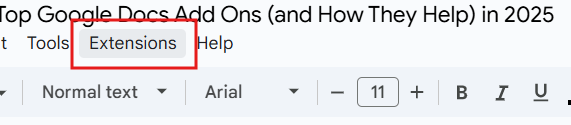
★ Step 2: Click “Extensions” on the top menu.
Screenshot provided by the author
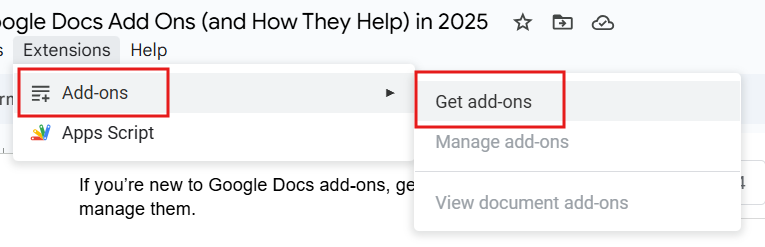
★ Step 3: Select “Add-ons”. Then go to “get add-ons”.
Screenshot provided by the author
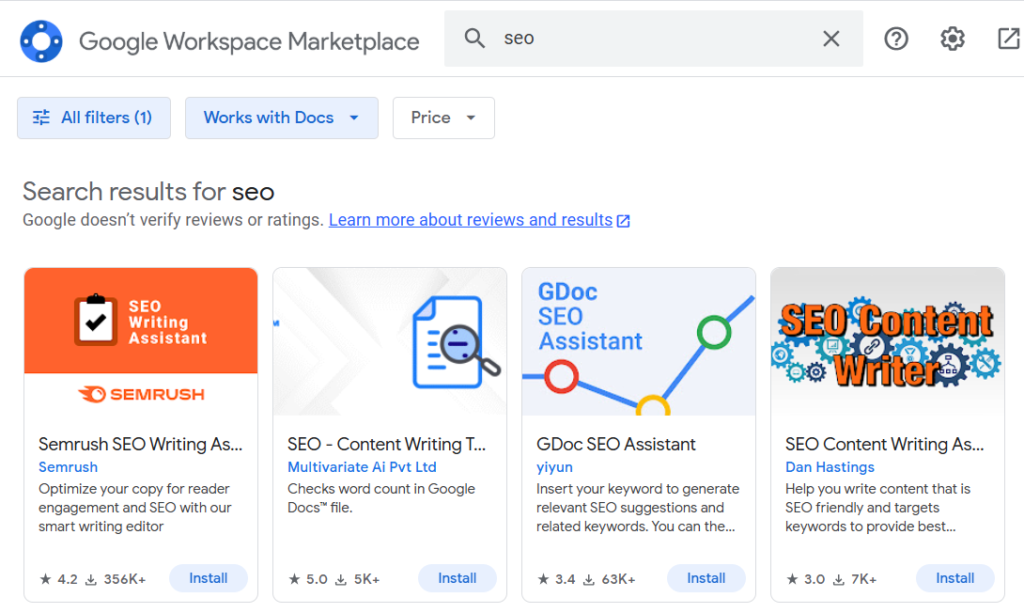
From there, use the search bar to find specific tools by name or category. Before installing, always check user reviews, update history, and the privacy policy.
Screenshot provided by the author
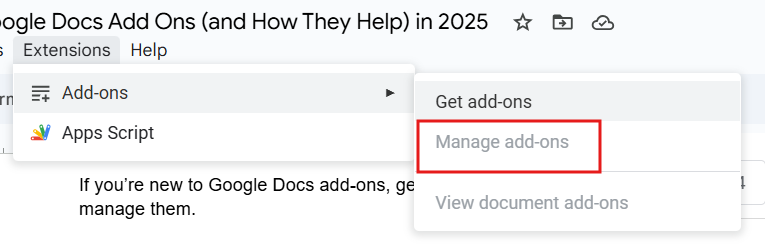
To manage add-ons, go to the “Extensions” menu. Select “Add-ons” and click “Manage add-ons”.
Screenshot provided by the author
From there, you can select the tools you’d like to remove, manage, or update access for.
Below are 11 of the most useful and updated Google Docs tools to try this year. You’ll find add-ons that enhance productivity, creativity, or collaboration inside the Google Workspace.
Best for: Writers, editors, and students who want to improve word choice and creativity.
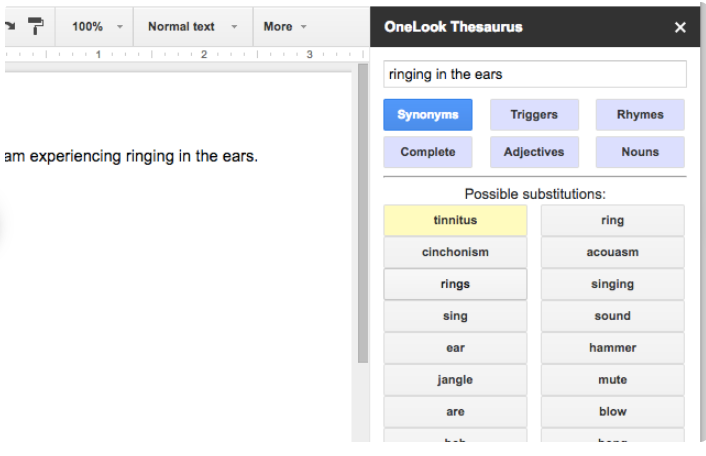
OneLook Thesaurus is a go-to tool for finding the right word fast. It helps you discover synonyms, related terms, and phrases right inside Google Docs. The add-on appears in the right sidebar. This means you can explore ideas without switching tabs or losing focus.
It’s perfect for anyone who wants to sharpen their writing or avoid repeating the same words. You can explore meanings and new expressions in seconds. OneLook Thesaurus is easy to access from the add-ons menu. And it works smoothly inside your writing space, helping you keep your language fresh and varied.
Best for: Students, researchers, academics, and anyone needing fast, correct citations.
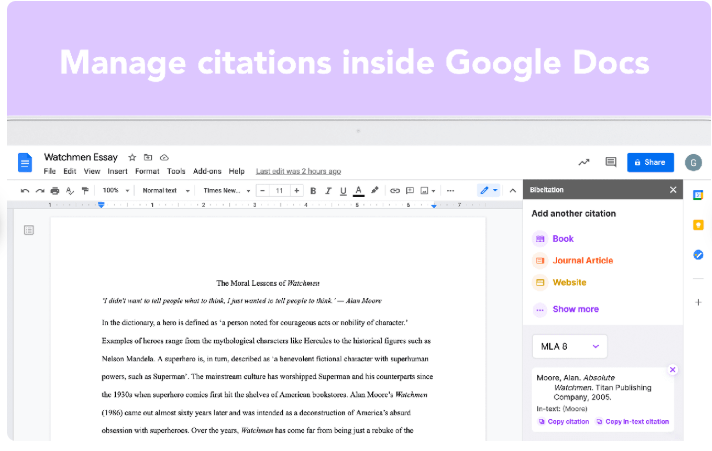
Bibcitation Bibliography & Citation Generator is a useful Google Docs add-on that takes the effort out of building citations. You can enter a source URL or title. And it instantly creates a properly formatted reference. If your source isn’t online, you can also add details manually.
The tool supports over 9,000 citation styles. These include MLA, APA, and Chicago. Once you’ve added your in-text citations, you can insert a complete bibliography into your document with a single click. It’s quick, accurate, and reliable.
The citation generator keeps your research organized and your formatting consistent without breaking your writing flow. This is all because you don’t need to switch tabs or use separate citation apps.
Best for: Teams, project managers, designers, and anyone who needs to explain ideas visually.
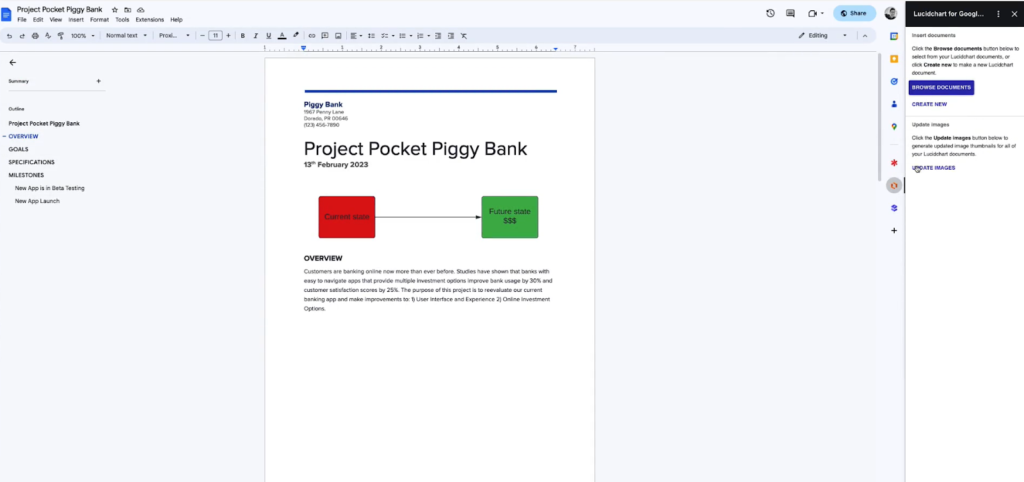
Lucidchart lets you create and insert flowcharts, diagrams, and visuals directly into your Docs. You can build new visuals from scratch or choose a ready-made template.
You can even use it to generate a mind map from your notes or brainstorming sessions. It helps you organize thoughts, map out projects, and make complex information easier to understand.
It integrates smoothly with other Workspace tools, such as Google Sheets and Slides. That makes it easy to link data, update visuals, and keep your team on the same page. When you edit a Lucidchart diagram, you can refresh it in the Google Doc with a single click. It’s a simple way to turn ideas into clear, polished visual charts that are always up to date.
Best for: Marketing teams, agencies, or legal professionals creating standardised documents.
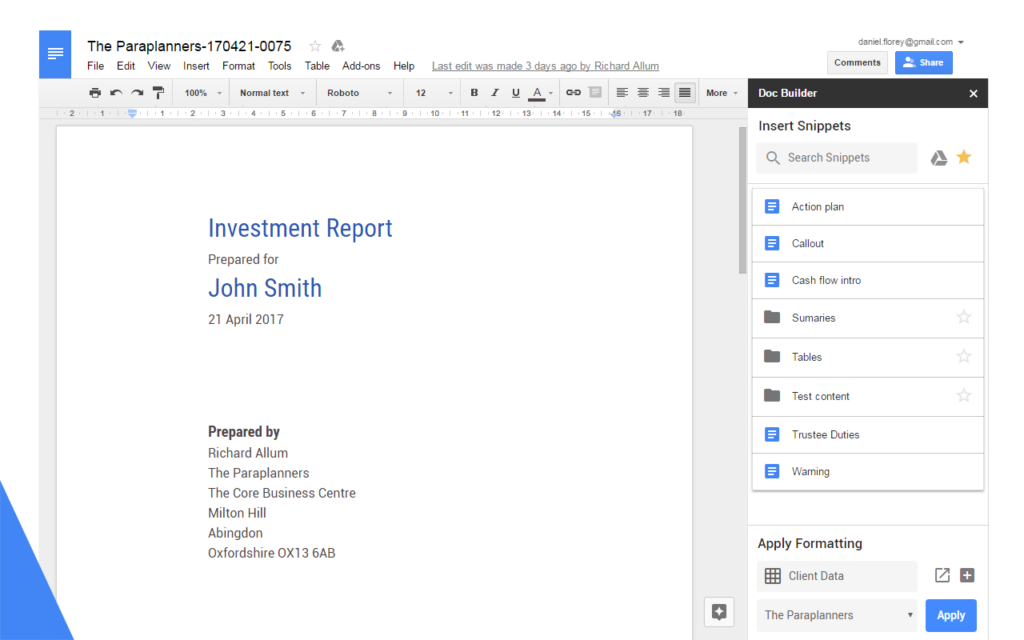
Doc Builder is an add-on that helps you reuse and organize your most common text sections. You can save snippets if you’re writing product descriptions, legal clauses, or email templates.
And then insert them with just one click.
It’s a huge time-saver if you’re working with the same types of documents, such as contracts or reports. It also preserves your formatting, so every text snippet you reuse looks consistent and professional.
The Doc Builder lives in the right sidebar. So your saved content is always within reach.
Best for: Educators, HR teams, and professionals who need to create a quick survey or form.
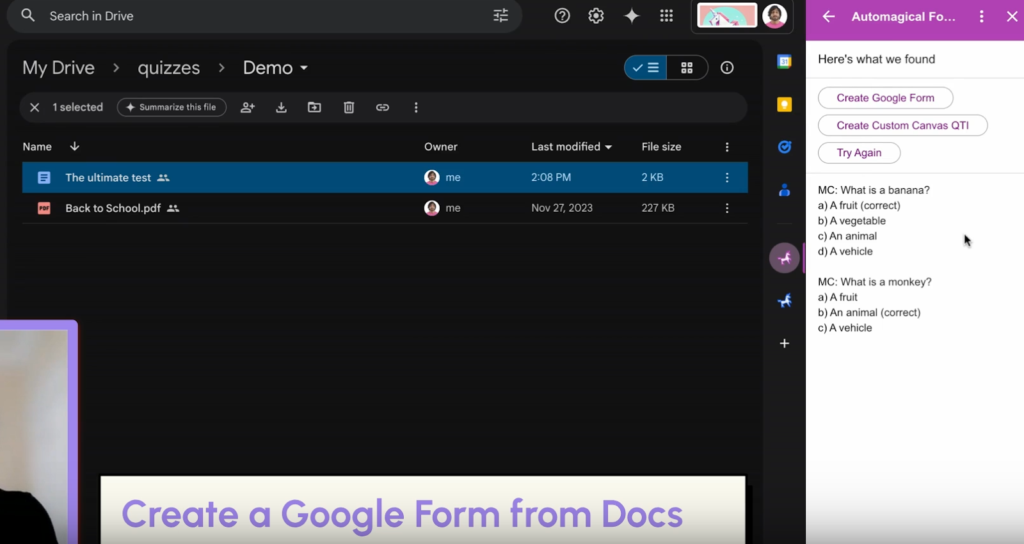
With Automagical Forms, you can turn your existing documents into ready-to-use Google Forms in seconds. Select a Google Doc from your Google Drive folder, and the add-on tool will scan it for questions. It then automatically suggests form fields, which you can edit before finalizing the form.
The add-on saves time by eliminating the manual work of typing questions individually.
It’s ideal for teachers who turn worksheets into online quizzes or HR teams who convert onboarding documents into digital forms. You can also use it to turn meeting notes or feedback sheets into shareable surveys.
Best for: Podcasters, journalists, students, and anyone who needs quick, accurate transcripts.
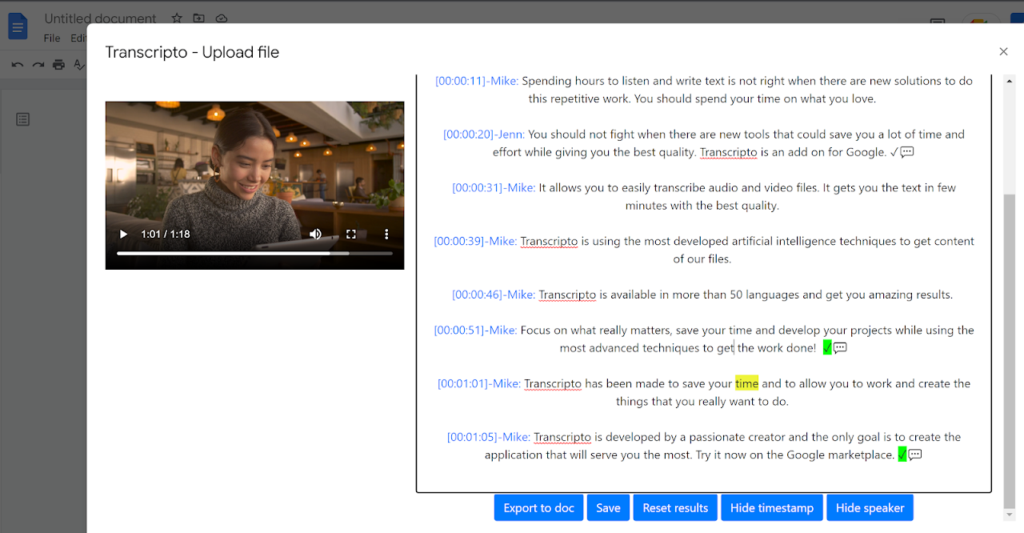
Transcripto is another add-on that helps you turn audio or video recordings into written text. You upload a file, select the language, and the tool starts generating transcripts automatically. It supports over 150 languages. This makes it useful for multilingual teams or global projects.
Once the transcript is ready, you can edit it manually. You can also play back the audio to fix small errors or check timestamps. Transcripto can even create subtitles for videos.
Best for: Writers, marketers, and teams who want to create and analyze content faster.
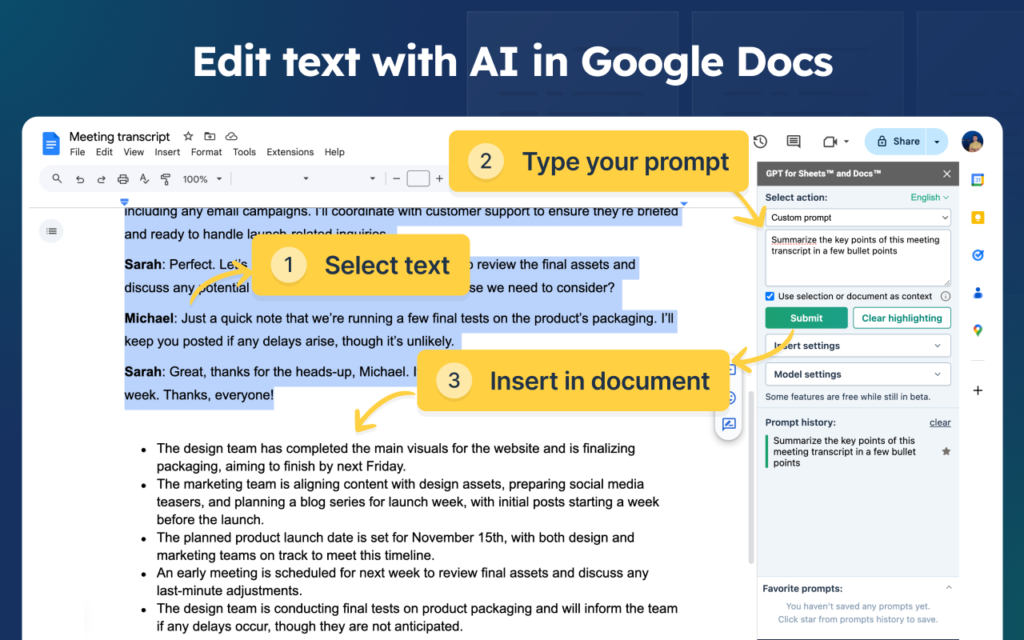
GPT for Sheets and Docs brings the best AI tools right where you work. It lets you use ChatGPT, Gemini, Claude, and other large language models directly in your document (or sheet).
All you have to do is highlight the text you want to edit. Then ask the AI add-on to rewrite it in a new tone, fix grammar, or summarize it in shorter paragraphs. It’s great if you’re working on product descriptions, market research, or creative writing.
Best for: Business professionals, freelancers, and legal teams who handle contracts and approvals.
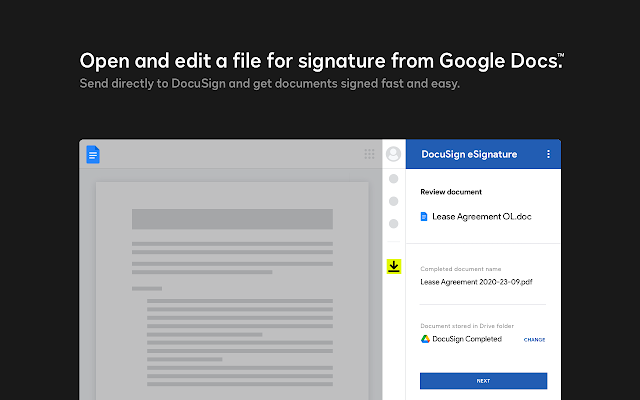
DocuSign eSignature makes adding signatures in Google Docs fast and stress-free. You can prepare, send, and sign files directly inside your Google Docs. You don’t have to download anything or switch between apps.
To get started, open the add-on from the sidebar, choose your document, and add the fields where signatures are needed. You can set the signing order and add recipients before sending.
Everything stays secure, and you can track the status of each signature in real time.
Best for: Writers, editors, and marketers who want full control over their document design.
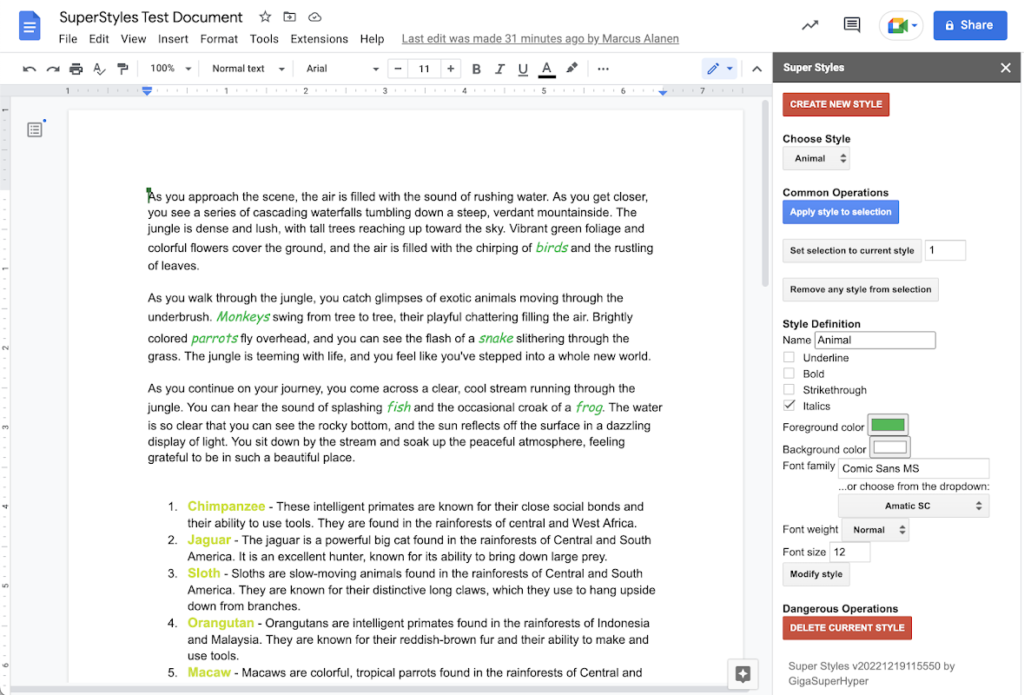
With the Super Styles add-on, you get the freedom to create and save your own text styles. You can set custom fonts, colors, and headings that match your brand or personal preference. Once saved, apply them anywhere in your document with one click.
It also supports paragraph settings like alignment, spacing, and indentation. You can even locate where each style appears, making updates fast and consistent.
Best for: Anyone writing online who wants their content to perform better in search results.
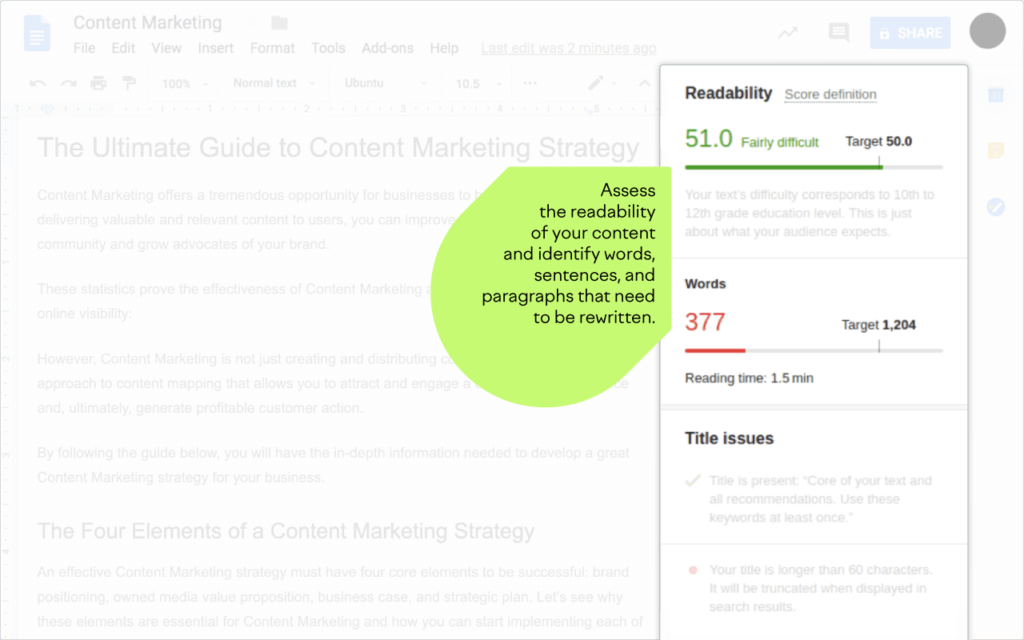
Another add-on you can use for your Google Docs is Semrush SEO Writing Assistant. It provides you with real-time suggestions for SEO, readability, and tone. You can access it through your sidebar, ready to guide your writing.
Enter your target keywords. The tool compares your draft to top-ranking pages in Google search results and recommends related keyphrases, readability tweaks, and tone adjustments. It also includes a rephrasing feature to make sentences sound smoother and more natural.
The add-on checks for plagiarism, highlights complex sentences, and updates your SEO score as you edit. You can see your progress instantly, making it easier to keep content optimized while you write.
Best for: Bloggers, content teams, and anyone fed up with messy copy-paste workflows.
Wordable isn’t technically a Google Doc add-on. But for many creators, it’s one of the most useful tools to have around. Copying and pasting from Google Docs to your CMS often breaks styling. And editors end up spending time fixing headers, links, or media. (Time that could’ve spent writing or researching).
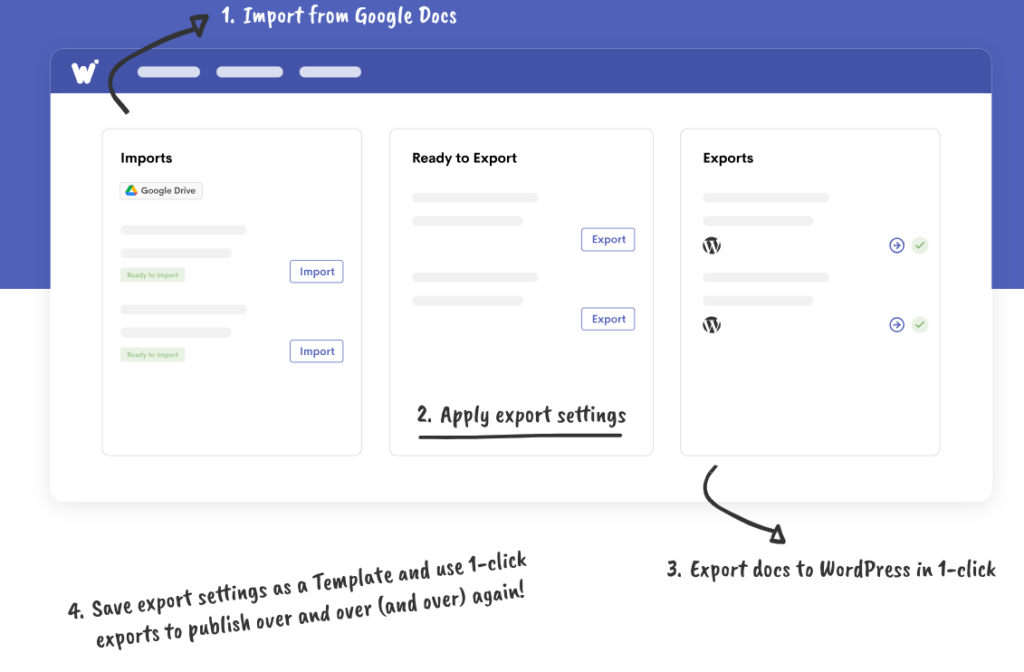
With Wordable, you skip all of that. It lets you export your Google Docs drafts directly to WordPress (or another CMS) with a single click. All while preserving formatting, media, and structure.
Google Docs add-ons do more than just enhance your writing experience. They simplify your workflow, help teams collaborate smoothly, and keep creativity flowing without leaving your document. From citation builders to AI assistants, there’s a tool for almost every task.
These tools make everyday work easier. You can design visuals, add signatures, or summarize text in seconds. The best part? Everything stays inside your document while keeping your tools connected and work organized.
If you often publish online, take your workflow to the next level with Wordable. Instead of copying and pasting from Google Docs to your CMS, export your content to WordPress, HubSpot, or other platforms in one click. You’ll keep your formatting, media, and structure perfectly intact, saving hours of editing time. Try Wordable now to publish faster.