


Here’s how to center text on Google Docs: select the paragraph and choose Center from the toolbar’s Align menu, or use the keyboard shortcut. You can also center titles and text inside table cells. To vertically center content on a page, use manual spacing or a table-based layout.
Centered text works well for cover pages, document titles, tables, reports, and other professional documents. It helps key content stand out and gives your document a cleaner look.
Highlights
In a product announcement, Google says that Google Workspace supports more than 10 million businesses. That means millions of people use Google Docs each day. Knowing how to center text in Google Docs helps teams create cleaner reports, proposals, and shared documents.
This is the fastest method for most users.
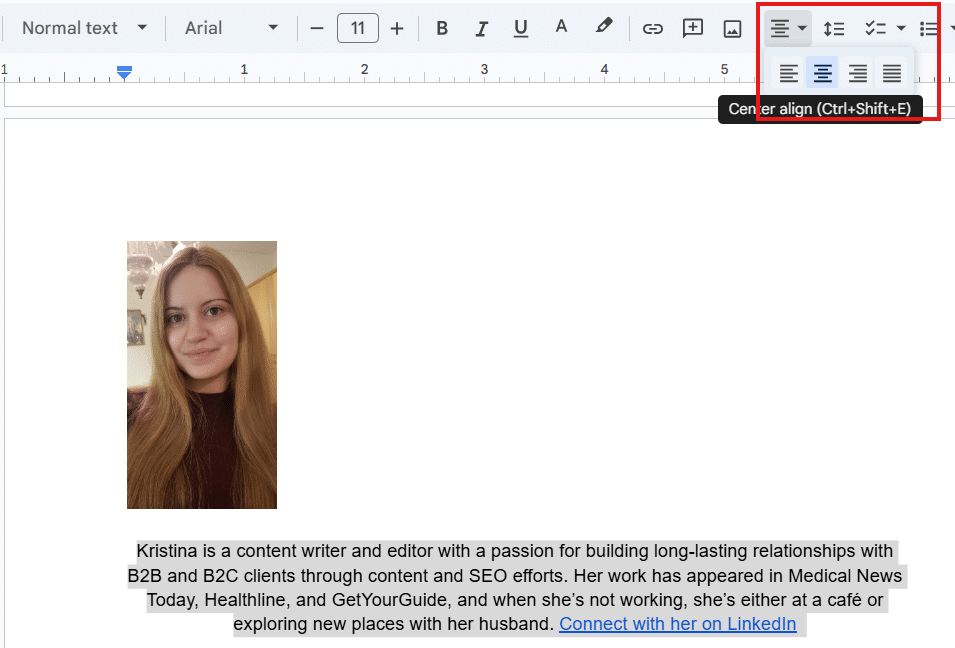
Screenshot provided by author
If you’re preparing a proposal in Google Docs, the toolbar lets you center its title without navigating through the Format menu. For other document workflows, see Wordable’s guide to Google Docs for content creators.
You can also center text through the menu bar.
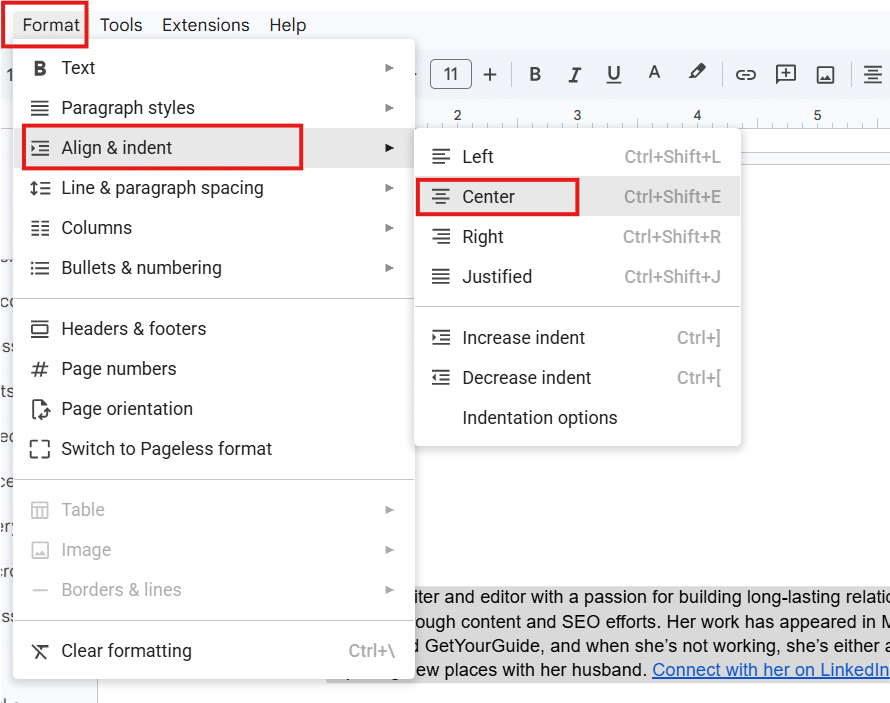
Screenshot provided by author
If you’re working from the menu instead of the toolbar, this method gives you the same result without changing any other formatting.
Google Docs keyboard shortcuts make formatting faster when you work in Docs all day.
On Windows, press Ctrl+Shift+E. On Mac, press Command + Shift + E.
If you’re creating a content brief and want to center a heading, the shortcut can save a few extra clicks.
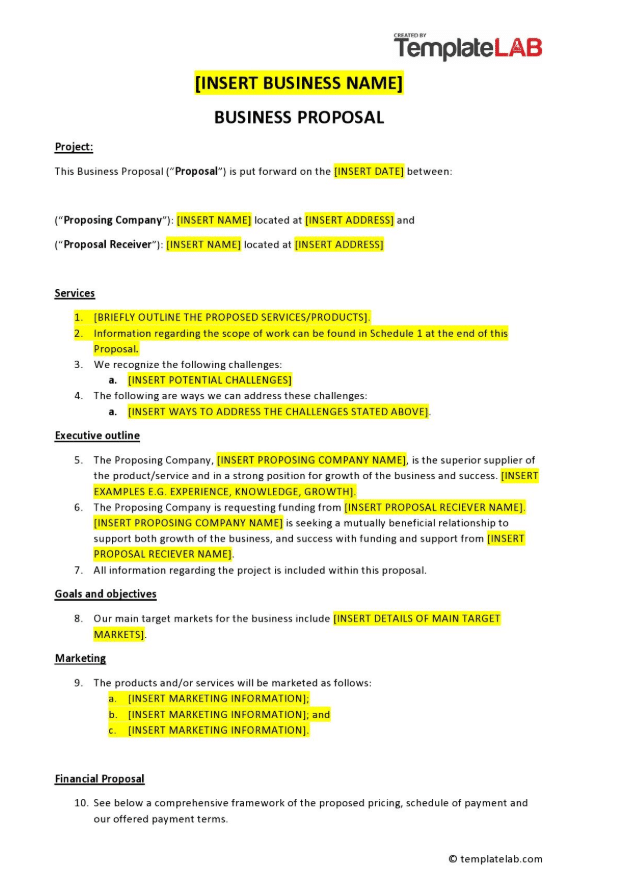
A centered title gives your document a clean starting point. It draws attention to the document name, making the page easier to scan.
Click inside the title paragraph and choose Center from the toolbar’s Align menu. Check that the entire title is centered. This works well for:
Applying a heading style helps keep formatting consistent throughout a document. Wordable’s guide to customizing styles and Google Docs templates explains how to maintain those settings across documents.
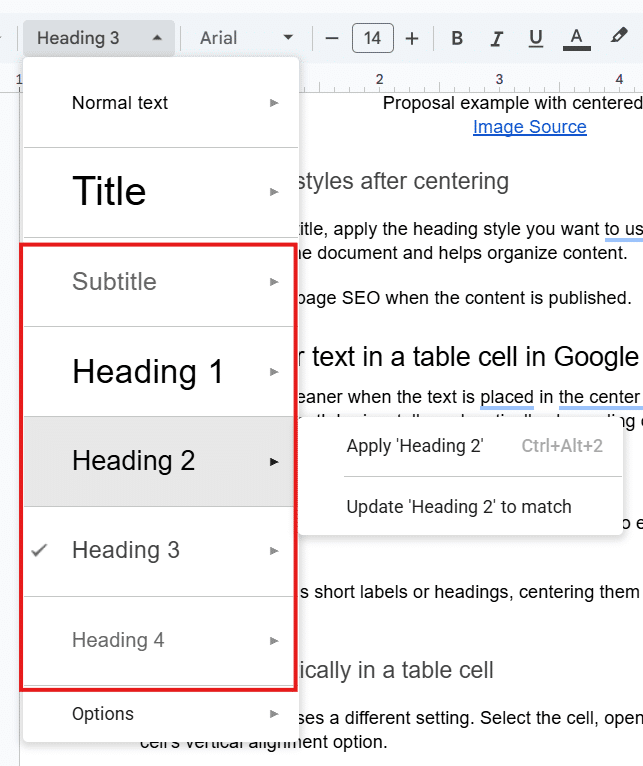
Screenshot provided by author
It also supports on-page SEO when the content is published.
Tables often look cleaner when the text is centered in each cell. Google Docs lets you center content horizontally or vertically, depending on your layout.
To center text across a table cell, select the cells you want to edit and apply center alignment from the toolbar.
If your table contains short labels or headings, centering them can make the layout look more balanced.
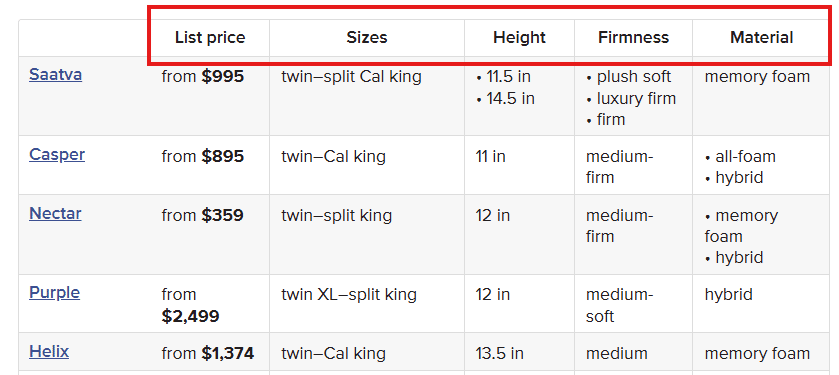
Vertical centering uses a separate setting. Select the table cell and right-click to open Table options. Then expand Cell and set Cell vertical alignment to Middle.
For example, if a table contains cells of different heights, vertical centering can help the content line up more evenly.
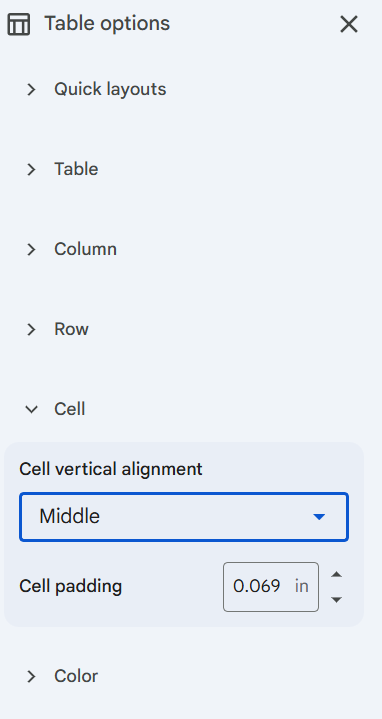
Screenshot provided by author
Centering a page is useful for cover pages, title pages, certificates, and formal documents that need a polished, balanced layout. It can also help with proposals and presentations when you want the main content centered rather than at the top.
Google Docs doesn’t have a built-in option to center text vertically on an entire page. However, you can adjust paragraph spacing to position content closer to the middle of a page.
For more layout control, use a single-cell table.
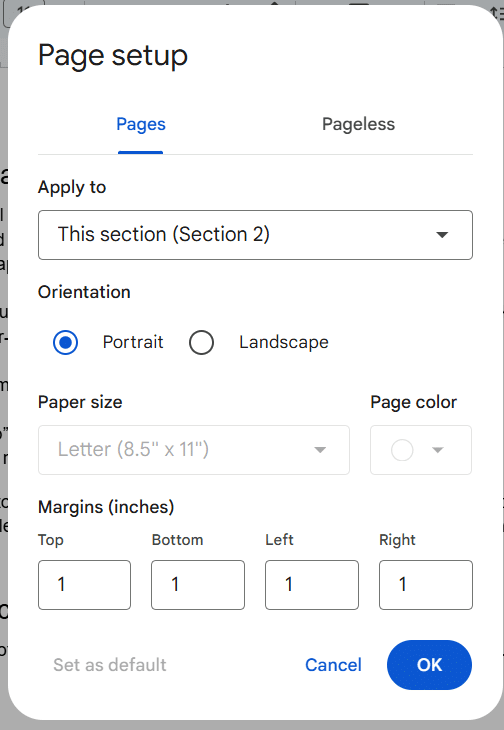
Screenshot provided by author
To use this method, insert a 1×1 table and enter your content inside the cell. Adjust the row height to create enough vertical space, then open Table options and set Cell vertical alignment to Middle. You can also remove the table border for a cleaner appearance.
If centered text still looks off, another formatting setting may be overriding the alignment.
This is how you can fix it:
If centered text still appears shifted, select the affected paragraph and check the indentation markers on the ruler. Reset any unintended indentation, then apply Center alignment again.
Margin settings can affect how content appears on the page. If the margins are uneven, centered text may not look centered. For step-by-step instructions, see how to change margins in Google Docs.
If text inside a table appears off-center, check its horizontal alignment and cell vertical alignment separately. These settings control different aspects of the text’s position.
Knowing how to center text on Google Docs makes it easier to format headings, paragraphs, and tables before publication. For bloggers and content teams, checking these details before exporting can help reduce formatting cleanup.
Once you’ve finished formatting your document, Wordable can help you transfer your Google Docs content to WordPress without manually rebuilding the layout. Try Wordable to simplify your publishing workflow.
Select the text you want to center. Then click the Center Align button in the toolbar. You can also use the Format menu or a keyboard shortcut, such as Ctrl + Shift + E on Windows or Command + Shift + E on Mac.
Google Docs doesn’t offer a built-in option to center text vertically on a page. You can position text manually using spacing or create a single-cell table and adjust its height and vertical alignment.
Indentation settings, margins, table formatting, or section-specific formatting can override center alignment and make text appear off-center.