


The Google Docs toolbar is where you access the tools you use most. It lets you format text, edit content, insert elements such as links and images, and collaborate with other people on the same document.
The toolbar can sometimes be hidden accidentally. When that happens, formatting options seem to vanish, making even simple tasks feel frustrating.
This guide explains how to show the Google Docs toolbar, identify its main icons, and troubleshoot missing controls.
Highlights
If the toolbar is hidden, you can bring it back in a few seconds. Google Docs gives you two simple ways to do it:
Look at the top-right corner of your document. If the toolbar is collapsed, you’ll see a small arrow.
Click the arrow to expand the toolbar. Once it opens, check that formatting icons such as Bold, Italic, and Font size are visible again. To hide the toolbar again, click the arrow once more.

Screenshot provided by author
Press Ctrl + Shift + F on Windows, ChromeOS, or Mac to show or hide the Google Docs toolbar.
Google Docs refers to this view as Compact controls mode. When enabled, the toolbar stays hidden until you show it again. It also gives you more room to work and a distraction-free view.
For other editing commands, see Wordable’s guide to Google Docs keyboard shortcuts.
The Google Docs toolbar groups related tools together. This makes it easier to format content, adjust layouts, and collaborate with others without digging through menus.

Screenshot provided by author
This group includes document controls, such as Undo and Print, alongside text formatting options. To format text, select it and choose a control such as Bold, Font size, or Highlight color. The table below explains each tool.
| Icon | Name | What it does |
| Undo | Undo | Reverses the last action |
| Redo | Redo | Restores an undone action |
| Opens print settings | ||
| Paint format | Paint format | Copies formatting from one section to another |
| Zoom | Zoom | Changes the document zoom level |
| Styles | Styles | Applies headings and paragraph styles |
| Font | Font | Changes font family |
| Font size | Font size | Changes text size |
| Bold | Bold | Makes text bold |
| Italic | Italic | Italicizes text |
| Underline | Underline | Underlines text |
| Text colour | Text color | Changes text color |
| Highlight colour | Highlight color | Adds background highlighting |
For reusable heading and paragraph formatting, see Wordable’s guide to customizing styles and Google Docs templates.

Screenshot provided by author
Click anywhere in a paragraph to adjust its alignment or spacing, or select several paragraphs to apply the same change to all of them. The table below explains the available controls.
| Icon | Name | What it does |
| Insert link | Link | Adds hyperlinks |
| Alignment | Align & indent | Aligns text left, center, right, or justified |
| Line and paragraph spacing | Line and paragraph spacing | Adjusts spacing between lines |
| Numbered list | Numbered list | Creates numbered lists |
| Bulleted list | Bulleted list | Creates bullet lists |
| Checklist | Checklist | Creates interactive checklists |
| Decrease indent | Decrease indent | Moves content left |
| Increase indent | Increase indent | Moves content right |
For a closer look at paragraph spacing, see Wordable’s guide on how to double space on Google Docs.

Screenshot provided by author
Google Docs comments keep feedback attached to specific passages, allowing reviewers and writers to follow discussions without losing track of the relevant text.
Grammarly’s 2024 State of Business Communication report found that 100% of knowledge workers surveyed experience miscommunication at least once a week, while 25% encounter it multiple times per day.
Google Docs comments keep feedback attached to specific passages, allowing reviewers and writers to follow discussions without losing track of the relevant text.
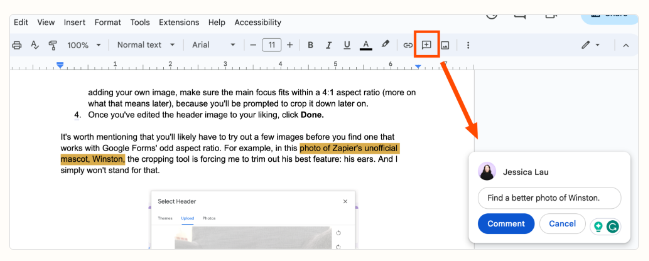
These icons support teamwork and help you add content to your document. If you need more functionality, Google Docs add-ons can extend your workflow with tools for publishing, project management, e-signatures, and other tasks.
| Icon | Name | What it does |
| Spelling and grammar check | Spelling and grammar check | Checks spelling and grammar |
| Comment | Comment | Adds comments |
| Image | Image | Inserts images |
| More options | More | Displays additional tools |
Google Docs doesn’t let you fully customize which icons appear in the toolbar. However, some controls may be hidden when there isn’t enough space on the screen.
If the Google Docs toolbar isn’t visible, the cause is often simple. A few settings can hide part or all of the toolbar without warning.
When Compact controls mode is enabled, Google Docs hides the toolbar to provide more screen space.
To turn it off, use the toolbar arrow or press the toolbar shortcut to make the icons visible again.
Sometimes, the toolbar is still there but doesn’t fit on the screen. Parts of it may appear hidden.
Try adjusting your browser zoom level and check if the missing icons return.
Google Docs’ full-screen mode hides the menu and toolbar. If both are missing, press Esc to exit full-screen mode and restore the controls.
Some browser extensions can affect how Google Docs displays.
Open the document in Incognito mode to test if an extension is causing the issue. If the toolbar appears, turn off extensions one at a time until you find the source of the problem.
Now you know how to show the toolbar in Google Docs, hide it when you need more space, and identify the icons you use most. You also know what to check if the toolbar disappears or doesn’t display as expected.
If you publish content from Google Docs to WordPress, HubSpot, or Medium, formatting can slow things down. Wordable helps you move content from Google Docs to publishing platforms such as WordPress, HubSpot, and Medium in a few clicks while preserving document formatting.
Try Wordable now and spend less time publishing manually.
The most common cause is Compact controls mode, which hides the toolbar. Browser zoom settings can also hide parts of the toolbar. If the issue started after installing a browser extension, test Google Docs in Incognito mode and turn off extensions to identify the cause.
Press Ctrl + Shift + F on Windows, ChromeOS, or Mac to show or hide the Google Docs toolbar. The shortcut toggles the toolbar on and off, so you can also use it to hide the toolbar.
No. Google Docs doesn’t let you fully customize the toolbar. However, Google may adjust which icons are visible based on your screen size and the space available in the toolbar.