


If you’re a writer or editor like me, you’ve probably wondered how to view multiple pages in Google Docs without constantly scrolling between sections. Let me guess: you clicked ‘View’ hoping you’d … you know … have multiple view options.
Unfortunately, the View menu offers options for editing modes and document layout, but it doesn’t include a built-in feature for displaying two pages side by side.
If you want to see two or more pages side by side, you’ll need to use one of a few workarounds.
Here’s a quick guide.
Highlights
Yes and no. Google Docs doesn’t have a native feature that lets you view multiple pages side by side. You’ll need to get a bit creative or use extensions. This guide shows you how.
Here’s why viewing pages side by side in Google Docs helps.
For writers using Google Docs for blogging, viewing different sections at once makes it easier to review longer drafts and check structure.
With a side-by-side view, you can:
You can also use Google Docs spell check to catch spelling and grammar mistakes while reviewing your document.
If you need to edit two sections while comparing them, opening separate browser windows is your best option. If you only want to inspect the page layout, print preview can show two pages together without letting you edit them.
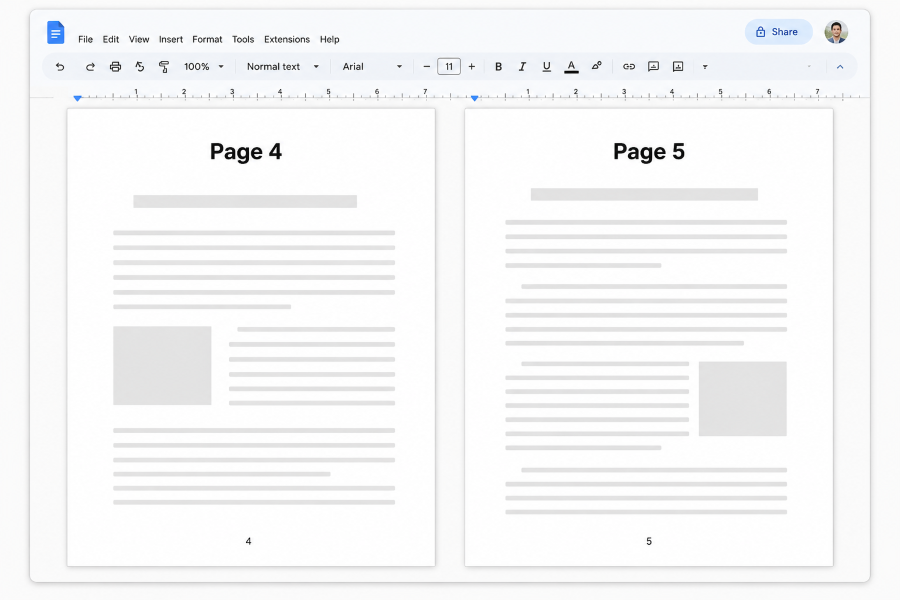
“Two-page view” sounds like side-by-side windows, but it isn’t.
Think of a physical book.
In a two-page view, you’ll see two consecutive pages from the same document as a spread:
(Image by Ioana)
You scroll once, and both pages move together because they’re part of the same document view.
The illustration above shows what a two-page view would look like, but Google Docs doesn’t currently offer that layout. Some of the best Google Docs add-ons provide extra editing tools, although you don’t need one for the workaround covered here. To compare different pages, open the document in separate browser windows.
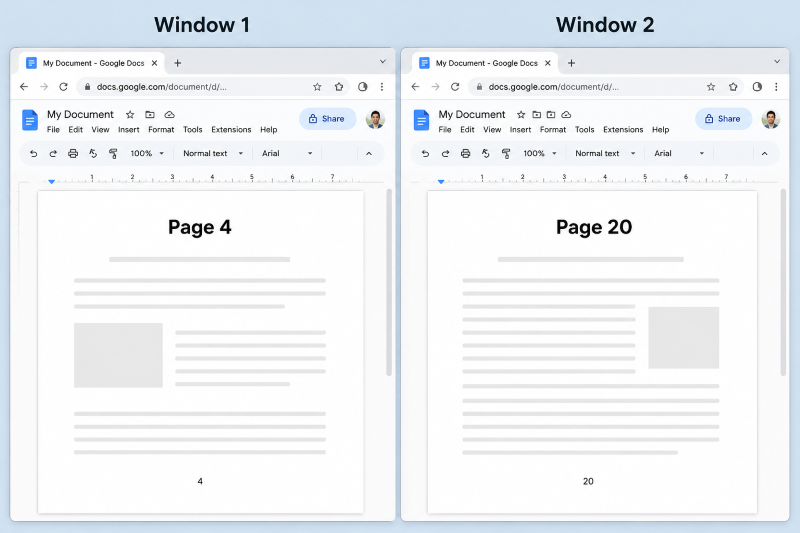
A side-by-side layout uses two separate windows (or tabs) showing the same document or different documents next to each other. You can scroll each window independently.
If you’re reviewing a shared document, Google Docs collaboration features like comments and version history can also help you track feedback and changes.
(Image by Ioana)
Google Docs doesn’t have a dedicated side-by-side view.
If your document appears as one continuous page, go to File > Page setup and select Pages before starting. Pageless mode doesn’t display the usual page boundaries or page numbers.
To open the same Google Doc side by side:
Once both windows are open, your document should look something like this:
(Image by Ioana)
It’s not a perfect view. You’ll need to position each window so you can see both pages clearly. You’ll also see a cursor in each doc, which can be a bit annoying.
When reviewing longer documents, adding page numbers in Google Docs can help you identify which pages you’re comparing in each window.
To position both windows more precisely, use your computer’s built-in window-snapping controls.
On a PC, press the Windows key + right arrow to snap one window to the right half of the screen. Then press the Windows key + left arrow to snap the other window to the left.
On a Mac, hover over the green button in the top-left corner of a window. Under Move & Resize, choose the left or right layout, then place your second window on the opposite side.
Most computers have native ways to help you split pages. It’s not a feature inside of Google Docs, though.
For instance, on my PC, if I drag a window, it’ll automatically pop up these icons:
(Image by Ioana)
This gives me different ways to split my screen. I just choose the style I want and which windows to view.
Available layouts vary by operating system, so check your computer’s window-management options.
If you can’t figure it out, just paste your computer model into Google and search for ways to split your screen. (For example, search “Dell XPS 15 split screen” or “MacBook Air split screen” to find instructions for your device.)
Once you’ve arranged your windows, Google Docs keyboard shortcuts can help you find specific text and navigate between sections more efficiently.
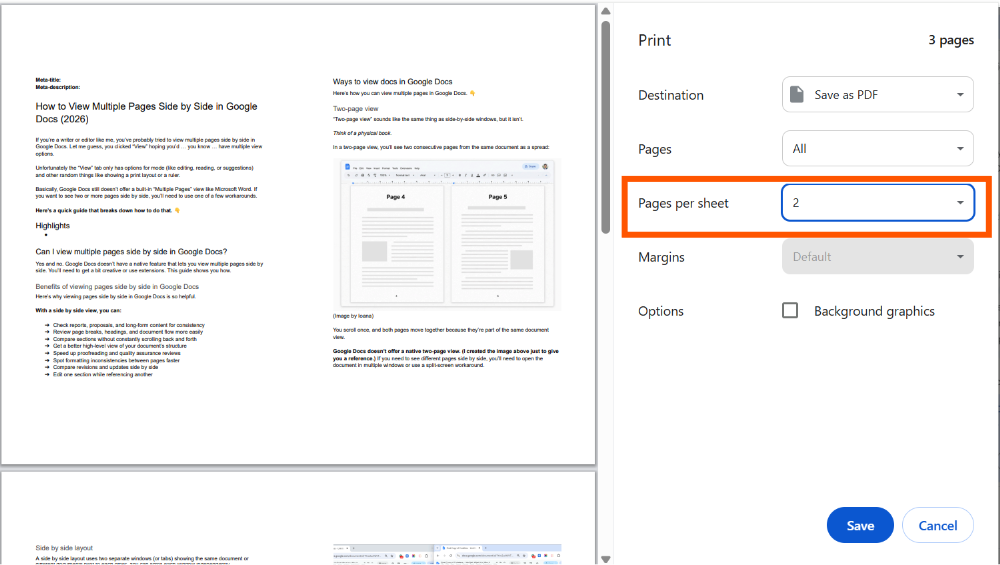
You can also view two document pages together in print preview. Go to File > Print, then select 2 under Pages per sheet in the browser’s print settings. You may need to expand More settings to find this option.
(Image by Ioana)
Unfortunately, this view is read-only, so you can’t edit the document. (If you have a small screen, you’ll need to zoom in to see the text on each page.)
To explore the available settings, see our guide on how to print from Google Docs. To edit two sections at the same time, use separate browser windows.
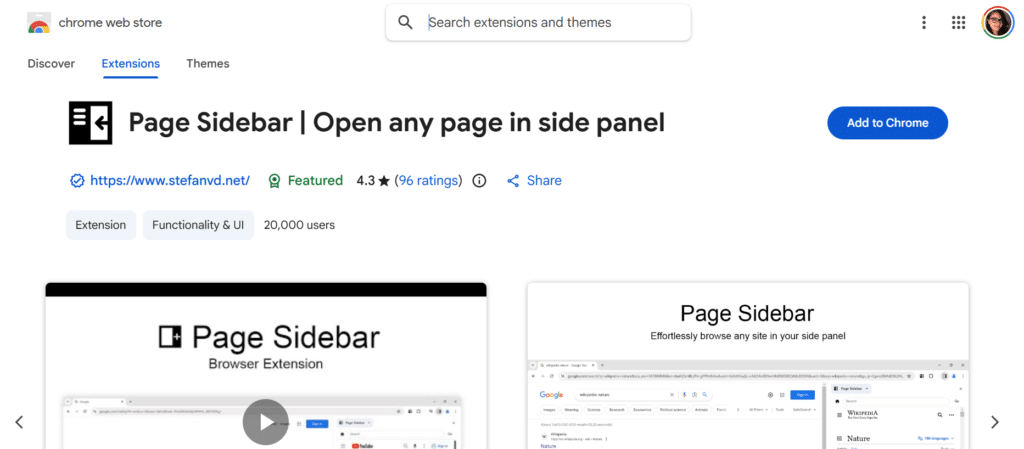
You can also explore browser extensions like Tab Resize, Page Sidebar, or similar split-screen tools.
The example below shows Page Sidebar listed in the Chrome Web Store.
Browser extensions differ from the best Google Docs add-ons, which provide additional editing, formatting, and productivity features inside Google Docs.
If you’re happy using your computer’s built-in split-screen features or opening Google Docs in multiple windows, you probably don’t need an extension. (They’re mainly useful if you do this all day and want a faster workflow.)
If you’d like to read more about browser extension options, check out DEV’s practical guide.
Now here’s an option Google Docs actually has built in.
Just click “View,” then “Full screen.” To exit full-screen mode, press Esc.
While it won’t let you view multiple pages side by side, Full Screen mode can help you maximize your screen space.
Now that you know how to view multiple pages in Google Docs, you can compare sections without constantly scrolling through your document.
If you just need to compare two sections, opening the same document in multiple windows is usually the easiest solution. Pair that with your computer’s built-in split-screen tools, and you’ll get close to the side-by-side experience many people want.
Once you’ve finished comparing and editing your Google Doc, the next step is getting it ready to publish. Wordable makes that easier by letting you export your Google Docs directly to WordPress while preserving your formatting. Skip the manual copying and formatting adjustments, and try Wordable to simplify your publishing workflow.
Not natively. I recommend opening the same document in two browser windows or using your computer’s split-screen tools to place them side by side.
To view different pages of the same Google Doc at the same time, open the document in multiple windows and scroll each one to a different page. Then snap each document to the left or right using your computer’s built-in options. See the guide above for instructions.
This is the closest alternative to a native two-page view.
No. Unlike Microsoft Word, Google Docs doesn’t currently offer a book view, spread view, or native two-page view.
I still prefer Google Docs over Microsoft Word because it saves your work in real time. Google Docs also supports offline editing when offline access is enabled in advance. Changes sync when you reconnect to the internet.
For me, that’s a trade-off I’m happy to make.