


You spent an hour writing the perfect blog post in Google Docs. The headings look clean, the spacing is tight, and the font is consistent. You copy it, paste it into WordPress, and… chaos.
Suddenly, there are double spaces between every paragraph. Your H2s look like body copy. There’s mystery bold text you never added. And the font has decided to do its own thing entirely.
Sound familiar? WordPress formatting issues after pasting are one of the most common (and most infuriating) problems content teams deal with. The good news is that every single one of them is fixable.
This guide walks you through exactly what causes these issues and how to get rid of them for good.
Before we fix anything, it helps to understand what’s actually happening.
When you write in Google Docs, Microsoft Word, or any rich-text editor, your content isn’t just text. It’s text wrapped in HTML and invisible styling code.
When you paste that content into WordPress, you’re pasting a wall of messy markup that WordPress has to interpret.
Sometimes it handles it well. Usually it doesn’t.
Why?
Each site runs its own theme, plugins, and editor setup. Those choices control how WordPress handles fonts, spacing, and HTML. Paste the same content into two different WordPress sites, and you can end up with two different results because each site applies its own styling rules.
BuiltWith, a widely used technology tracking platform, analyzes about 70 million active websites as of April 2025. Of those, roughly 30 million run on WordPress, according to their research.
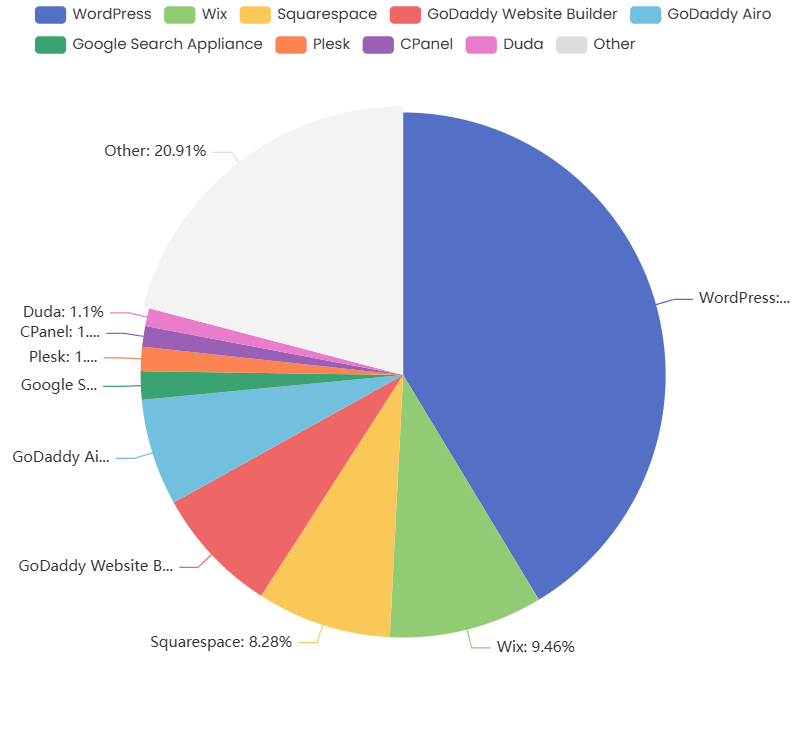
That’s millions of sites using different themes and plugins, each with its own CSS and editor settings that can override or conflict with pasted formatting.
Some of the most common WordPress formatting issues that result include broken spacing, rogue font styles, inline CSS that overrides your theme, and the block editor reformatting things based on its own rules.
These are the formatting issues you’ll run into most often after pasting content into WordPress. Each one has a specific cause and a straightforward fix once you know where to look.
This is the most common complaint. You paste your content, and suddenly every paragraph has a giant gap above it. Or there are random blank lines between sentences that weren’t there before.
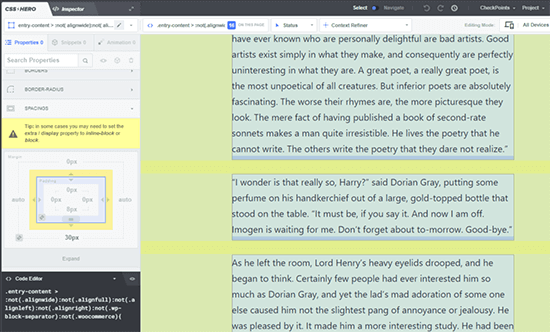
Why it happens: Google Docs and Word use line breaks differently from WordPress. When you paste, those line break characters come along for the ride, and WordPress renders them as extra paragraph breaks.
How to fix it: The fastest manual fix is to switch to the Text (HTML) editor in WordPress and do a find-and-replace for <br> or <p> </p>, the usual culprits for phantom spacing.
Alternatively, use the “Paste as Plain Text” option before pasting. In the Classic Editor, you’ll see a clipboard icon in the toolbar.
In the Block Editor (Gutenberg), use Ctrl + Shift + V (or Cmd + Shift + V on Mac) to paste without formatting. You’ll need to re-add your formatting manually, but you’ll start with a clean slate.
Pro tip: If this keeps happening every time you publish, the real fix is changing how your content gets from your writing tool to WordPress. More on that later.
You paste your post, and the body text is suddenly a different font than the rest of your site. Or the font size is slightly off. Or one section is serif, and the rest is sans serif.
This is more than just a visual inconsistency. Poor or inconsistent typography can disrupt how people read and make content harder to follow.
Research backs this up. A 2024 study found that factors like font choice, size, spacing, and contrast all play a role in how easily people read content, and poor choices can reduce engagement.
So, don’t let WordPress formatting issues undo all the effort you put into your content.
Why it happens: Rich-text editors like Google Docs apply inline font styles directly to the text. When that text lands in WordPress, those inline styles override your theme’s CSS, even if your theme is perfectly set up.
How to fix it: Go to the Text (HTML) editor and look for inline style=”” attributes on your <p>, <span>, or <div> tags. They’ll look something like this:
<p style=”font-family: Arial; font-size: 14px;”>Your text here</p>
Delete those attributes and your theme’s styles will take back over.
If you have a lot of them, it’s faster to use a tool like Notepad++ or a free online HTML cleaner to strip all inline styles at once. Paste your HTML in, strip the styles, and paste the clean version back into WordPress.
You formatted your H2s and H3s carefully in Google Docs. But when you paste into WordPress, they either lose their heading formatting entirely and become body text, or they keep the heading tag but apply weird custom sizing that doesn’t match your theme.
Fixing it can be frustrating, and some teams may choose to leave it as is to push out content as quickly as possible. Big mistake. Headings do more than label sections.
They create structure and spacing that help readers scan and follow your content. Adobe research found that changes to layout elements like spacing and formatting can noticeably affect how comfortable content is to read and how easily users move through it.
Why it happens: Google Docs uses its own heading styles that don’t map cleanly to HTML heading tags. When pasting, WordPress sometimes interprets them as formatted paragraphs rather than <h2> or <h3> elements.
How to fix it: Check your headings in the HTML editor. A proper H2 should look like:
<h2>Your Heading Text</h2>
If instead you see something like:
<p><strong><span style=”font-size: 24px;”>Your Heading Text</span></strong></p>
…that’s your problem. Delete the inline styling and wrap the text in the correct heading tag manually.
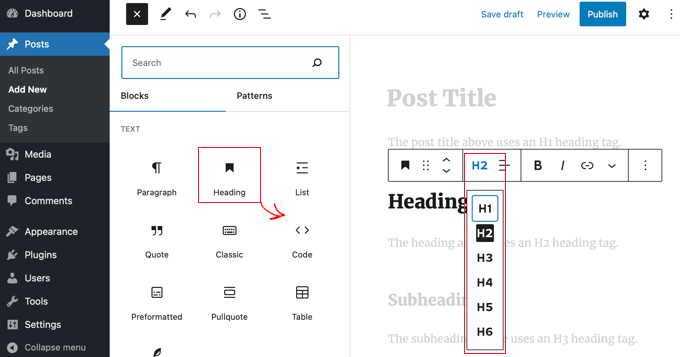
In the Block Editor, you can also click into a paragraph block, open the block type menu (the icon on the left of the block), and switch it to a Heading block. Then, select H2 or H3 from the toolbar.
Sometimes, random words or phrases show up bold or italicized that you definitely didn’t style that way. This one is subtle, but according to the Adobe 2024 Digital Trends report, trust is the #1 customer requirement in digital experiences.
And one of the fastest ways to lose trust is publishing content that looks inconsistent, messy, or unpolished.
Why it happens: Word processors sometimes apply bold or italic formatting to text that’s near other bold/italic text, especially around punctuation or when you’re copying from a source that uses a lot of emphasis. Hidden <strong> and <em> tags sneak in.
How to fix it: The quick fix is to highlight all of your content in the WordPress editor, click the bold button to remove it, and then re-add bold where you actually want it. Same process for italics.
For a more surgical approach, go to the HTML editor and search for <strong> or <em> tags and delete the ones that shouldn’t be there.
This one is the silent killer of site performance and style consistency. You paste content, and everything looks fine. But in HTML, there are dozens of <span> tags wrapped around random words, each with its own inline styles.
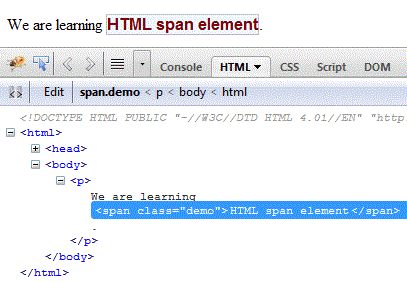
Why it happens: Google Docs is particularly notorious for this. Every time you apply formatting in Docs, it wraps the text in a <span> with CSS. Paste that into WordPress and you’ve got a mass of markup that can slow down your page load and fight with your theme.
This kind of bloat adds up. According to the 2024 Web Almanac by HTTP Archive, the median page weight has increased by 120% over the last decade.
While images drive most of that growth, the report notes that relying on inline CSS instead of cleaner styling approaches is a missed opportunity to keep pages lean.
How to fix it: Use a plugin like WP Cleanup or a free HTML cleaner tool to strip all unnecessary span tags. Or, if you’re comfortable in HTML, do a find-and-replace for <span> and delete each one along with its closing tag (</span>).
Another reliable fix is to paste your content into a plain text editor (like Notepad on Windows or TextEdit in plain text mode on Mac) first. This strips all rich-text formatting. Then, paste from there into WordPress and re-add only the formatting you actually want.
You had inline images in your Google Doc. You paste into WordPress, and they’re either gone, replaced by broken image icons, or present but uploaded to Google’s servers rather than your own WordPress media library.
Broken images don’t just look bad. They disrupt the experience and make your content harder to trust.
And the Qualtrics XM Customer Experience Trends Report 2023 found that 88% of users are less likely to return to a website after a bad experience.
Why it happens: When you copy images from Google Docs, WordPress doesn’t automatically pull those images in and host them on your server. It either ignores them or embeds a link to Google’s CDN, which can break if permissions change.
How to fix it: Do it by hand. Save every image from the doc to your computer, add each one to your WordPress Media Library, and place that copy in your post. It takes time, but it works.
If you have a lot of images, this is where manual copy-paste really starts to fall apart. There are tools that handle this automatically. They pull your content from Google Docs, detect all inline images, upload them to your media library, and insert the properly hosted versions into your post. Zero image handling required.
Want to know the uncomfortable truth about WordPress formatting issues?
The fixes above work, but they’re all reactive. You’re cleaning up a mess that didn’t need to happen in the first place.
The root cause of almost every formatting problem on this list is the same thing: the copy-paste process itself.
When you paste content from one rich-text environment into another, you’re essentially forcing two different formatting systems to talk to each other. And they almost never agree.
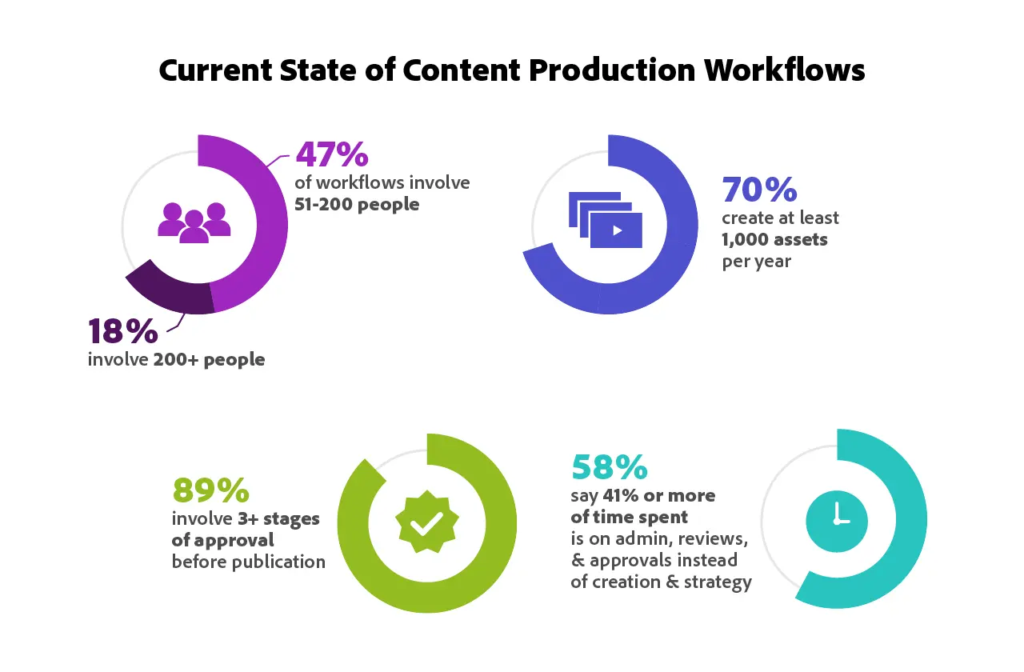
This friction can be even worse at scale. Research shows that 58% of marketers spend more than 40% of their time managing reviews and approvals instead of creating content. And this is often due to manual, inefficient workflows.
The smarter solution is to skip the paste step entirely.
Google Docs to WordPress publishing tools let you take your finished document and export it directly into WordPress without ever touching the clipboard. The content arrives clean, properly tagged, and styled to match your theme.
| Issue | Likely Cause | Quick Fix |
| Extra line breaks | Hidden <br> tags from pasting | Find and delete in HTML editor |
| Wrong font | Inline style=”” on <p> tags | Strip inline styles via HTML editor |
| Headings look like body text | Google Docs heading ≠ HTML heading tag | Re-tag manually as <h2> / <h3> |
| Random bold/italic | Hidden <strong> / <em> tags | Select all → remove formatting → re-add |
| Span tag overload | Google Docs wraps formatting in spans | Use HTML cleaner to strip spans |
| Broken images | Images hosted on Google’s servers | Re-upload to WordPress Media Library |
WordPress formatting issues are a side effect of how content moves between different writing and publishing environments. The good news is that every issue on this list is solvable, and once you know where to look in the HTML editor, fixes that used to take 30 minutes start taking five.
But if you’re publishing consistently and these issues keep coming up, it’s worth stepping back and looking at your workflow. The copy-paste step is where the chaos starts. Eliminate it, and you eliminate most of the problems along with it.
Your content deserves to show up the way you wrote it. With the right setup, it will.
Ready to never deal with WordPress formatting issues again? Wordable exports your Google Docs directly to WordPress, with perfect formatting, clean HTML, and images already hosted in your media library. No copy-paste. No clean-up. Just publish. Try it free today.