


Enterprise document automation is usually associated with IT and legal teams. But content teams have just as much to gain from automating document-based work.
If you’re publishing 50+ articles every month, your content operation also depends on a document workflow. The documents just happen to be blog posts instead of contracts.
In this guide, I’ll show you what enterprise document automation looks like for content teams without the BS marketing fluff. (No, AI agents can’t replace your content team.) You’ll see how high-performing agencies are using tools and processes to create a more efficient brief-to-draft-to-publish workflow.
Pro tip: Forward this article to your editorial team so you can start implementing some of the tips here.
Highlights:
Enterprise document automation refers to the software and processes organizations use to streamline document management and make document-based work more systematic.
Atlassian reports that “High-performing teams build the right foundations for teamwork by making time to improve their processes, practices, and tools.”
Content teams are no different.
The right processes and tools create a more consistent path from content brief to published page.
That consistency matters because Atlassian’s 2025 State of Teams report also found that teams and leaders waste 25% of their time searching for answers. Centralizing briefs, feedback, and approvals reduces that avoidable friction.
Content teams use enterprise document automation to standardize their operations and introduce workflow automation where it reduces repetitive work.
With the right tools and processes, your content team can:
I want to get one thing straight before moving any further into this guide.
There’s no reliable way to automate document workflows completely without human oversight.
And aiming for that can weaken your brand voice and push customers away. Seriously, you HAVE to ignore the LinkedIn bros who promise you that AI agents can replace your entire content marketing team. They can’t.
AI and cloud-based software are TOOLS. They’re meant to be human-led, especially if you want your SEO and GEO strategy to lead to meaningful results. (Don’t expect more sales-qualified leads and monthly recurring revenue from AI slop that a barely 18-year-old slapped together.)
I work with content teams that publish hundreds of articles per month.
None of them have a fully automated workflow because strategy and expertise can’t be automated.
What we do have are repeatable processes.
People handle some steps. Others are optimized with templates, checklists, and AI. Only a few steps are truly automated, including publishing blog posts from Google Docs to WordPress with Wordable. But even that requires turning on settings before the one-click magic can happen.
So let me show you how that works in practice.
Our content workflow follows four repeatable stages:
Brief → Draft → Reviews and Approvals → Publish
Below, I’ve put together a table showing each document workflow stage, what it involves, how automated it is, and the tools we use. Feel free to copy and paste it into your content operations SOP.
Here are some quick definitions for terms used in the table below to clear things up:
And here’s the table. 👇
| Workflow stage | What it involves | Reality | Tools we use |
| Brief creation and assigning content work | Templates, keyword research, content brief creation, assigning tasks | Optimized | Google Docs, Semrush, ClickUp |
| Drafting and collaboration | Writing, editing, commenting | Human-led | Google Docs |
| Reviews and approvals | Reviewing, approving, status tracking | Optimized | ClickUp |
| Publishing | Moving approved documents into a CMS | Automated | Wordable |
Asana reports that “many organizations don’t have the right processes in place to plan, organize, and execute tasks or manage projects.”
A defined workflow closes that gap by assigning a clear owner, status, and next step to every task. Here’s how we systematize each stage at Wordable, uSERP, and Codeless. 👇
Standardize your content briefs first to make onboarding easier and keep every assignment consistent.
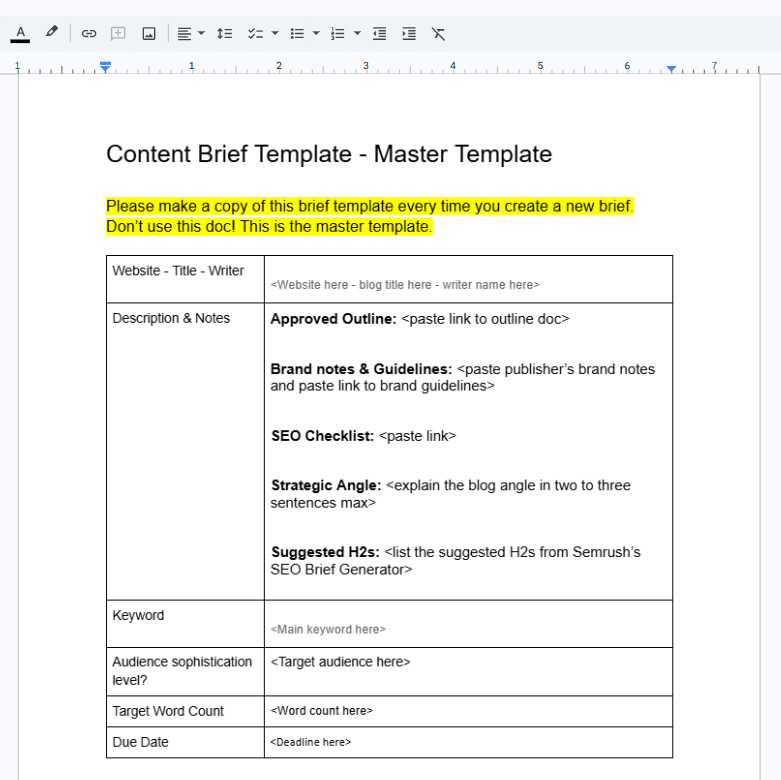
Use a shared Google Docs master brief template for every article your team produces. Include the target keyword, search intent, target audience, and brand notes. Also include a section for a potential outline, suggested H2s, and strategic angles.
Once your content brief template is ready, make a copy of it for the next assignment.
(Image by Ioana)
Next, use Semrush One to research topic opportunities. Look for keywords that are relevant to your audience and realistically within your ability to rank for. Consider search intent, business relevance, search volume, and keyword difficulty.
After you’ve chosen your main topic, use Semrush’s SEO Brief Generator (a tool in Semrush’s Content Toolkit).
It generates SEO-optimized content briefs using real-time SERP data and competitor analysis. 👇
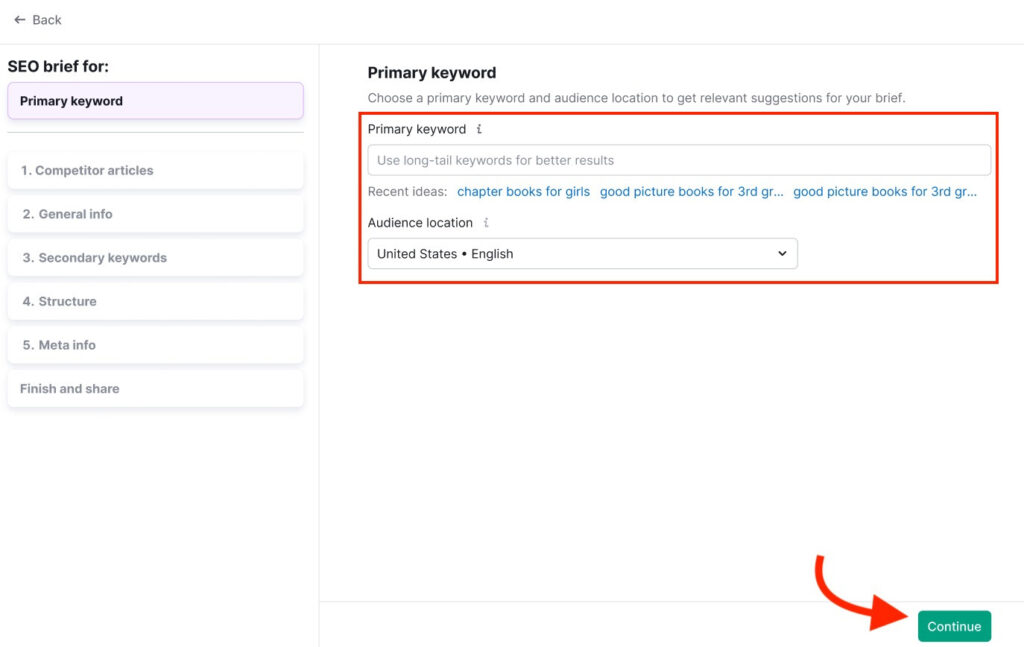
Review those suggestions and tailor them to your audience and business goals. Then export the brief to Google Docs for editing. Copy the relevant sections from the exported Semrush brief into your copied brief template.
After you’ve finalized the brief, assign it to the writer using ClickUp. (That’s the tool we use. But you could also use Basecamp, Asana, or Trello.)
For external contributors, we also send briefs via Gmail to keep it easy. Not everyone needs to be added to your Work OS.
Write and edit in a shared document.
Use Google Docs as your home base throughout the writing and editing process.
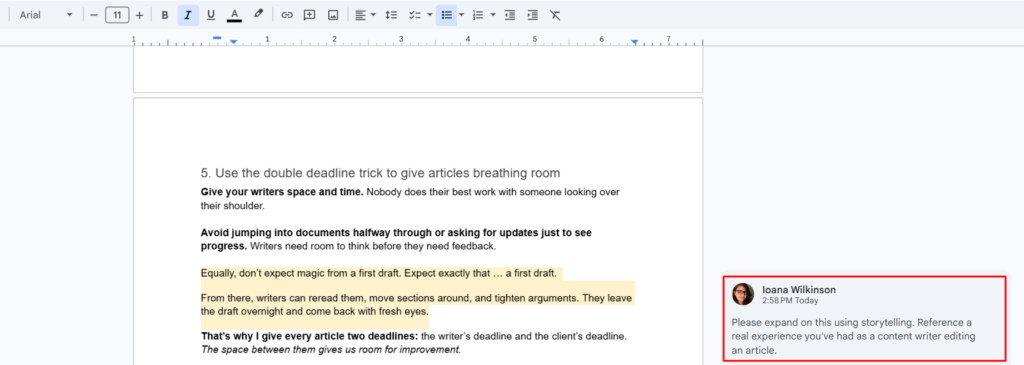
Have writers use it to draft, editors to leave suggestions, and subject matter experts to add comments.
(Image by Ioana)
Set clear rules for how each person should use the document. Writers can resolve editorial suggestions after making changes, while subject matter experts can use comments for factual questions that require discussion.
This keeps the document readable and prevents unresolved feedback from carrying into the approval stage.
Keeping those conversations in the same document also ensures that your content team always works from the latest version.
Keeping feedback centralized also limits unnecessary interruptions. Microsoft’s 2025 Work Trend Index found that employees are interrupted by meetings, emails, or messages every two minutes during the workday.
Track every review stage in ClickUp or your preferred Work OS.
Once the first draft is ready, move the task to the next review stage. (If the writer has access to your team’s workspace, they can do this themselves.)
Assign it to the appropriate person, set the next due date, and use task comments for project-related discussions.
For higher-volume teams, define what each review stage covers before work begins. For example, the editor can check structure and clarity, while the client or subject matter expert focuses on accuracy and brand alignment.
Clear review responsibilities reduce duplicated feedback and prevent articles from moving backward in the workflow.
At Wordable, our articles move through these statuses: Writing → Editing → Client Review → Approved → Ready to Publish. These statuses create a simple audit trail and make it easy for everyone to see where an article is in the workflow.

Remember to keep more writing-specific feedback inside the Google Doc.
Once the article is approved, transfer it to your CMS, review the staged version, and publish it.
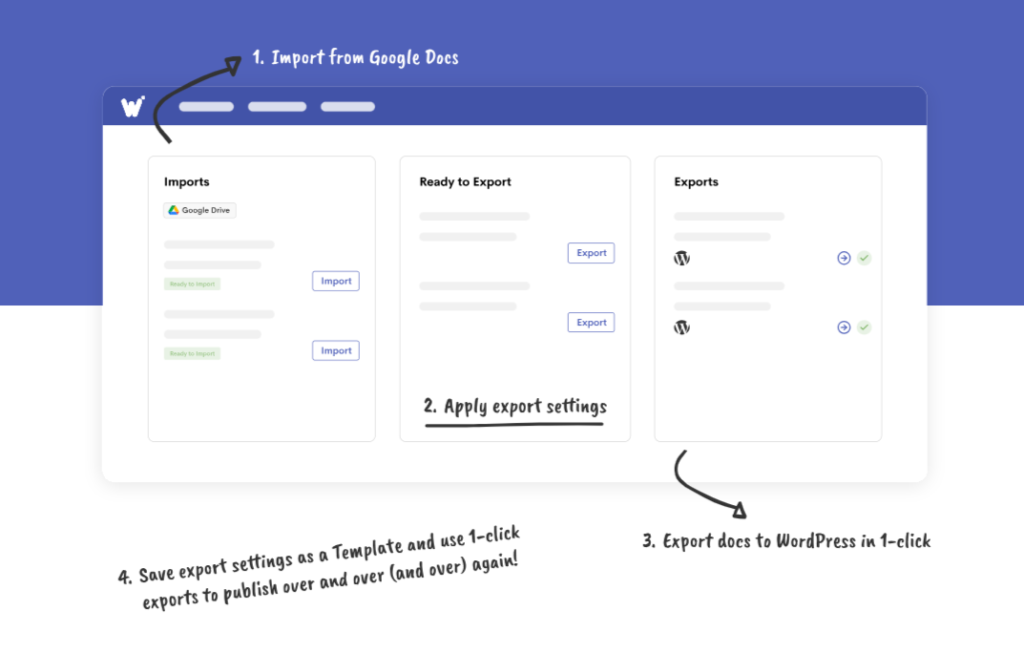
To publish content directly from Google Docs to your CMS, you’ll need a publishing tool like Wordable.
Without one, your team has to manually copy, paste, and reformat every article before it goes live. This is one of the biggest time sucks we’ve come across, which is why our agency bought Wordable in the first place!
Publishing requires the least ongoing manual work in our document workflow. Once you configure the export settings, Wordable handles most of the transfer and formatting work, though someone should still review the imported document before hitting publish.
To start, connect Wordable to your CMS and configure your preferred export settings. Choose how headings, images, and other formatting elements, like links, should be handled.
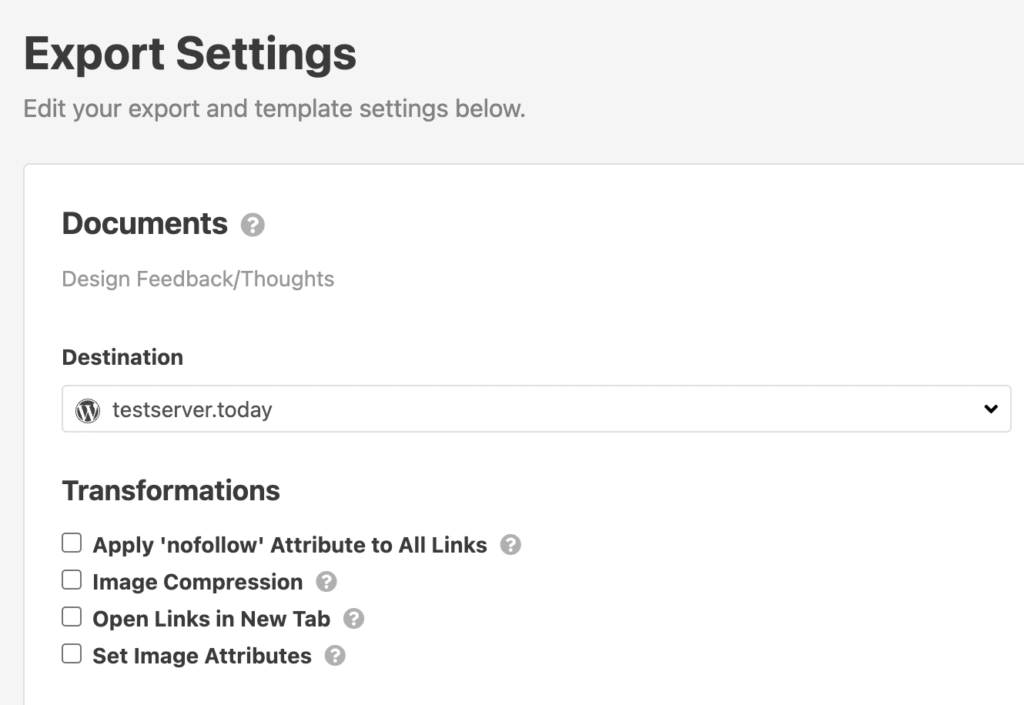
When your settings are ready, open the approved Google Doc in Wordable.
Review the import, make any final adjustments, and publish it with one click.
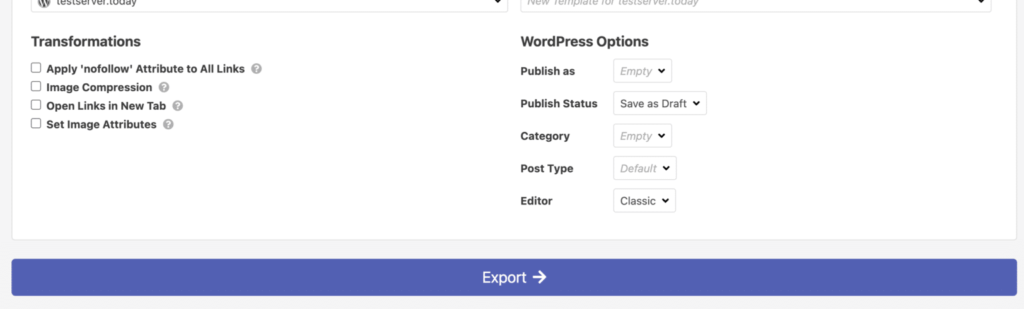
This removes one of the most repetitive tasks in the content workflow, improves productivity, and preserves formatting between Google Docs and your CMS.
Need more help with this?
➜ Read our Export Google Docs to WordPress guide.
➜ Or our Export Google Docs to HubSpot guide.
Enterprise document automation gives your content team a repeatable way to move every article from brief to published page.
Remember to:
Every one of these steps removes unnecessary manual work.
Together, they create a content operation that is easier to manage, even when your team handles high volumes of content. 💪
P.S. If your team publishes content every week, Wordable is one of the simplest ways to automate the final step and spend less time formatting articles inside your CMS.
No. Enterprise document automation can’t replace content writers and editors. It supports repetitive tasks like document creation, approvals, and publishing.
Writers and editors provide the strategy, expertise, and editorial judgment that software can’t replace.
For enterprise document automation, content teams can use:
Publishing is the only stage in this workflow that can be fully automated.
Tasks like strategy, writing, editing, and approvals still rely on human expertise. Software helps by organizing and speeding up the process.