


You spent days researching, interviewing, and writing a blog post. Your document looks perfect in Google Docs. Then you copy and paste it into WordPress.
Suddenly, everything breaks. Your H2s turn into bold paragraph text. Your images completely disappear or shift to random places. Tables and lists also lose their formatting. To make it worse, you realize you missed internal links, metadata, and post settings.
Your team now wastes hours fixing preventable issues, turning publishing into a frustrating cleanup process. Learning how to publish a blog post shouldn’t take longer than writing the article itself.
These layout errors cause significant damage. They hurt your user experience because readers avoid messy text. They hurt your SEO because search engines struggle to understand broken code. AI engines may also struggle to cite your messy pages.
This guide shows you how to publish a blog post without breaking formatting, losing images, or wasting hours on manual fixes. You’ll learn where formatting breaks, how to prevent issues before upload, and how tools like Wordable can make publishing more repeatable.
Highlights
Most formatting problems start during the transfer between writing tools and WordPress, especially when publishing blog content.
Content teams are publishing more articles than before. However, many still rely on manual copy-paste workflows. That creates room for small errors that build up fast. According to WordPress VIP’s research, 78% of organizations reported increased content demand in 2024. This puts extra pressure on publishing workflows and review teams.
Google Docs and Microsoft Word carry hidden styling code behind the text you see on screen. When pasted into WordPress, that extra code can create issues. These issues can include broken spacing, strange fonts, or messy heading structures.
For example, an H2 from Google Docs may convert to a normal paragraph in the block editor. Visual editors can also interpret pasted styles differently. This can lead to layout inconsistencies between pages.
Not every content element survives the move into WordPress. Images can fail during upload. And some embeds stop working after being pasted.
YouTube embeds, callout boxes, and comparison tables also run into the copy-paste limit. In some cases, images fail because the upload path breaks during transfer. Unsupported formatting and responsive display issues create even more cleanup work before publishing.
Formatting problems hurt more than page design. Broken heading order can confuse readers and search engines. And missing alt text makes images harder for both accessibility tools and AI systems to understand.
Messy HTML can also create crawl issues that slow indexing or weaken page structure. A page with multiple H1s and broken spacing feels harder to trust. When content is difficult to scan, readers leave faster. And AI tools may struggle to understand the page.
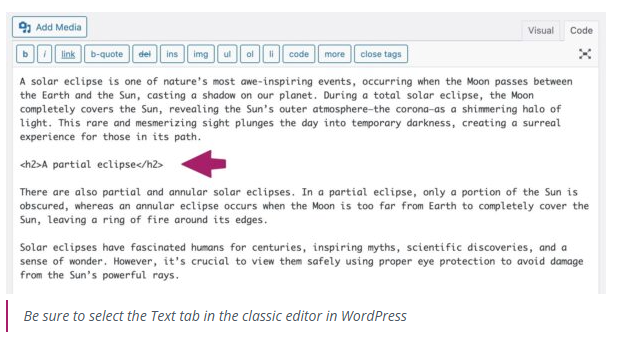
Your CMS isn’t the problem. Most problems start earlier. This could occur during writing, editing, or when transferring between writing tools.
This is why you need a smart setup that stops errors before they start.
Let’s look at how you can fix your publishing process.
Use a simple five-part workflow: clean the draft, prepare the images, transfer the post, preview the layout, then run a final SEO check. That keeps publishing from becoming a separate rebuild after writing is already done.
The first step is to review your draft before publishing your first blog post. Keep heading levels organized from the start. Use simple spacing rules and avoid overdesigned tables.
Take a comparison table, for example. If it has merged columns, they may look fine at first. But they may look different once you transfer to your CMS. Someone may have to rebuild the whole section manually.
Images often create publishing issues before the page even goes live. Large files slow uploads and can throw off page layouts on mobile devices. For example, a PNG screenshot may look good on a desktop. But it may load slowly and stretch awkwardly on smaller screens.
According to Google research, images are often the largest contributor to a page’s total size. This can slow page load times and increase loading costs.
Resize images before importing them into WordPress. Use an online tool to compress large files and use WebP when possible.
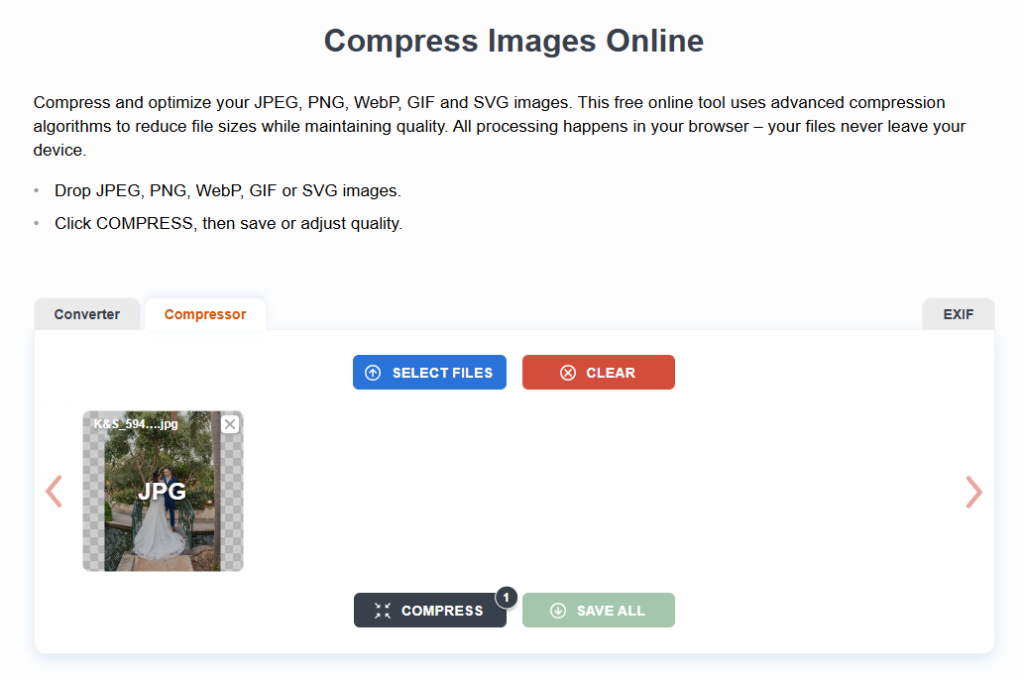
Also, add alt text as you go. Don’t leave it for later.
Manual publishing creates more room for mistakes. Someone copies content into WordPress. Then they have to fix spacing, check links, and upload images one by one. The same has to be done for every article.
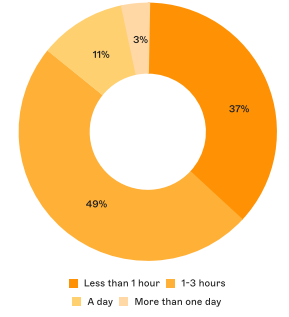
But this process is time-consuming. Storyblok reports that nearly half of CMS users say publishing takes more than an hour. 14% deal with delays lasting a full day or longer.
Automation helps remove the repetitive fixes that slow teams down. Instead of rebuilding blog content inside WordPress, you can transfer posts with headings, links, images, and tables already in place.
Metadata support also reduces missed SEO fields during publishing. Wordable can help with this. It moves content from Google Docs to HubSpot, Medium, or WordPress while preserving much of the original formatting.
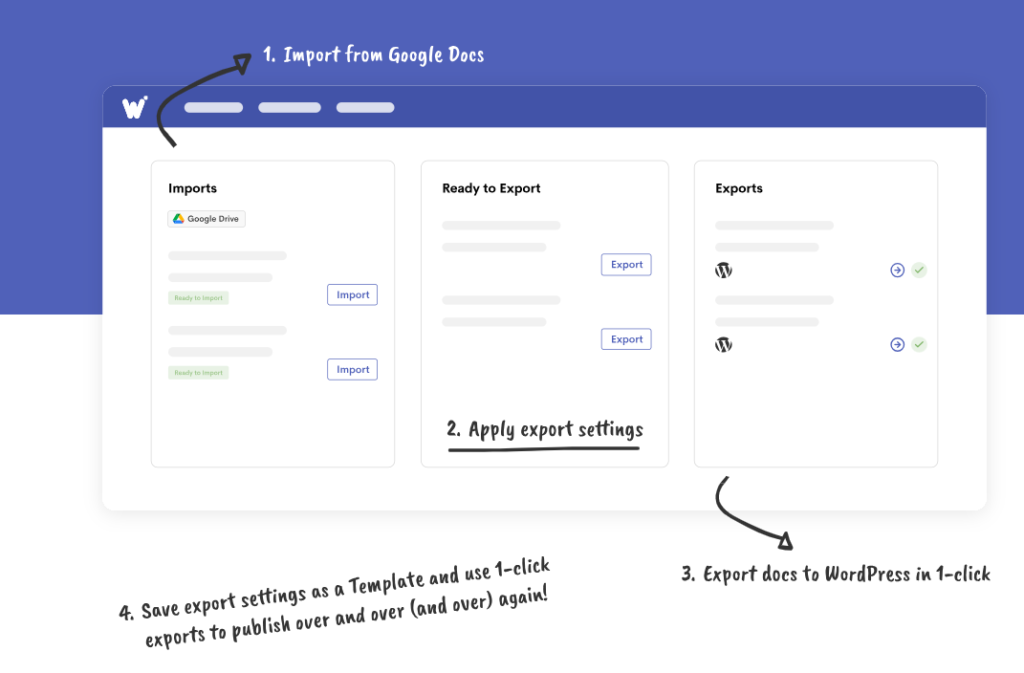
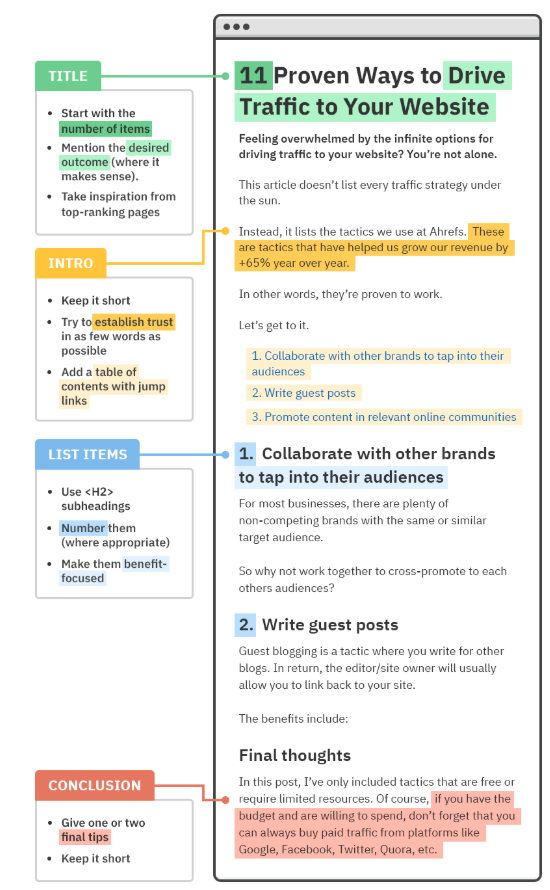
Templates create consistency across every post. Writers spend less time rebuilding layouts. And editors spend less time correcting avoidable formatting issues. The biggest benefit is predictability. When every article follows the same structure, reviewers spend less time worrying about formatting and more time actually improving the content. Small publishing mistakes are also easier to catch because the layout stays the same from one post to the next.
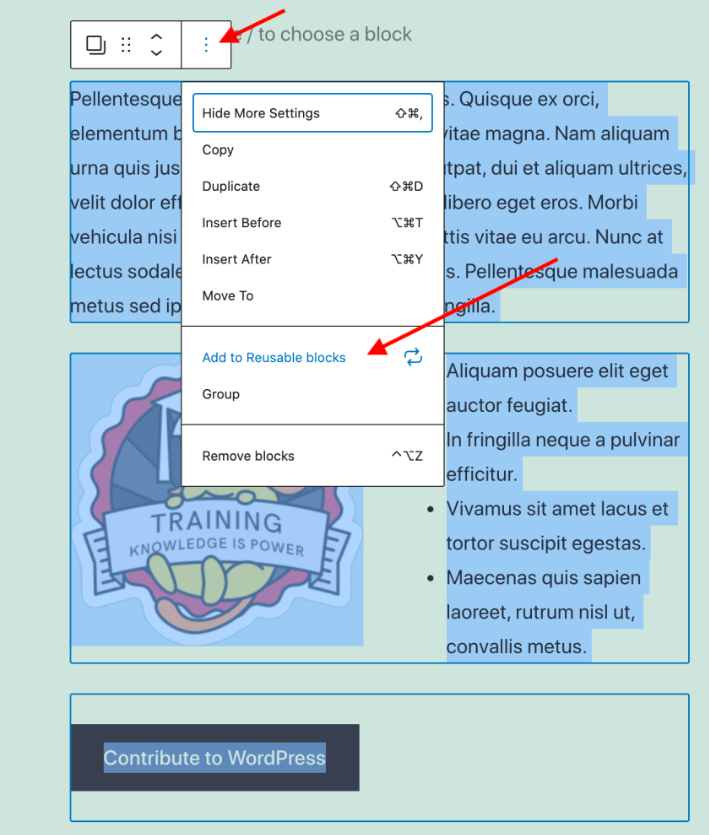
Reusable blocks help even more. Agencies often use them for author bios, CTAs, product sections, and disclaimers. You can use a saved template with preset heading styles and spacing rules for creating blog posts. It keeps every article closer to publish-ready before it goes under review.
Do a final review. It catches problems that sneak in during import. Always preview the article on mobile devices before publishing. Tables, images, and buttons can behave very differently on smaller screens.
Check heading order, links, and CTA placement before the page goes live. A CTA button placed too high on mobile can interrupt the reading experience and push important content further down the page.
Publishing can be a frustrating process. A post may look perfect in Google Docs. But the page may look messy after import.
The fixes are usually simple, but finding them takes time when teams work under pressure.
Heading structure helps readers move through the page. When H2s and H3s are imported in the wrong order, the article feels harder to scan. Search engines can also struggle to understand the page structure.
This happens a lot after copy-paste. For example, an H2 may be imported as plain text, while the H3 underneath remains intact.
You can fix this in your CMS. Check each heading block. If necessary, reset the correct heading level before publishing.
This often happens during transfer between platforms. Sometimes the upload to the media library fails. Other times, compression settings or CDN conflicts change how the image loads after publishing.
Mobile screens create another problem. A large screenshot may fit perfectly on a desktop. But it may stretch outside the content area on phones. Sometimes, an oversized feature image can push text out of alignment after WordPress applies responsive resizing rules.
Tables that look clean on desktops can be difficult to read on mobile devices. Columns might shrink too much. Or text might wrap awkwardly. Sometimes readers scroll horizontally across the page to view the table.
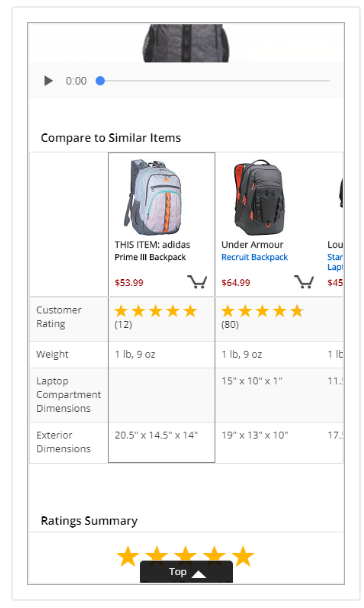
Simpler layouts usually work better. Some teams replace wide comparison tables with collapsible sections or stacked comparison cards.
Let’s say you’re comparing the prices of the best AI tools for content creation. You can create individual comparison cards. These make it easier for people and AI engines to scan your text.
Spacing problems often come from hidden HTML and inline styles attached to pasted content. You may not notice the issue in Google Docs. But WordPress can interpret that formatting in unexpected ways.
The result can look messy. One paragraph may use a different font size. Another may carry extra spacing above it for no clear reason.
Every article needs a final review before going live. Small formatting problems can slip through during import. This is especially common when teams work fast or move content across several tools.
This checklist helps catch those issues before readers spot them. It also keeps your layout clean and protects your search rankings.
Fixing your upload system can improve your entire content operation. Higher efficiency increases your total content velocity, allowing you to post more articles. It also improves your team collaboration because everyone works from a clear, shared process. You maintain strict SEO consistency across all pages.
Best of all, your overall content quality goes up.
Clean workflows reduce employee burnout. Your team stops wasting creative energy on tedious, repetitive tasks. Streamlined publishing helps your creators focus their energy on keyword strategy, blog content, and writing.
They spend time building great stories instead of fixing formatting issues. That is where automation fits: it removes repetitive upload tasks without requiring editors to rebuild the article in WordPress.
Wondering how to publish a blog post without losing your formatting? Simplify your publishing workflow and protect your layout by using automated tools. Wordable lets you export your documents into clean web pages with a single click.
Google Docs includes hidden HTML styling code when you copy text. WordPress often struggles to read this code.
This clash changes your fonts and ruins your text spacing. Using a tool like Wordable automatically cleans this junk code before it enters your website’s database.
Stop pasting images directly into your post editor. Upload your media files straight to the WordPress library first. Then, place them inside your content blocks.
You can also use automated export tools. These platforms move your photos directly from your document to your CMS. They keep their layout intact.
Yes, messy code hurts your SEO. Search engines get confused by broken tags and out-of-order headings. This makes your website harder to crawl and index.
Clean formatting tells search engines exactly what your content is about. It helps your pages achieve higher search rankings.
Keep your tables simple. Avoid heavy columns and large grids that extend beyond the phone’s borders. Use clean vertical lists or comparison cards instead. If you must use standard grids, install a responsive table plugin. These tools allow mobile users to swipe across the data without breaking your layout.
The fastest way is to automate your upload process. Avoid manual copying and pasting. Use an optimization tool (like Wordable) to transfer your text, compressed media, and metadata all at once. This system reduces your formatting fixes. It allows you to move from a draft to a live post in seconds.