


User experience (UX) writing is how words help users act and interact with less friction. It shapes the user experience across every screen, click, tap, and scroll.
In 2026, people expect fast, clear answers without digging around. Reliable UX content lifts conversions, reduces support, and builds loyalty.
In this guide, we provide a straightforward system that you can implement with your copy and design team. Use it to get clear steps and a UX writing playbook to build a brand with a user-centered approach.
UX writing is a product language that moves users through tasks with less friction. It turns intent into action in the user interface across screens like sign-up, onboarding, notifications, and error states.
Think of UX writing as the operational side of content strategy inside product designs. Writers partner with designers and engineers in UX design to shape choices, reduce doubt, and guide the next step.
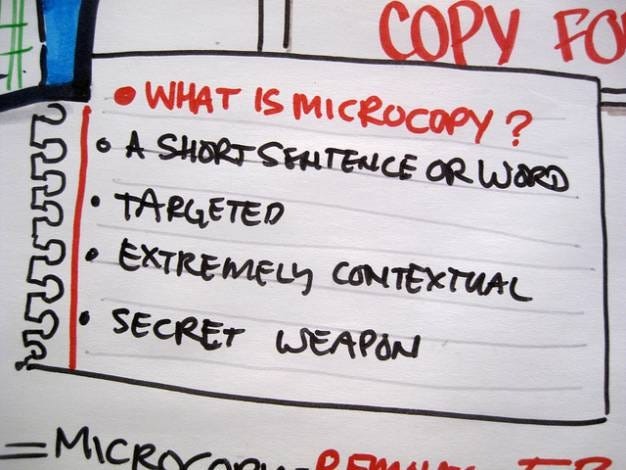
Microcopy is the smallest unit. It’s every button label, field hint, cookie note, or empty-state nudge. It clarifies rules, prevents mistakes, and maintains the flow without compromising brand voice.
Clear UI microcopy improves task completion.
Better labels and hints reduce form friction. Cleaner flows lead to more finished tasks, fewer support chats, and higher retention.
For example, recent research by Baymard shows that reducing the total number of form elements can improve completion. That is why concise copy and fewer fields are crucial in checkout and sign-up. Copy carries the hard work so that layouts can stay clean.
There are also two huge business benefits to UX writing.
Think about it: How would increasing conversions by one or two percent on a button or a page impact your revenue at scale? The results could be massive, especially when return on investment slows down with scale.
This is where conversion rate optimization (CRO) could be the difference between companies staying where they are and making eight or nine figures.
Plus, effective UX writing can save hundreds of thousands of dollars in operational costs over time. It could be the difference between outsourcing a few hours of customer support or building an in-house team of 30 people due to the volume of queries and complaints.
It’s also why microcopy should be an essential part of your content creation process, not an afterthought.
Let’s look at how to get your beam better at UX writing in 2026.
Voice sets expectations. Tone adapts to the moment so the copy fits the user’s state.
Start with brand voice. Then decide on the voice and tone rules.
The less corporate your brand voice is, the more lenient and conversational you can be. Also, consider the age and gender of your target audience.
Tie voice choices to user needs and user psychology. For high-stress steps, use calm, direct language. For success states, you can be warmer. For empty states, use helpful prompts and a gentle call to action.
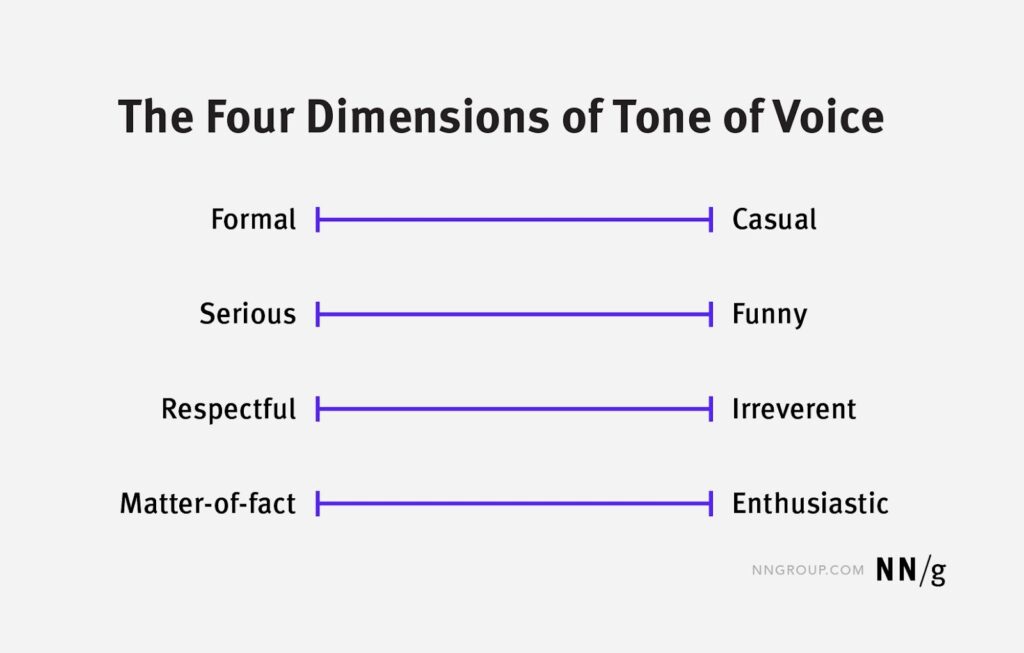
Map voice on four axes like humor, formality, respect, and energy. Use the same terms consistently in your content style guides and design tools. For visuals, create examples with Adobe XD or Figma, and copy them into your style guide. Add a note on title case vs sentence case, tense, and personas.
A style guide is the start. Convert it into UX string patterns that writers and designers can drop into any flow.
To do this, create templates for buttons, confirmations, warnings, banners, tooltips, and dialogs. Each string pattern should have a purpose, a trigger, and a copy block with variants. Add do and don’t examples inside the pattern. Don’t forget to include your grammar rules.
Think of retail shelves. In-store messaging, like clear labels, helps busy shoppers choose in a second. You want the same effect at moments of action in your product or service..
Example: User wants to request a refund.
Why this works: The button’s action is explicit. The user gets a timeline, so they’re not anxious about whether or not they’ll receive their money back.
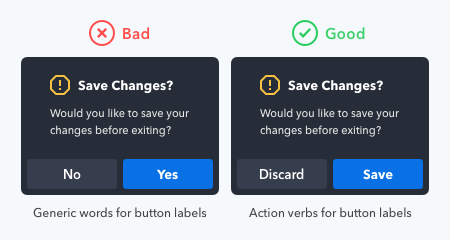
What to do next: Update your editorial style guidelines so that every field or button has a tool tip helper text. Rename all buttons so that their actions become obvious and explicit.
Accessibility helps everyone and also supports search engines with a clearer structure.
The W3C issued guidelines that websites should implement to meet the WCAG 2.2 accessibility standards. These include:
Example: A financial mobile app designed for adults and older people.
Why this works: It minimizes the chance that users unintentionally choose the wrong option.
What to do next: Set default colors and spacing standards in your style guide. Add examples of labels and instructions that both editors and designers should follow.
Use native controls first, like buttons, links, inputs, labels, text areas, checkboxes, radio groups, and select menus.
They work better with screen readers and reduce custom code that can break. If you must build custom components, mirror native behavior with proper roles, names, and states so that assistive tech understands them.
Then build a structure that standardizes and streamlines content publishing. Headings should describe each step. Link text should say the action or destination. Avoid vague phrases like “click here.”
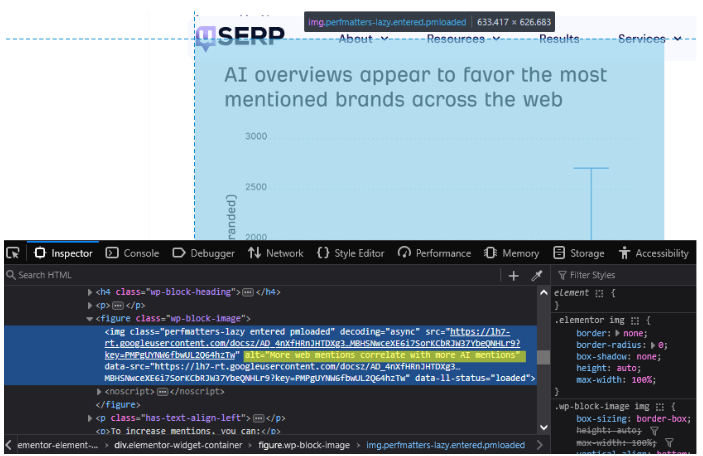
Write descriptive alt text that helps users understand context, not just describe a picture. Keep sentences short and use plain words so the user flow feels calm and predictable.
Example: Creating an e-commerce product page.
Why this works: It makes your site easier for users to navigate.
What to do next: Set up standard controls and blocks. Design them and save them as templates or defaults for future reuse.
Write precise, kind, and direct error messages. Tell users what failed, why, and how to fix it. Then offer the next step. If a form fails, keep the good data and set focus to the first error. Confirm success with a clear message and the following action.
Example: Address validation in a shipping form.
Why this works: It makes it easier for the user to fix the mistake without pointing blame.
What to do next: Add a list of standard error messages to your content inventories.

Better UX writing comes with intent, not by accident. The best way to do that is to systemize it once and reuse it everywhere. Patterns, content management systems (CMS), and governance keep UX content consistent across teams.
Create a small library of content components. Start with toasts, banners, field hints, empty states, and dialogs.
Each component should include the copy pattern, the visual component rules, the visual element specifications, and the accessibility notes.
Then add owners, a review cadence, and a rollback plan. Track each pattern version in your content inventories. This supports content reuse and faster release cycles. It streamlines workflows and speeds web content creation.
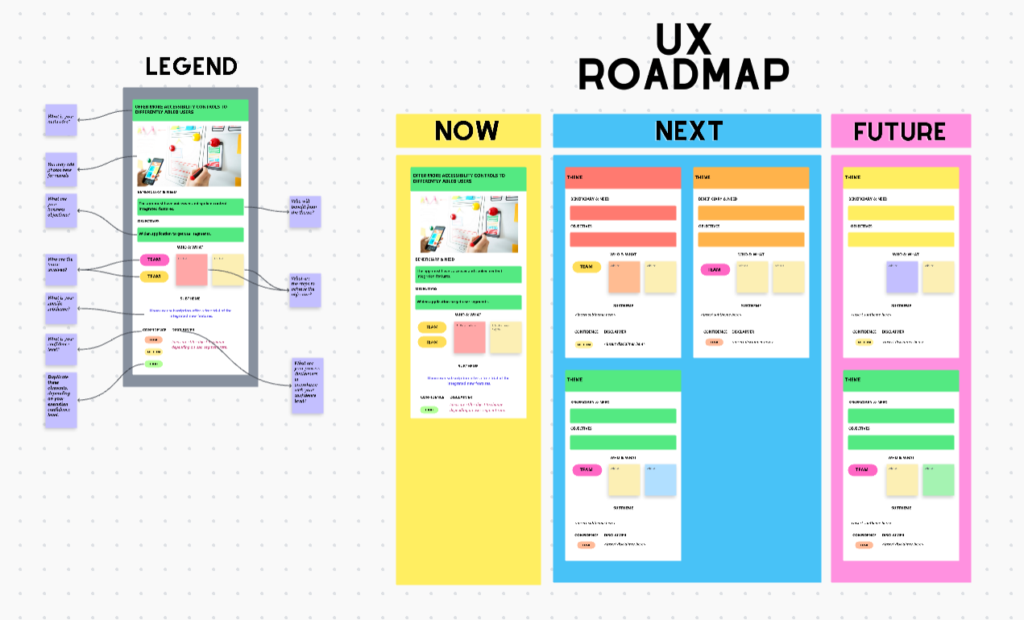
Document string IDs and where they are used. Share the same IDs with engineering so content management stays tidy. Add placeholders for variables so writers can preview real strings at runtime. That prevents truncation and layout bugs.
If you are scaling fast or need extra build power for CMS workflows, partner with a dedicated software development team to keep momentum without compromising quality.
Example: Success banners across several pages.
Why this works: A single pattern prevents drift and speeds releases.
What to do next: Add pattern templates to your content design systems and enforce reuse in your CMS.
Connect copy patterns to design tools and let your CMS do the heavy lifting.
Store UI microcopy as structured strings with IDs, owners, and review dates. Limit fields to what writers actually need, like purpose, audience, voice and tone, and grammar rules.
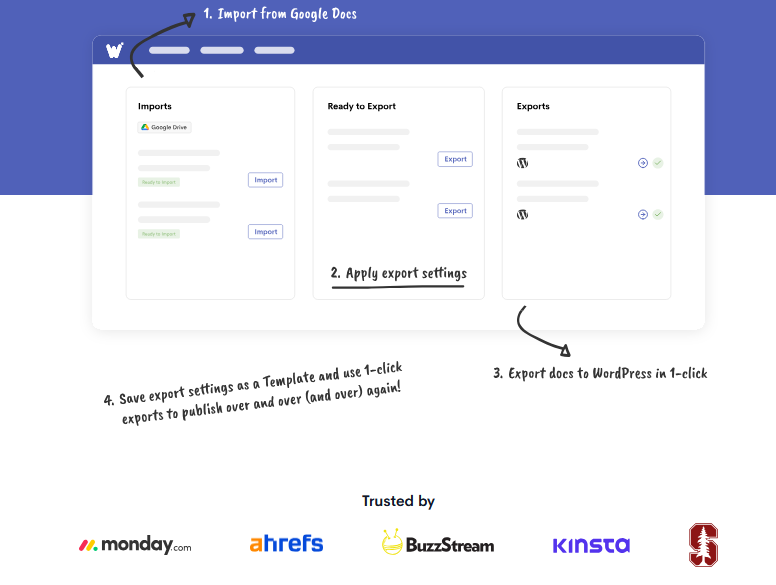
Publish posts from a single source, like Google Docs to WordPress. This way, content stays in sync with UX across web content creation and product design.
Example: Publishing blog posts.
Why this works: A single pattern prevents drift and speeds releases.
What to do next: Add pattern templates to your content design systems and enforce reuse in your CMS.
Good titles and descriptions help users and search engines. Title pages for the job to be done, then write a short description that sets expectations and a call to action.
Keep labels and breadcrumbs aligned with your content hierarchy so people never wonder where they are. Bake metadata for SEO fields into templates so teams do not forget during fast releases. This is also a good practice as part of your technical SEO.
Example: A SaaS product comparison page.
Why this works: The title and description match the task a user came to do. Labels line up with what they see after signing up, so there is no surprise. Breadcrumbs confirm place, and a clean structure helps search engines and people scan faster.
What to do next: Create title and meta description templates for common page types. Standardize breadcrumb patterns. Add a checklist for headings, alt text, and structured data. Store these rules in your CMS so editors must fill them in before publishing.
Test small, learn fast, and roll forward only what works. Use lightweight UX research so writers can validate language without slowing delivery.
Interview a few users to hear their words, then turn those terms into hypotheses.
Prototype with Balsamiq Cloud or quick mocks and run microcontent testing on critical steps, like a sign-up page or onboarding flow.
Track simple metrics: task completion, errors fixed, and time to finish.
Choose from the best UX tools, as most of these let you mock up quickly and provide quick insights.
Card sorting and tree testing clarify labels, while first-click tests reveal priority.
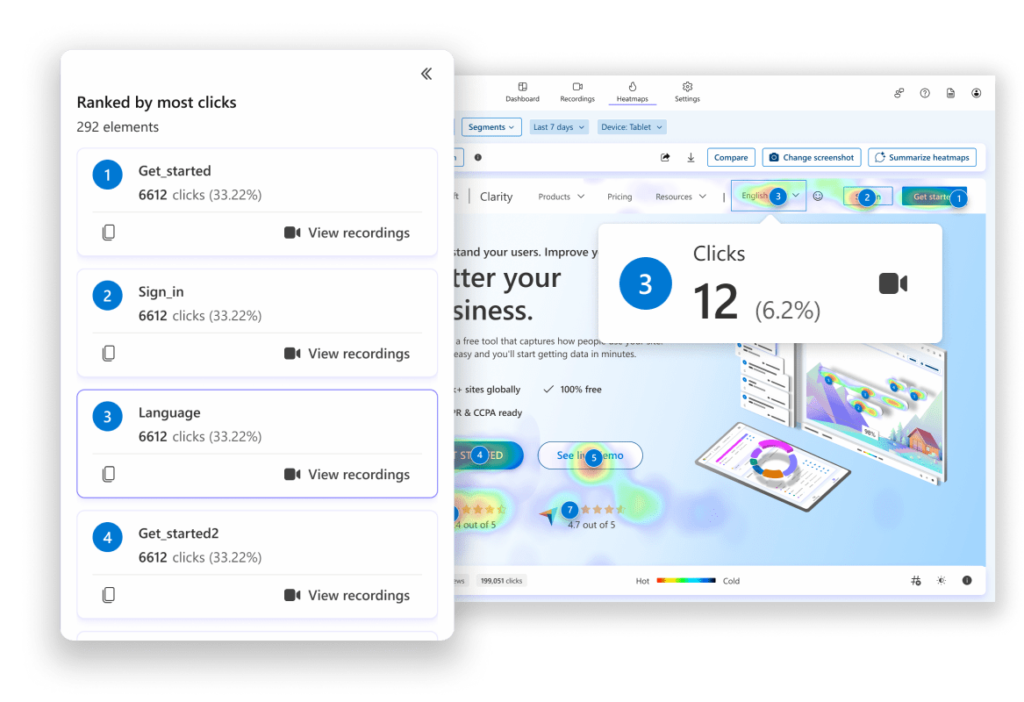
Consider using an analytics tool like Microsoft Clarity. These reveal user behavior on your site, especially if you get a lot of traffic. Clarity also records heatmaps that show where users are clicking and when they’re bouncing, potentially uncovering UX issues.
You can also use forms, polls, and quizzes to gain user insights. These tools are simple but effective and many platforms (e.g., Jotform and Typeform) offer various templates from which to choose and customize.
Systematize UX writing with voice, patterns, and accessibility, and track changes in your PM tool.
Small wins in UI microcopy can compound into smoother flows and higher customer loyalty, while reducing unnecessary costs.If you want writers and editors to focus on content while systemizing UX content, consider Wordable.io for a one-click flow from Google Docs to WordPress.