


You know the feeling. Once a simple blog, your WordPress site has ballooned into a complex machine of themes, page builders, and a dozen different WordPress plugins that might conflict after the next update. You’re spending more time managing the tech than creating content, and you know there’s a better way.
That’s why you’re looking at HubSpot. This guide is your roadmap to a smooth and successful WordPress-to-HubSpot migration.
But this isn’t just another post about hitting the “import” button. It’s a step-by-step method for cleaning, decluttering HTML, and optimizing your valuable blog posts and landing pages while moving them to the HubSpot CMS.
Highlights
WordPress has been the leading content management system (CMS) platform for over a decade. As of writing this post, 43.3% of all websites use it (source: W3Techs).
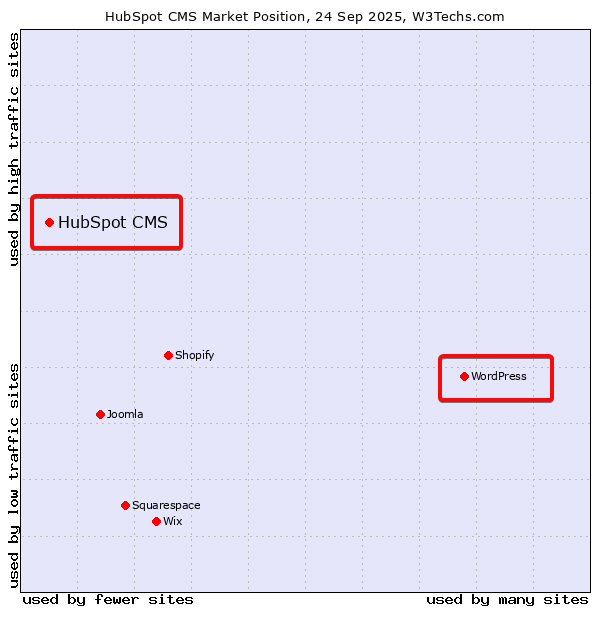
On the other hand, HubSpot is better known for its customer relationship management (CRM) platform than for its CMS. In fact, only 0.2% of websites use the HubSpot CMS, according to W3Techs, while many others use alternatives to HubSpot.
So, if you have a WordPress site, the natural question is:
Why would you want to migrate to HubSpot?
If you’re running a WordPress site, your dashboard is likely a patchwork of third-party tools. You have:
Each comes from a different developer and requires separate updates and management. Each new WordPress plugin adds another potential point of failure.
HubSpot changes the game. It’s not just a CMS; it’s a complete marketing and sales platform. The Content Hub works seamlessly with HubSpot CRM, so every piece of content can be directly tied to customer data and lead-nurturing campaigns.
The built-in marketing automation and SEO tools eliminate the need for dozens of external solutions, creating a single, unified ecosystem.
Performance is everything in modern marketing. A slow, clunky website leads to:
While you can optimize a WordPress site for speed, it often requires a complex setup of caching plugins and content delivery networks (CDNs).
HubSpot’s infrastructure, on the other hand, is built for performance from the ground up. Its global CDN, automatic image optimization, and managed hosting provide exceptional reliability and loading speed out of the box.
These are some reasons the HubSpot CMS is more popular among high-traffic sites than WordPress, as the following graph clearly shows.
Plus, with a built-in SSL certificate and 24/7 threat monitoring, you get enhanced data security without having to manage it yourself.
The WordPress vs. HubSpot debate doesn’t end here. There are many valid reasons to stick to WordPress, and there are also other reasons to migrate that aren’t covered above. But, granted that it makes sense for you to migrate, especially if your marketing already relies strongly on HubSpot, let’s take a look at how you would typically handle the process, and why Wordable offers a better way.
Before we dive into the Wordable method, it’s important to understand the standard tools HubSpot provides. These options can work in certain situations, and understanding their pros and cons will help you see why a more controlled approach is often necessary for a high-quality content migration.
The WordPress Connect feature is typically the first stop for most marketers. It uses your WordPress site’s REST API to connect directly to your HubSpot portal and pull your content over.
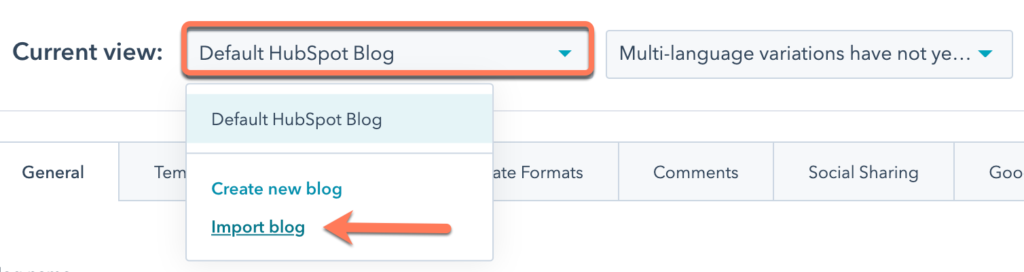
The tool is designed to import your blog posts, along with their authors, publish dates, tags, categories, and featured images.
The pro? It’s fast.
For a newer blog with a simple theme and minimal custom formatting, this blog import tool can be a great starting point. However, it can often struggle with sites that use complex page builders or have many custom fields, sometimes resulting in formatting errors.
If the direct connection fails (as it often does), the next common method is the XML file import. You can go into your WordPress dashboard, export all of your content into a single XML file, and then upload it to HubSpot.
This is a reliable fallback, but it has one major flaw: it imports everything, including the messy, unnecessary code.
Smart Copy is another of HubSpot’s native tools for importing website and blog content. Instead of using an API or XML file, it works by “scraping” a live URL.
The main benefit is its flexibility. The drawback is that it’s a one-page-at-a-time process and is highly dependent on how well-structured your original page’s HTML is. Also, it doesn’t work on all domains or URL structures.
The traditional routes prioritize speed. The Wordable route prioritizes quality. This process is for marketers and SEOs who understand that the long-term health of their content hub depends on the quality of its foundation. Here’s how you can execute a professional-grade migration that guarantees a clean start.
First things first, you need to get your content out of WordPress. The easiest way to do this is to use the native WordPress exporter (Tools > Export). Select the content you want to migrate—typically all of your posts and pages—and download the XML file.
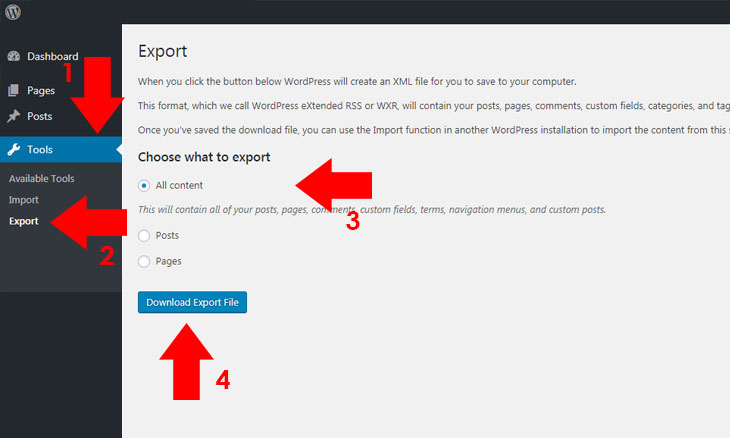
The goal here isn’t to directly upload this file to HubSpot. Instead, think of this file as your raw material. You’ve just extracted all your valuable content, and now you’re going to refine it before moving it into its new home.
This is the most important step in the process and the one that separates a basic migration from a professional one. Instead of moving your content from one CMS to another, you’re going to use Google Docs as a powerful, intermediate content staging environment.
Copy the content from your exported file (or directly from the live posts) into individual Google Docs. This seems like a labor-intensive step, but you can automate it (more on that below), and the value it provides is immense.
Google Docs is a clean, collaborative space where you can:
You don’t have to create each separate Google Doc by hand. You can automatically parse the XML file and create the individual documents using a Google Script.
Not a coder? No problem.
Just ask Gemini or another AI model for the script and a step-by-step to implement. Here’s what that looks like in Gemini.
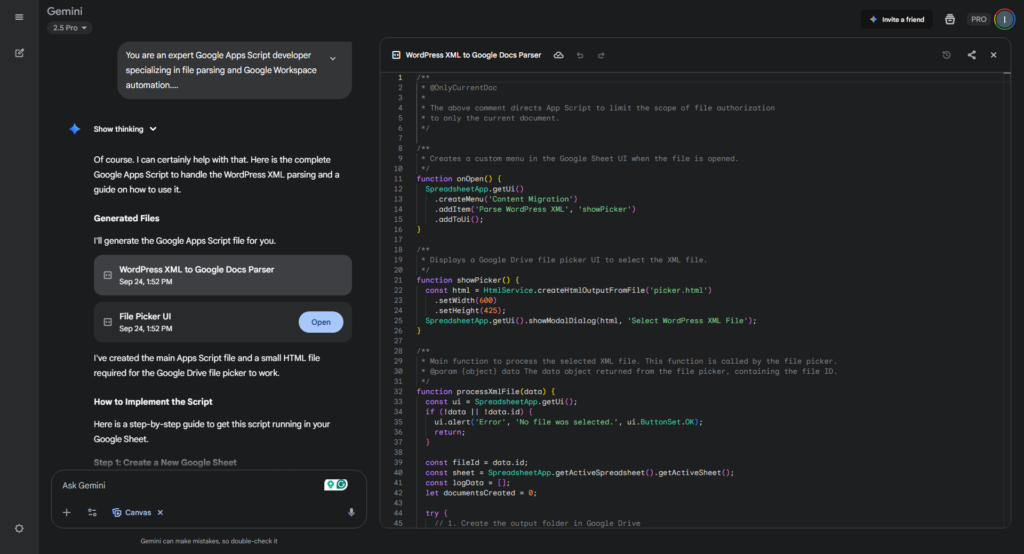
(Image provided by author)
I didn’t even have to write the prompt. I asked Gemini to write the prompt for me and copied it into another chat session.
Once your content is polished and ready in Google Docs, the technical part becomes incredibly simple. Instead of wrestling with HubSpot APIs or custom development, you just connect your Wordable account to HubSpot and Google Drive. This is a simple, one-time authentication that takes less than a minute.
Here’s the payoff. Inside your Wordable dashboard, you’ll see all the Google Docs you just prepared. You can select one, ten, or even a hundred documents at once and export them all to your HubSpot portal with a single click.
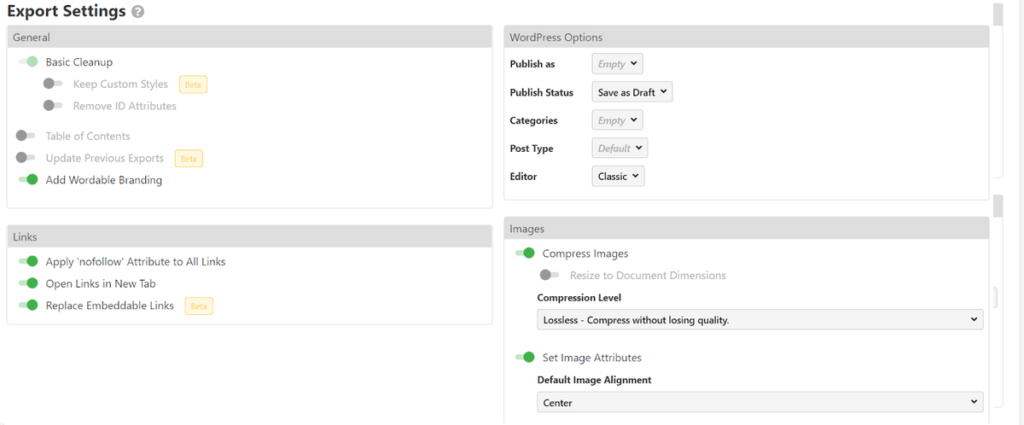
This is where the magic happens. Wordable automatically:
What would have taken hours of manual copy-pasting and reformatting for each individual post is now done in minutes.
You might be wondering, “Why go through the trouble of that extra Google Docs step?”
We already saw that all traditional routes have limitations. With the Wordable workflow, you gain complete control over the WordPress-to-HubSpot migration and save a ton of time, but there are other practical reasons to choose this path.
SEO preservation is one of the biggest concerns during any website migration. Clean code and fast loading speed support stronger performance and search visibility, and the Wordable method delivers both. While Wordable doesn’t automatically create 301 redirects for you, the controlled process provides the perfect workflow for managing them.
As you stage your content in Google Docs, you can use a simple Google Sheet to map every old WordPress URL to its new HubSpot URL, ensuring you don’t miss any redirects.
WordPress page builders and third-party app code can bloat pages and cause formatting issues in HubSpot. Wordable filters this, ensuring clean HTML for faster, more secure, and better-designed pages, preventing post-migration problems.
A migration shouldn’t be a simple “lift-and-shift.” It’s a golden opportunity to re-evaluate your entire content strategy. The content staging step in Google Docs builds this audit directly into your workflow. You can easily:
All the while collaborating with writers, SEOs, subject matter experts, and editors within one of the best-known content creation tools in digital marketing. This collaboration simply isn’t possible with the other migration routes.
Let’s be realistic. Manually copying, pasting, reformatting text, downloading and re-uploading every single image, adding alt texts, and setting the featured image for each post… this could all take over an hour for each post. What if you have to migrate 500 posts? That’s a full month of work for a three-person team spent on repetitive tasks.
The Wordable workflow eliminates the bulk of that time.
Once your content is prepped in Google Docs (a process you can automate), the export and formatting process takes mere minutes.
Once your content is successfully moved with Wordable, you’re in the home stretch. But don’t pop the champagne just yet! A few final checks are essential to ensure a seamless transition for your users and search engines.
This is the technical step that makes your HubSpot site live on your domain. You’ll need to go to your domain registrar (like GoDaddy or Namecheap) and update your DNS settings to point your website address to HubSpot’s servers.
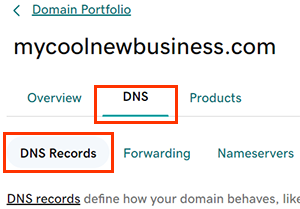
Once you do, HubSpot will automatically provision your SSL certificate, ensuring your site is secure with HTTPS.
Data is the lifeblood of marketing, so make sure your analytics are running from the moment you go live. Install your Google Analytics tracking ID and connect any other Google tools you use.
Most importantly, find every old WordPress form on your newly migrated pages and replace it with a native HubSpot form. Doing so ensures your lead generation and customer data capture continue uninterrupted.
A WordPress-to-HubSpot migration is a major step forward for any marketing team. It’s an opportunity to leave behind technical debt and build your content hub on a platform designed for growth.
While HubSpot’s direct import tools can move your content from point A to point B, they can’t guarantee the quality of the content that arrives. The Wordable method is about more than just moving content—it’s about upgrading it.
Try Wordable today and take control of your content migration while saving countless hours in the process.