


Tired of fixing formatting issues every time you move a blog post from Google Docs to WordPress?
I don’t blame you. It’s a major time suck.
Your team has better things to do than manually cleaning up headings, links, images, and broken layouts every time a post needs to go live.
So what’s the fix? A content publishing workflow built to reduce manual work and speed up publishing.
For content teams, the real issue is rarely a single broken heading or a missing link. It’s the repeated cleanup that happens every time a draft moves from writing to staging to final QA.
A better workflow gives each step a clear owner, keeps formatting rules consistent, and makes publishing feel less like a last-minute scramble.
Keep reading to learn how this works. If you publish content at scale, bookmark this article now. ⭐
Highlights
A modern content publishing workflow is the process of taking a finished draft and getting it live correctly. It includes tasks like formatting, QA checks, media uploads, and publishing content in your CMS.
On larger teams, writers complete drafts, editors polish them, and stagers handle content uploads.
You should use a modern content publishing workflow if your content team publishes to a CMS.
Without a clear process, formatting issues can quickly pile up.
Teams then waste time fixing problems that could have been prevented earlier.
Here’s what’s at stake without a content publishing workflow:
Whether you publish two articles a month or fifty, a repeatable process keeps your content organized and reduces needless back-and-forth.
Faster publishing improves productivity and can support SEO execution when the content is already useful, accurate, and search-aligned.
When you publish valuable SEO content in under an hour:
Obviously, this doesn’t mean publishing crappy content!
The fastest way to publish content depends on your CMS. Every platform (e.g., WordPress, HubSpot) handles this differently.
You’ll need to follow the process for your specific setup and experiment with tools that help streamline publishing.
Let me save you some trial and error. If your team works in Google Docs and publishes in
WordPress, Wordable is one tool that can remove a lot of the manual cleanup.
Manually copying and pasting content into your CMS is slow.
Wordable exports Google Docs directly into WordPress while preserving most of your formatting. 🙌🏻
Here’s a complete walkthrough on how to publish content from Google Docs to WordPress with Wordable.
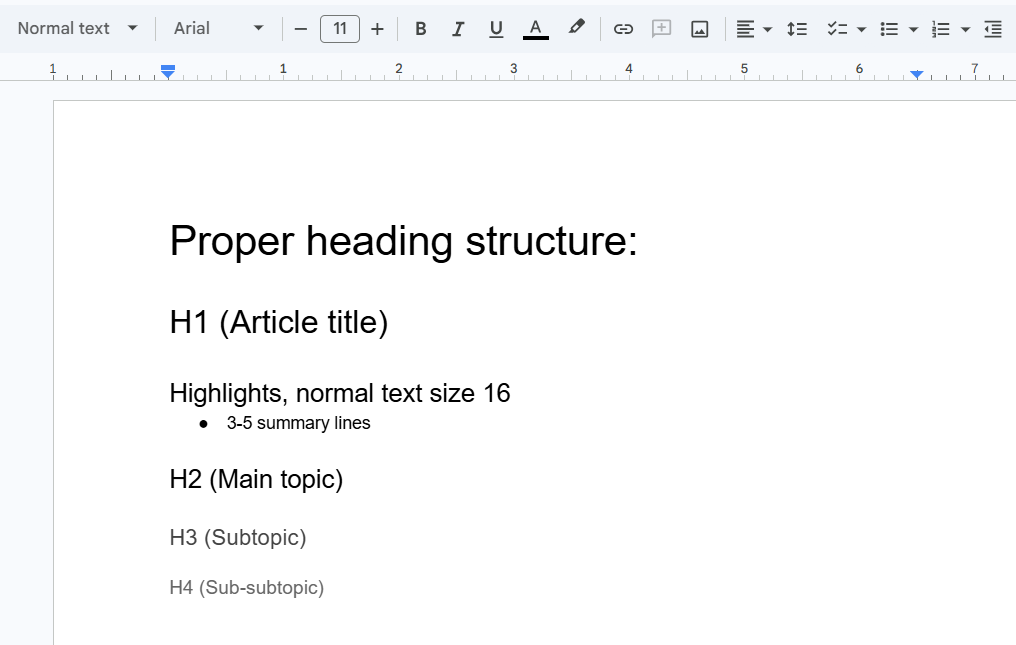
Finish your draft before exporting it.
Make sure to include:
(Image by Ioana)
The image shows what proper headings look like in Google Docs.
Align the piece with the provided brand style guide, formatting checklist, and content brief.
The cleaner your Google Doc is, the cleaner your export will be.
Sign up for Wordable.
Inside Wordable:
This only takes a few minutes.
Once connected, Wordable will display your connected Google Docs inside the dashboard.
Select the article you want to publish and open the export settings.
This is where Wordable saves the most time.
You can automatically:
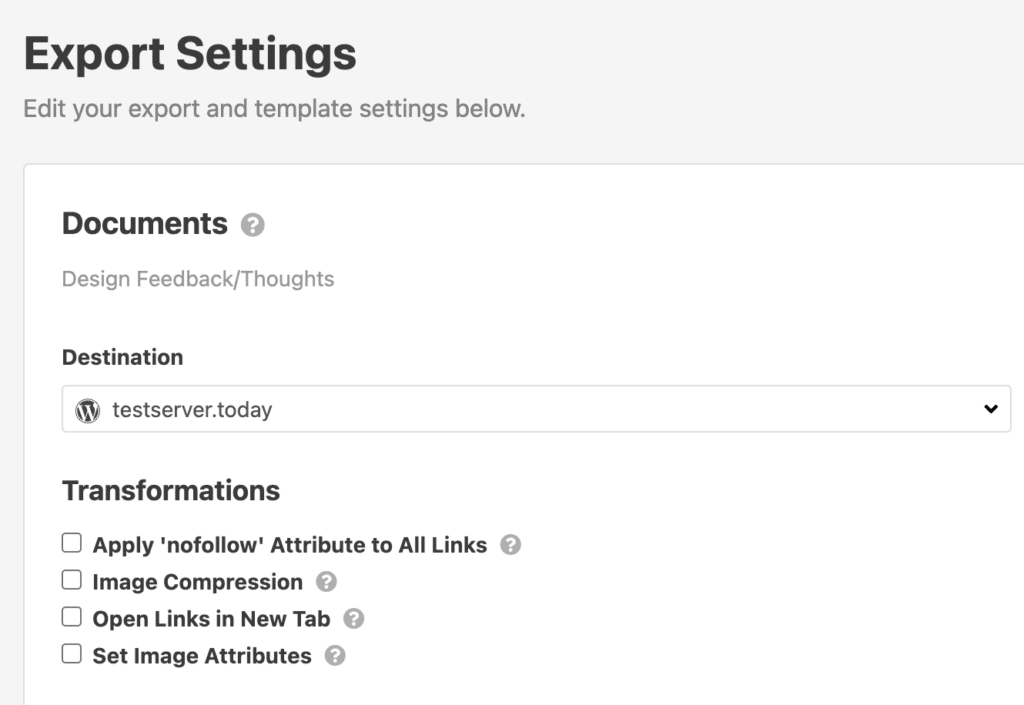
These settings reduce cleanup work inside WordPress later.
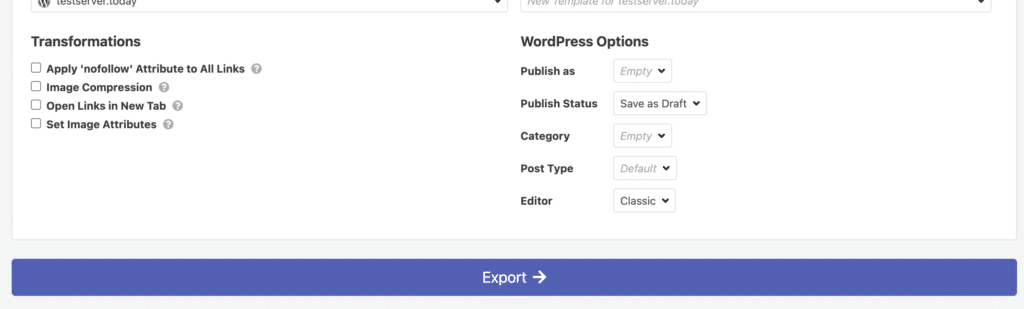
Click export to send the article directly to your WordPress site. The post will appear in WordPress as a draft ready for final review. 💪
Even with automation, make sure to review the page manually before publishing.
Check:
Automation speeds up publishing, but human QA still matters. (No tool will ever be perfect!)
Note: Depending on your WordPress setup, some layouts, blocks, or embeds may still need small adjustments after exporting.
Once everything looks good, publish the article and move into distribution.
Share it across email, social media, and newsletters to help the content gain visibility faster.
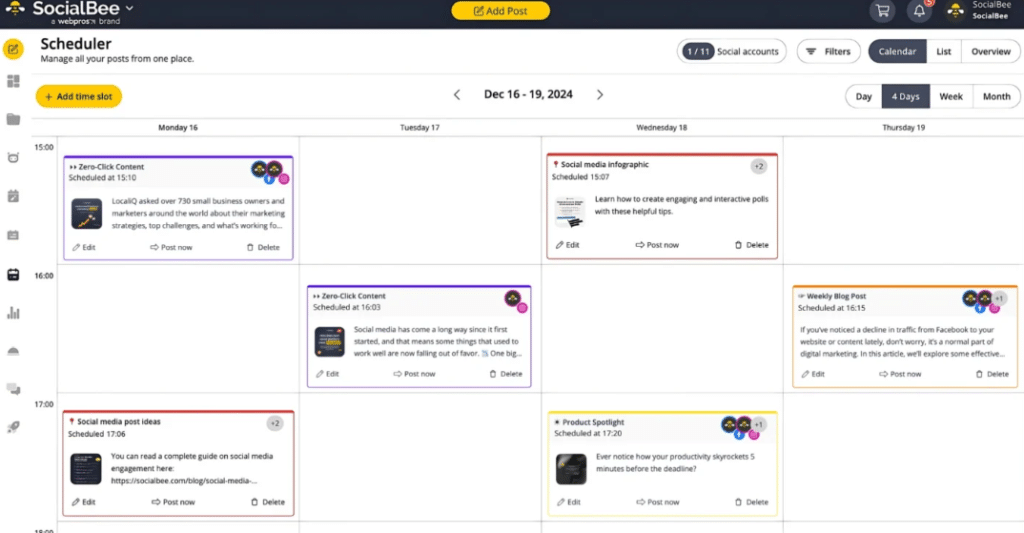
Ta-da!
You just turned a messy, time-consuming publishing process into a faster, cleaner workflow your team can actually scale. 🎉
But exporting is only one part of the publishing process. To keep content moving consistently, your team also needs repeatable standards for briefs, formatting, QA, handoffs, and post-publication updates.
According to the Content Marketing Institute, nearly half of B2B marketers lack a scalable model for content creation.
Publishing a handful of articles is manageable. (Publishing content every week across multiple writers, editors, and deadlines is a completely different story.) Small operational issues start adding up if your team doesn’t have reliable content production processes in place.
Here’s how to work more efficiently as a content team when creating assets:
Open a Google Doc and create a formatting checklist.
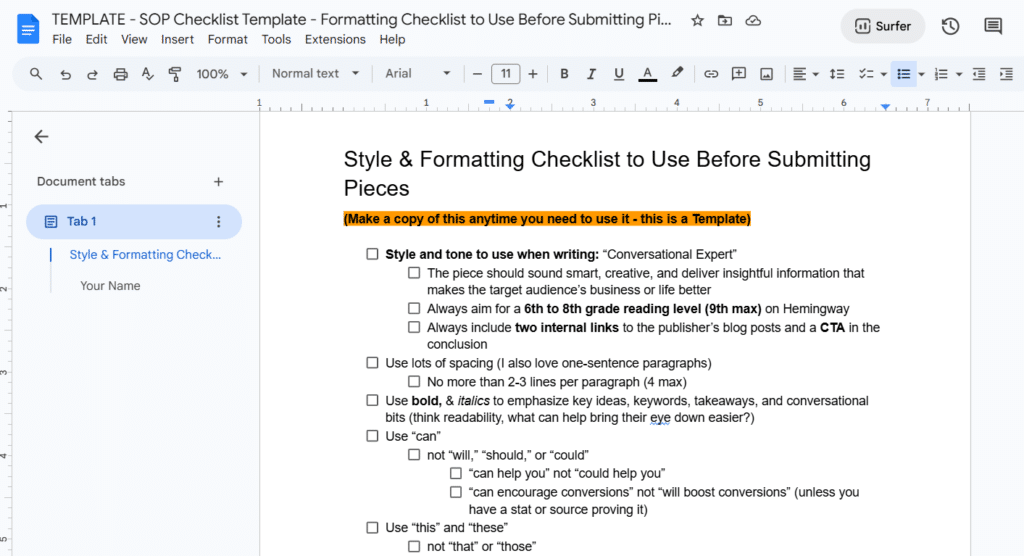
(Image by Ioana)
Include must-haves like proper heading hierarchy, paragraph spacing, image alignment, CTA styling, table formatting, and internal linking requirements.
Add screenshots showing what the final formatting should look like inside WordPress.
Save this Doc in the same folder as your article templates so writers, editors, and stagers can reference it during production.
Create Google Doc templates your team can duplicate for every article.
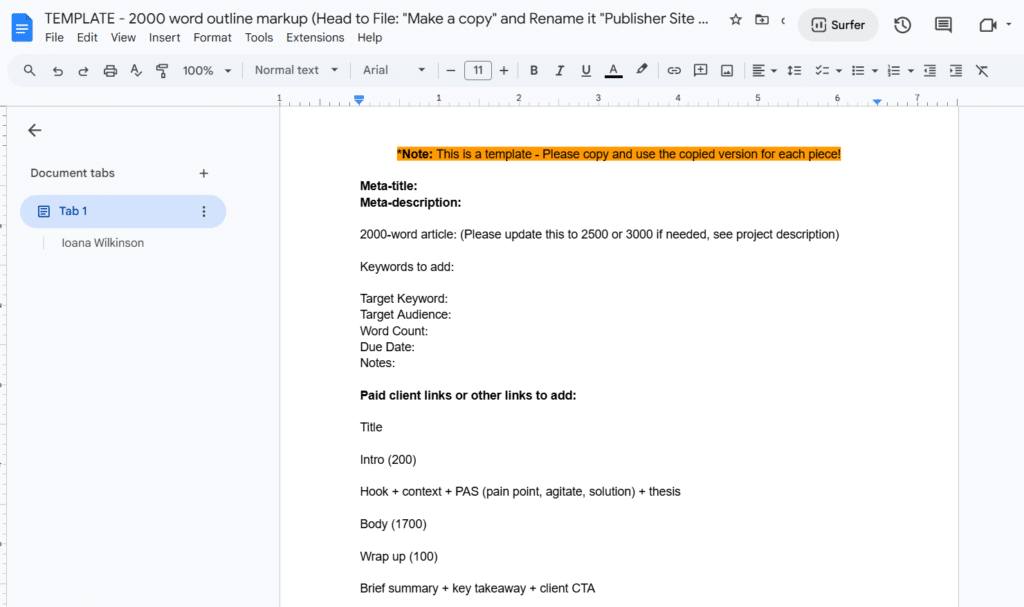
(Image by Ioana)
Inside each template, add placeholders for the:
For example, add notes like “compress screenshots before upload” or “check table formatting on mobile” beside relevant sections so people catch issues earlier in the process.
Create content briefs that outline what each article needs to cover, so writers know exactly what you expect.
Include details like:
Be clear about the search intent, too.
HubSpot research listed “website/blog/SEO (search engine optimization)” as the channel with the biggest ROI this year. To make sure that’s true for your team, include any SEO must-haves in your content briefs.
Keep these in a central folder so writers, editors, and stagers can reference the same instructions.
Compress your images before uploading them to WordPress. Large image files can slow down page speed, especially on mobile devices.
Try to keep blog images under 400KB whenever possible without sacrificing quality.
Before uploading:
This helps pages load faster and keeps your media library more organized over time.
Leave comments directly inside the Google Doc when you need changes.
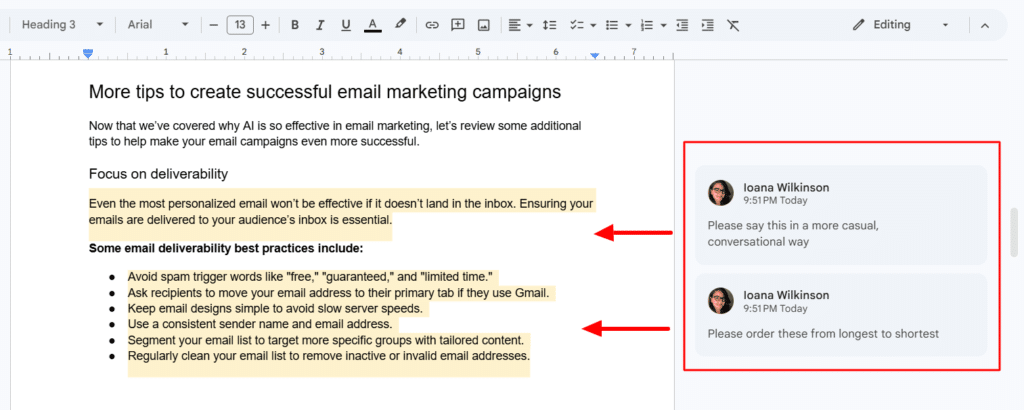
(Image by Ioana)
Use comments to suggest:
Keeping feedback attached to the draft makes it easier for your team to follow updates — without having to dig through Slack messages or email threads.
Build a short QA checklist that your publishing team can review before every article goes live.
Include metadata checks, link testing, image compression, mobile formatting reviews, CTA functionality, and alt text verification.
Assign different responsibilities to different people during the publishing process. (Instead of expecting one person to handle everything from drafting to final upload.)
Have writers focus on research, topic coverage, examples, and search intent inside the Google Doc. Then pass the article to editors for polishing. Next, send it off to stagers for formatting, metadata, image uploads, internal links, QA reviews, and CMS-related tasks.
This creates cleaner handoffs and makes it much easier to catch issues before the article goes live.
Open Google Search Console, Google Analytics, and your preferred SEO platform regularly to review how published articles perform after they go live.
Pay attention to organic clicks, keyword rankings, traffic trends, conversion rates, and engagement metrics.
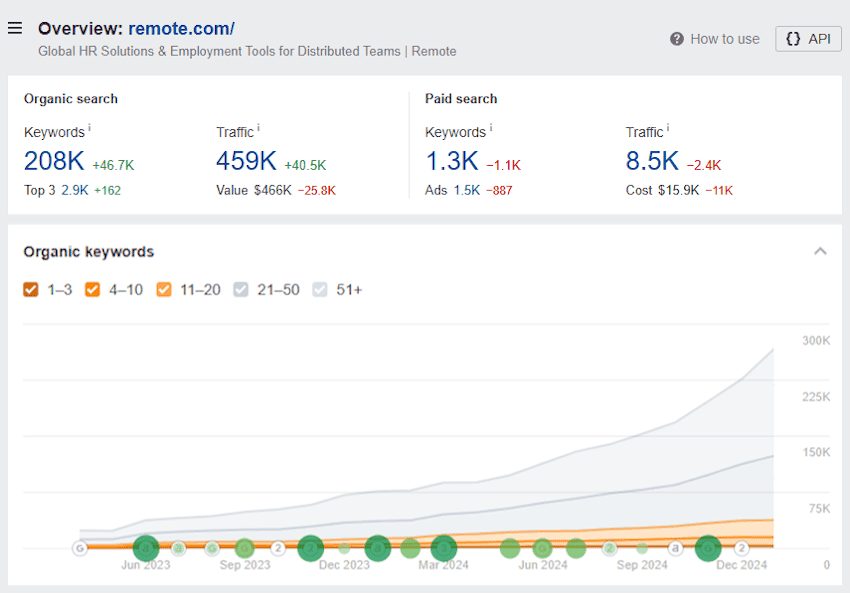
Revisit older articles that start losing traffic and refresh them with updated screenshots, fresher examples, stronger internal links, or revised metadata.
I highly recommend setting up a shared Work OS such as monday.com or ClickUp to manage your content production workflows in one place.
If you do this, create separate stages for each part of the workflow, such as:
Then assign owners, due dates, notes, and priority levels to every article so your team always knows what still needs attention.
You can also create custom fields to track details like:
(Make sure to attach the Google Doc, design assets, and CMS links directly inside the task so your team can access them during production.)
This also makes it easier to spot bottlenecks. For example, if articles keep getting stuck in QA or waiting on graphics, you’ll see those delays immediately instead of discovering them right before publishing day.
Manual publishing becomes harder to manage as your content calendar grows.
What starts as a simple upload process eventually turns into constant formatting cleanup and extra back-and-forth before articles can go live. 😑
A cleaner workflow makes publishing easier for everyone involved.
Create reusable systems your team can follow, organize your process early, and reduce manual cleanup in the CMS.
If your team already writes in Google Docs and publishes in WordPress, the fastest improvement is to remove the manual transfer between those two steps. Wordable can help you move articles into WordPress with less formatting cleanup afterward.
Modernize your content publishing workflow with Wordable now.
Usually, it’s too many review rounds, unclear ownership, messy formatting, and no real publishing process. Teams waste a lot of time fixing the same issues over and over because nothing’s standardized.
Most workflows use a mix of tools.
Google Docs is common for writing, CMS platforms handle publishing, SEO tools help with optimization, and a Work OS keeps everything organized.
Some teams also use tools for automated publishing, like Wordable.
Content creation is the writing part. Content publishing is everything that happens after the draft is finished, like formatting, uploading, optimizing, adding links and metadata, and pushing the article live.
An efficient content publishing strategy helps content go live faster with fewer mistakes. You can measure that by tracking publishing speed, revision rounds, consistency, and how quickly content starts ranking.
One of the biggest mistakes is making everything manual.
Teams often overcomplicate approvals and handle each article differently, rather than building a repeatable process that people can follow consistently.