


Content teams don’t just publish blog posts anymore. They also manage featured images, social media graphics, videos, screenshots, sales decks, and other assets. Before long, those files end up across cloud drives, design platforms, and shared folders.
As the library grows, finding the right asset often becomes harder than creating a new one. Someone might download an outdated logo. Or they might upload the same image twice because they can’t find the original.
A digital asset management (DAM) system helps solve those problems. But not every digital asset management feature will improve your workflow. Some save your team time every day. Others only help if you manage huge libraries or long approval chains.
This guide covers the DAM features content teams actually use to manage, share, and publish content. It also shows which features are worth paying for and which ones you can skip.
Highlights
A digital asset management system is a secure place where teams store, find, and share media files. Everything lives in one central spot.
Features are the tools inside the system that help you control your files. They let you sort, track, or edit your work.
These tools handle many media types. Your team might store blog images, video clips, podcast audio, or PDF guides. For example, a design team might store large photos there. A social media team might save short video clips.
These assets also move through a wider content production process. The DAM stores and manages the files. The rest of the process covers planning, drafting, editing, staging, and publishing.
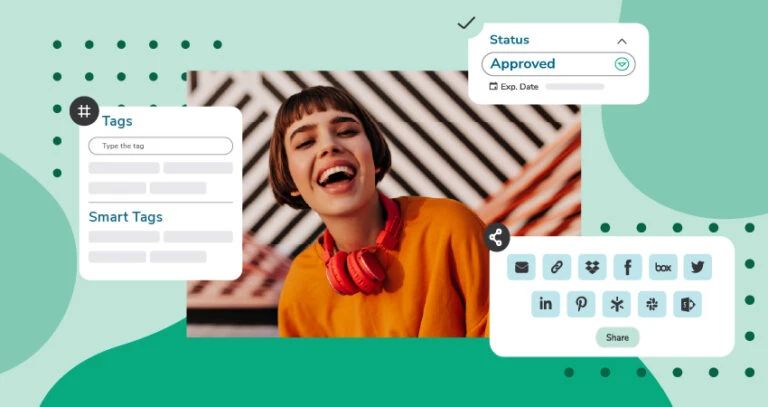
Every DAM platform offers a long list of features. The hard part is knowing which ones help your team and which ones you’ll rarely use.
The features below fix the problems content teams hit most often as they create, review, and publish content.
Content teams often save files in different places. That makes it hard to find the latest version.
A centralized asset library fixes that by giving everyone one place to work. It cuts down on duplicate files and keeps assets easy to find.
That gap is still common. According to Bynder’s 2024 content marketing trends survey, only 51% of large companies use a DAM for their content. And 45% have a DAM at the center of a linked set of tools, such as a CMS, PIM, and design platforms.
For example, a writer drafting a blog post and a social media manager promoting it can use the same approved product photo. Neither has to dig through folders or guess which version is right.
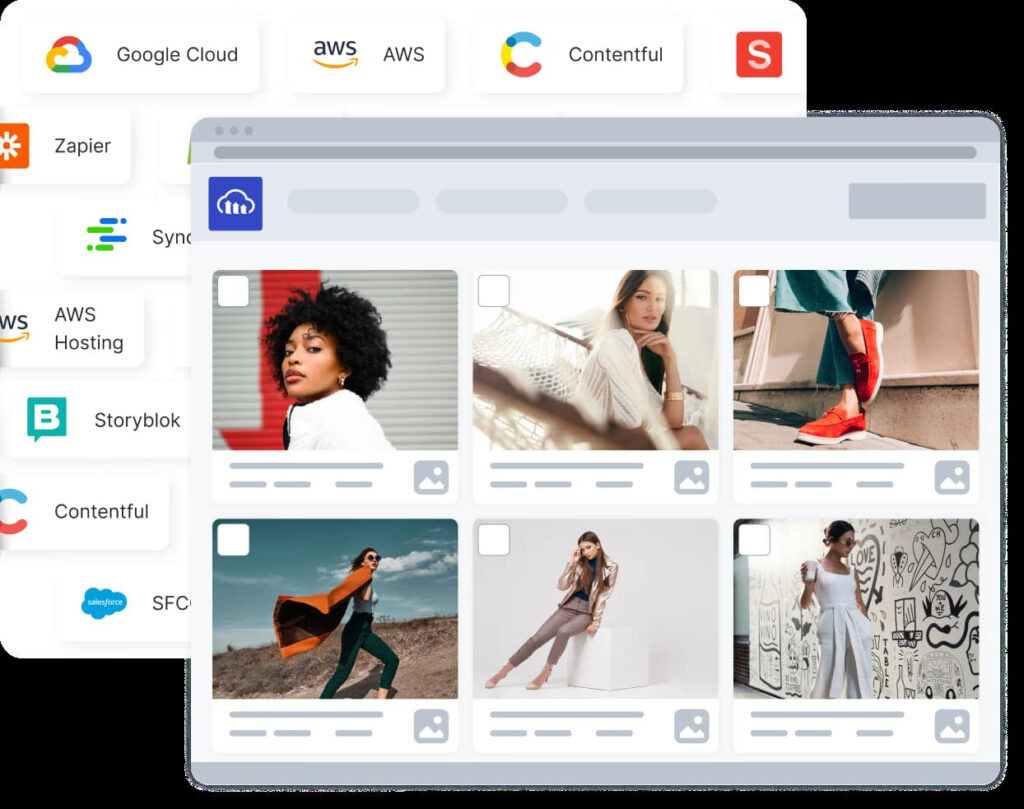
A well-organized library can be hard to use once it holds thousands of assets. Browsing folders isn’t enough. Your team needs a faster way to find what they’re looking for.
That’s where metadata helps. Keywords, tags, and custom fields add details to each asset. That makes searches much more precise. Many DAM platforms also use AI to tag files, so you don’t have to add every label by hand.
For example, searching “summer campaign,” “Instagram,” or a product name can bring up the exact approved assets in seconds. Your team doesn’t have to check every folder.
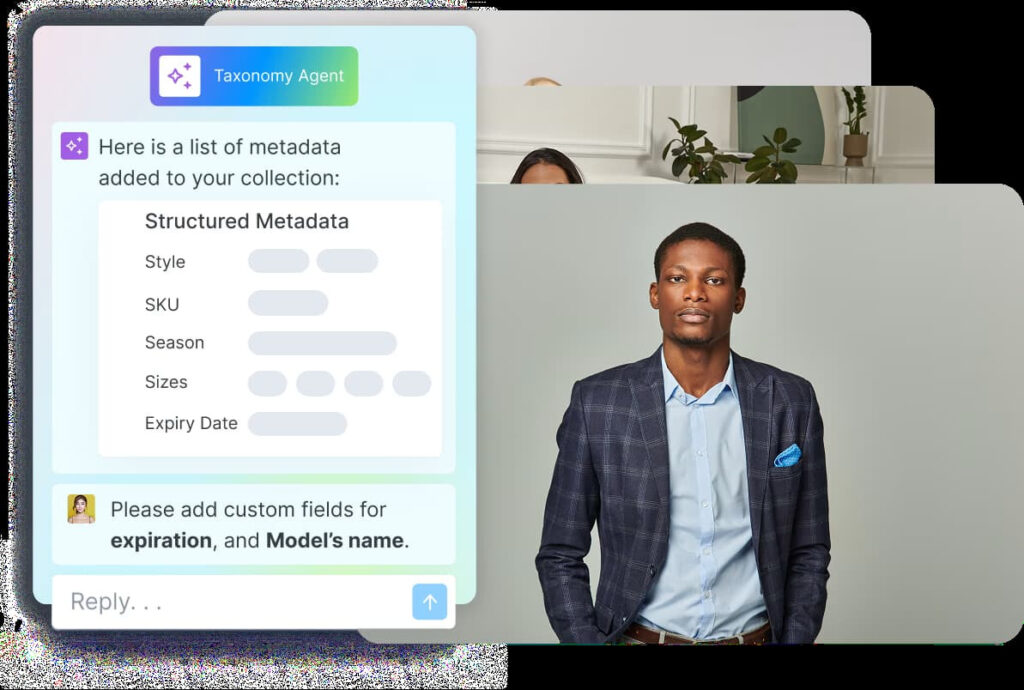
A good folder structure helps people know where files belong before they upload them. It also makes browsing easier when someone doesn’t know the exact file name.
Most teams sort assets by campaign, team, or project. Clear file names make that structure easier to follow. And collections help group related assets without moving the original files.
For example, a product launch can have one collection with its approved images, videos, logos, and sales files. Those assets can still live in different folders.
Content gets updated all the time. Version history keeps every revision in one place. Writers and editors can see what changed and restore an older version if needed. They can also make sure only approved assets stay in use.
Let’s say someone uploads a revised product logo by mistake. Your team can restore the approved version instead of searching through old folders or backups.
Not every file should be available to everyone. Some assets belong to the design team. Others should only be shared with marketing, leadership, or outside agencies.
Permissions let you control who can view, edit, download, or upload assets. That protects private files and helps keep your brand consistent across the company.
For example, an outside agency might get access to campaign images. It won’t see internal brand files or unfinished work.
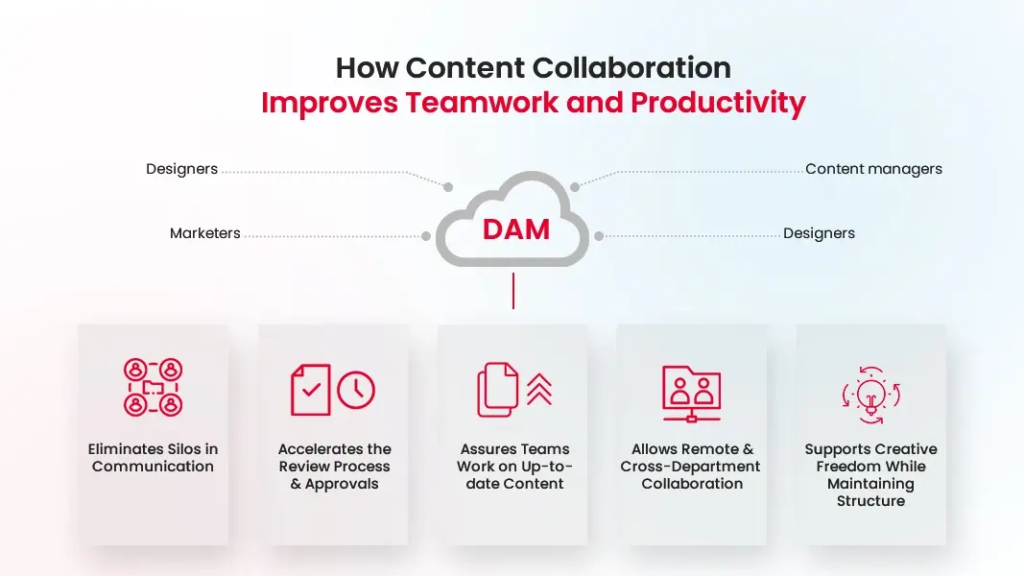
Creative work often passes through several people before it’s ready to publish. Without one place for feedback, comments end up scattered across emails and chat messages.
Collaboration tools keep comments, reviews, and approvals together. This helps projects move forward and cuts approval delays. These handoffs are also part of the content operations lifecycle. There, teams decide who owns each stage and how work moves on.
For example, a designer can receive feedback, update an image, and get final approval without sorting through long email threads.
A DAM becomes much more useful when it connects with the tools your team already uses. You don’t have to download and upload files between platforms. Assets move through your workflow with fewer manual steps.
Many DAM platforms connect with your CMS, cloud storage, design tools, and marketing software. A strong CMS integration sends approved assets straight to publishing. Your team won’t have to download, reupload, and reformat the same files.
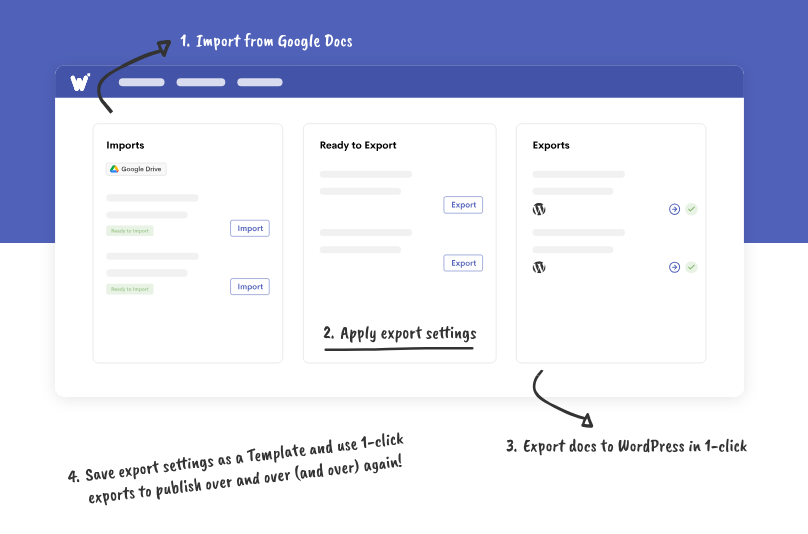
For example, a writer can pull approved images from the DAM into a CMS while drafting an article. Publishing gets even smoother when those assets move on into content production and publishing tools like Wordable. These tools cut the repeat formatting and upload work before content goes live.
Your brand assets should always be easy to find. If people use outdated logos or old templates, your content starts to look inconsistent across channels.
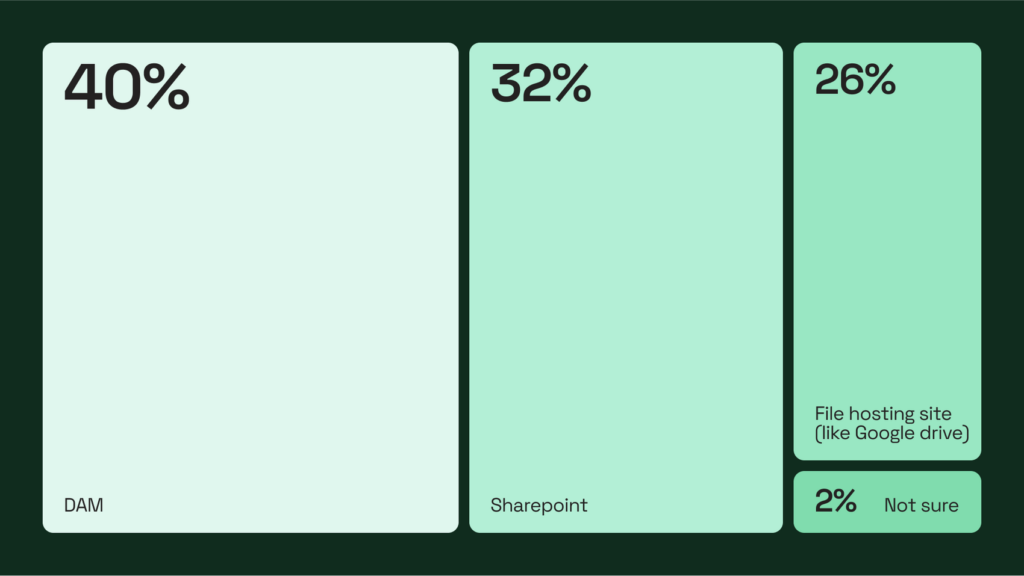
The need is measurable. Frontify’s 2025 marketing efficiency research found that 58% of companies could manage brand assets more efficiently. The same survey found that 40% of brands use a DAM for their assets. Another 32% still use SharePoint, and 26% use file-hosting sites like Google Drive.
Brand asset management keeps approved logos, fonts, templates, and brand guidelines in one place. Teams know which files they should use and which ones they should avoid.
For example, a sales team building a slide deck can grab the latest logo and template. They won’t reuse files from an old campaign.
Once assets are in use, it helps to know how people are using them. That helps your team keep the library tidy and remove files that no longer belong.
Many DAM platforms track downloads, popular assets, expired files, and audit trails. Some also show which assets help your content perform and which ones sit unused.
Say an old product brochure keeps getting downloaded after it expires. Your team can spot the issue and swap in the approved version before it spreads.
Comparing features is easy when you’re shopping for a DAM. The harder question is which ones your team will use once the software is in place. Start with the problems that slow your team down today. Those are usually the features worth paying for first.
Your priorities will also depend on the type of content your team creates and how people work together.
| Team needs | Highest-priority features |
| Small marketing team | Search, folders, version history |
| Content marketing | Metadata, approvals, integrations |
| Design team | Version control, previews, permissions |
| Enterprise marketing | Governance, reporting, automation |
For example, a small team that struggles to find files won’t get much from advanced automation. Better search, clear folders, and version history will fix daily problems first. A larger department with several teams may need stronger rules and reporting to keep assets in order.
Think beyond your current content workflow. Choose software that can handle more assets, users, and workflows as your team grows. Your content workflow should also account for what happens after assets are approved, including staging, formatting, and publishing.
Some advanced features only make sense for certain teams. Before paying for them, ask whether they’ll solve a problem your team actually has. For example:
If your team wants to cut repeat staging, formatting, and publishing work, content automation often matters more than a bloated DAM feature set.
Paying for extra features sounds appealing. But they won’t improve your workflow if your team never uses them.
The best digital asset management features help your team solve everyday problems. They:
More features don’t always mean a better DAM. The goal is to pick software that fits the way your team creates, shares, and publishes content.
Once your content is ready to go live, publishing should be just as simple. Wordable moves content into WordPress, HubSpot, and other platforms with less formatting and fewer upload steps. That gives your team a faster, more consistent way to publish.
No single feature is best for every team. The right choice depends on the problems you’re trying to solve.
For many content teams, strong search, version control, and a central library matter most. They make it easier to find approved files, avoid duplicates, and keep work organized.
Yes. Small teams can run into the same problems as larger ones, especially if they save files across different tools. A DAM keeps everything in one place. It helps people find the right files and avoid old versions. It also keeps content organized as the team takes on more work.
Yes. Many DAM platforms connect with your CMS, cloud storage, design tools, and other marketing software. Those links make it easier to move approved assets into publishing. Nobody has to download and reupload the same files.